
iPhone 和 Apple Watch 每天都会自动记录心率、步数、睡眠、血氧等数据。用上几年,记录就会达到数百万条。这些长期、真实的生活数据很难从别处获得,对研究和开发都很有价值。
不过,“健康”App 导出的是一个有时超过 1 GB 的巨大 XML 文件,Excel 等工具无法直接打开。本文整理了 HealthKit 记录的数据,并介绍如何用 Mac 应用 HealthKit Parser 把它转换为 CSV 进行分析。
什么是 HealthKit
HealthKit 是 Apple 在 iPhone 上集中保存健康数据的框架。除了 iPhone 和 Apple Watch 自动测量的数据,体重秤、血压计的 App 以及记录睡眠、饮食的 App 等写入的数据也都汇集在这里。“健康”App 就是查看这些数据的 App。
其他 App 要读取 HealthKit 的数据,需要用户按数据类型逐一授权。自己开发 App 也可以直接从 HealthKit 读取数据,但如果只是想把自己的记录全部取出来,使用“健康”App 的导出功能最简单。
HealthKit 记录的数据一览
HealthKit 的每种数据都有一个标识符,例如 HKQuantityTypeIdentifierHeartRate(心率)。导出的数据和 HealthKit Parser 生成的 CSV 的 type 列中,都会原样写入这个标识符。下面大致按照“健康”App 的分类,整理了主要的数据。
“单位(示例)”是导出数据中的单位,可能会随 iPhone 的设置而变化(例如 km 和 mi)。“主要记录来源”表示数据通常来自哪里,仅供参考。
活动
| 数据 | type 列中的值 | 单位(示例) | 主要记录来源 |
|---|---|---|---|
| 步数 | HKQuantityTypeIdentifier | count | iPhone、Apple Watch |
| 步行 + 跑步距离 | HKQuantityTypeIdentifier | km | iPhone、Apple Watch |
| 已爬楼层 | HKQuantityTypeIdentifier | count | iPhone、Apple Watch |
| 活动能量 | HKQuantityTypeIdentifier | kcal | Apple Watch |
| 静息能量 | HKQuantityTypeIdentifier | kcal | Apple Watch |
| 锻炼分钟数 | HKQuantityTypeIdentifier | min | Apple Watch |
| 站立分钟数 | HKQuantityTypeIdentifier | min | Apple Watch |
| 站立小时数 | HKCategoryTypeIdentifier | — | Apple Watch |
| 身体活动强度 | HKQuantityTypeIdentifier | kcal/hr·kg | Apple Watch |
| 心肺适能(最大摄氧量) | HKQuantityTypeIdentifier | mL/min·kg | Apple Watch |
| 日光下时间 | HKQuantityTypeIdentifier | min | Apple Watch |
| 骑行距离 | HKQuantityTypeIdentifier | km | Apple Watch、其他 App 和设备 |
| 游泳距离、划水次数 | HKQuantityTypeIdentifierHKQuantityTypeIdentifier | m, count | Apple Watch |
| 跑步速度、功率、步长、垂直振幅、触地时间 | HKQuantityTypeIdentifierHKQuantityTypeIdentifierHKQuantityTypeIdentifierHKQuantityTypeIdentifierHKQuantityTypeIdentifier | W, m, cm, ms … | Apple Watch |
| 体能训练强度(估算) | HKQuantityTypeIdentifier | appleEffortScore | Apple Watch |
心脏
| 数据 | type 列中的值 | 单位(示例) | 主要记录来源 |
|---|---|---|---|
| 心率 | HKQuantityTypeIdentifier | count/min | Apple Watch |
| 静息心率 | HKQuantityTypeIdentifier | count/min | Apple Watch |
| 步行平均心率 | HKQuantityTypeIdentifier | count/min | Apple Watch |
| 心率变异性(HRV) | HKQuantityTypeIdentifier | ms | Apple Watch |
| 心率恢复(1 分钟) | HKQuantityTypeIdentifier | count/min | Apple Watch |
| 房颤历史 | HKQuantityTypeIdentifier | % | Apple Watch |
| 高心率、低心率和心律不齐通知 | HKCategoryTypeIdentifierHKCategoryTypeIdentifierHKCategoryTypeIdentifier | — | Apple Watch |
呼吸
| 数据 | type 列中的值 | 单位(示例) | 主要记录来源 |
|---|---|---|---|
| 呼吸速率 | HKQuantityTypeIdentifier | count/min | Apple Watch |
| 血氧 | HKQuantityTypeIdentifier | % | Apple Watch |
| 呼吸紊乱 | HKQuantityTypeIdentifier | count | Apple Watch |
| 睡眠呼吸暂停通知 | HKCategoryTypeIdentifier | — | Apple Watch |
睡眠
| 数据 | type 列中的值 | 单位(示例) | 主要记录来源 |
|---|---|---|---|
| 睡眠(卧床、核心、深度、快速眼动、清醒) | HKCategoryTypeIdentifier | — | Apple Watch、iPhone、其他 App 和设备 |
| 睡眠时手腕温度 | HKQuantityTypeIdentifier | degC | Apple Watch |
| 睡眠时长目标 | HKData | hr | “健康”App |
行走能力
| 数据 | type 列中的值 | 单位(示例) | 主要记录来源 |
|---|---|---|---|
| 步行速度 | HKQuantityTypeIdentifier | km/hr | iPhone |
| 步长 | HKQuantityTypeIdentifier | cm | iPhone |
| 步行不对称性 | HKQuantityTypeIdentifier | % | iPhone |
| 双足支撑时间 | HKQuantityTypeIdentifier | % | iPhone |
| 步行稳定性 | HKQuantityTypeIdentifier | % | iPhone |
| 楼梯速度(上楼、下楼) | HKQuantityTypeIdentifierHKQuantityTypeIdentifier | m/s | iPhone、Apple Watch |
| 六分钟步行距离(估算) | HKQuantityTypeIdentifier | m | iPhone |
听力
| 数据 | type 列中的值 | 单位(示例) | 主要记录来源 |
|---|---|---|---|
| 环境音量 | HKQuantityTypeIdentifier | dBASPL | Apple Watch |
| 耳机音量 | HKQuantityTypeIdentifier | dBASPL | iPhone |
| 嘈杂环境通知 | HKCategoryTypeIdentifier | — | Apple Watch |
身体测量
| 数据 | type 列中的值 | 单位(示例) | 主要记录来源 |
|---|---|---|---|
| 身高 | HKQuantityTypeIdentifier | cm | 手动输入、其他 App 和设备 |
| 体重 | HKQuantityTypeIdentifier | kg | 其他 App 和设备、手动输入 |
| 身体质量指数(BMI) | HKQuantityTypeIdentifier | count | 其他 App 和设备、手动输入 |
| 体脂率 | HKQuantityTypeIdentifier | % | 其他 App 和设备、手动输入 |
| 去脂体重 | HKQuantityTypeIdentifier | kg | 其他 App 和设备、手动输入 |
| 腰围 | HKQuantityTypeIdentifier | cm | 手动输入 |
生命体征
| 数据 | type 列中的值 | 单位(示例) | 主要记录来源 |
|---|---|---|---|
| 血压(收缩压、舒张压) | HKQuantityTypeIdentifierHKQuantityTypeIdentifier | mmHg | 其他 App 和设备、手动输入 |
| 体温 | HKQuantityTypeIdentifier | degC | 其他 App 和设备、手动输入 |
| 基础体温 | HKQuantityTypeIdentifier | degC | 其他 App 和设备、手动输入 |
| 血糖 | HKQuantityTypeIdentifier | mg/dL | 其他 App 和设备、手动输入 |
营养
| 数据 | type 列中的值 | 单位(示例) | 主要记录来源 |
|---|---|---|---|
| 膳食能量、蛋白质、总脂肪、碳水化合物 | HKQuantityTypeIdentifierHKQuantityTypeIdentifierHKQuantityTypeIdentifierHKQuantityTypeIdentifier | kcal, g | 其他 App 和设备、手动输入 |
| 水、咖啡因 | HKQuantityTypeIdentifierHKQuantityTypeIdentifier | mL, mg | 其他 App 和设备、手动输入 |
| 膳食纤维、维生素、矿物质等(30 多种) | HKQuantityTypeIdentifierHKQuantityTypeIdentifier… | g, mg, µg … | 其他 App 和设备、手动输入 |
其他
| 数据 | type 列中的值 | 单位(示例) | 主要记录来源 |
|---|---|---|---|
| 正念分钟数 | HKCategoryTypeIdentifier | — | Apple Watch、其他 App 和设备 |
| 洗手 | HKCategoryTypeIdentifier | — | Apple Watch |
| 刷牙 | HKCategoryTypeIdentifier | — | 其他 App 和设备 |
| 摔倒次数 | HKQuantityTypeIdentifier | count | Apple Watch |
| 经期跟踪(月经等) | HKCategoryTypeIdentifier… | — | 手动输入、其他 App 和设备 |
| 症状(头痛、发烧、咳嗽等) | HKCategoryTypeIdentifierHKCategoryTypeIdentifierHKCategoryTypeIdentifier… | — | 手动输入 |
| 紫外线指数 | HKQuantityTypeIdentifier | count | 其他 App 和设备 |
单位为“—”的是分类数据,value 列中是 HKCategoryValueSleepAnalysisAsleepCore(核心睡眠)这样的分类值。
此外还有听力测试结果、体能训练中的速度等,HealthKit 的数据类型总共超过 100 种。实际包含哪些数据,取决于你使用的设备和 App。笔者约 9 年(2017–2026 年)的导出数据中,共有 42 种、约 308 万条记录,其中最多的是 Apple Watch 的活动能量和心率,各约 70 万条。
在 iPhone 上导出健康数据
- 在 iPhone 上打开“健康”App,轻点右上角的个人资料图标。
- 在页面最下方轻点“导出所有健康数据”,出现确认后轻点“导出”。数据较多时,导出需要几分钟。
- 出现共享菜单后,用隔空投送发送到 Mac,或者存储到“文件”后再移到 Mac。
- 在 Mac 上双击 zip 文件解压。
解压后会得到一个名为 apple_health_export 的文件夹,里面包含:
export.xml:所有记录。HealthKit Parser 读取的就是这个文件export_cda.xml:以医疗信息标准格式(HL7 CDA)写成的记录electrocardiograms:用 Apple Watch 记录的心电图波形(CSV)workout-routes:体能训练的路线(GPX)
用 HealthKit Parser 转换为 CSV
HealthKit Parser 是一款读取 export.xml、把记录导出为 CSV 的 Mac 应用。所有处理都在 Mac 上完成,数据不会被发送到任何地方。
1. 导入 export.xml
启动 HealthKit Parser 后,会打开一个新文档窗口。点击工具栏中的“Import XML”,选择解压后文件夹中的 export.xml。
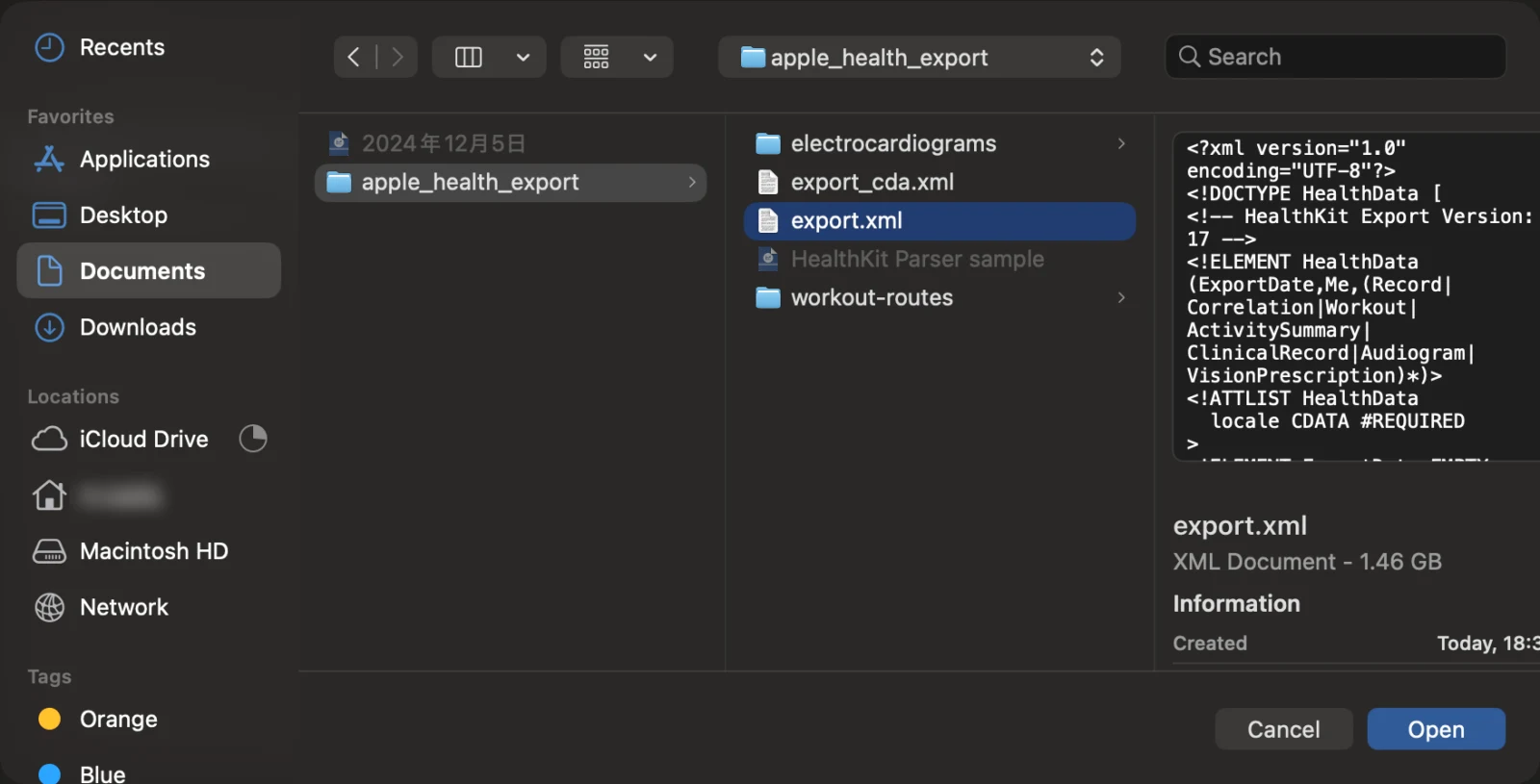
导入需要一些时间。笔者 1.4 GB 的 export.xml(约 308 万条记录)在 MacBook Pro(M4)上用了约 14 分钟。导入完成前,窗口右下角会显示“Parsing XML…”。
2. 确认数据类型和条数
导入完成后,窗口中会显示记录的期间(开始和结束)、记录条数,以及所有数据类型和各自的条数。标题和备注可以自由填写。
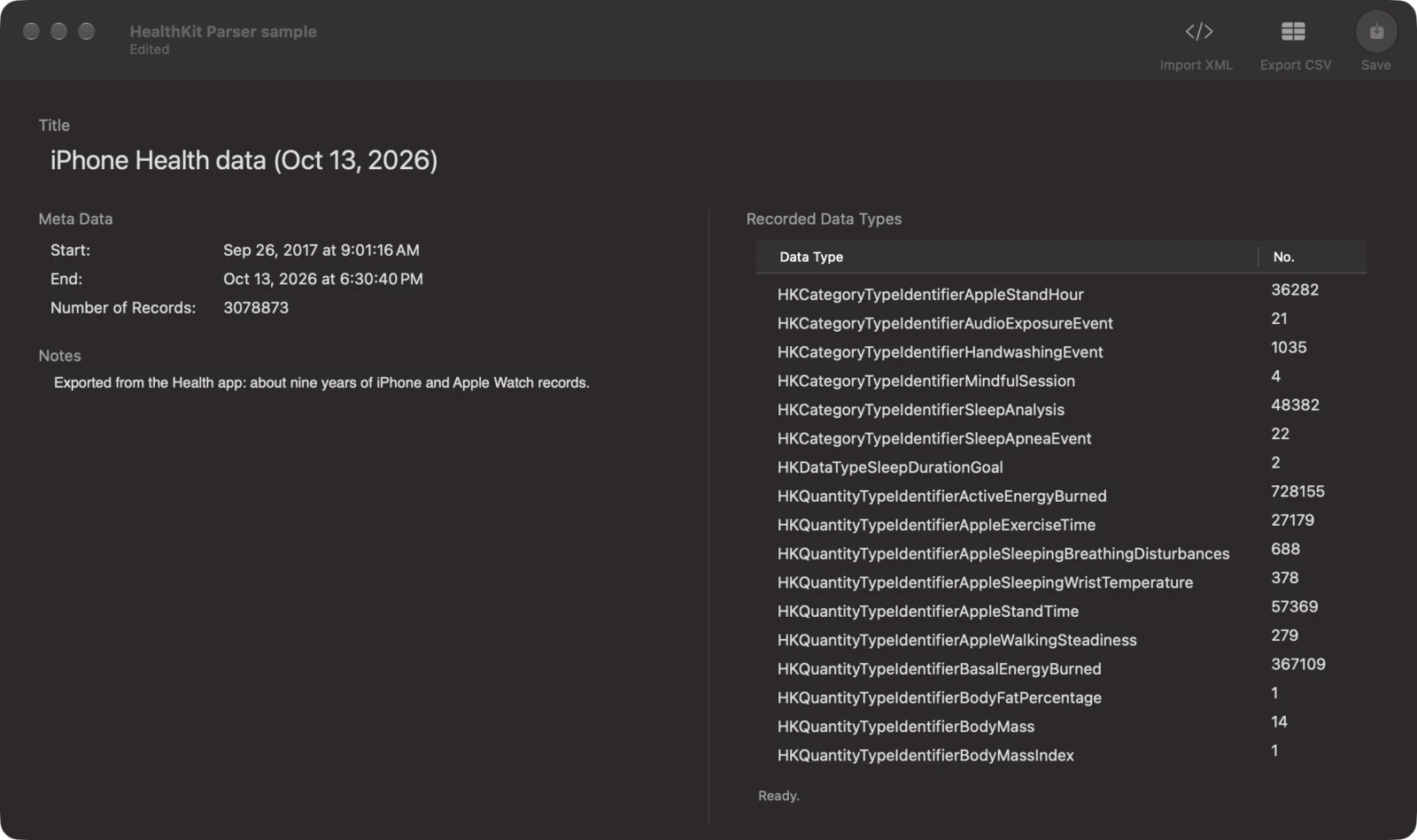
保存文档后,下次无需重新导入 export.xml 就能立即打开。需要按不同期间多次导出时很方便。
3. 导出为 CSV
点击工具栏中的“Export CSV”,选择要导出的期间和数据类型,然后点击“Export”。期间可以选“All Time”(全部),也可以用开始和结束日期来缩小范围。
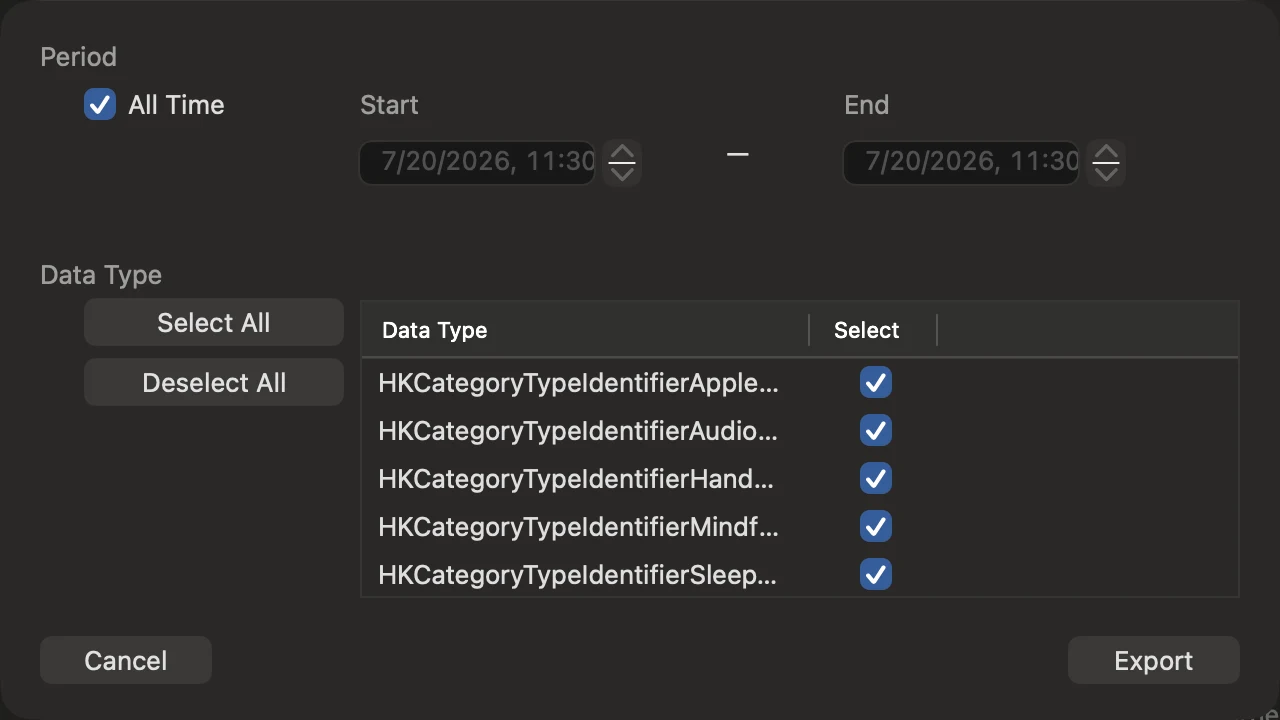
也可以一次导出所有类型,但记录有数百万条时 CSV 会很大。只选择分析需要的类型,处理起来会轻松很多。
CSV 的内容
CSV 中每一行是一条记录,包含以下各列:
| 列 | 内容 |
|---|---|
type | 数据类型(上表中的标识符) |
unit | 单位 |
value | 值。睡眠等分类数据是表示分类的文本 |
start, end | 记录的开始和结束时间,精确到分钟,格式取决于 Mac 的“语言与地区”设置 |
start_UT, end_UT | 用 Unix 时间(秒)表示的开始和结束时间 |
creation, creation_UT | 记录保存到 HealthKit 的时间,以及对应的 Unix 时间 |
device | 记录数据的设备(型号和软件版本) |
source name, source version | 记录数据的 App 或设备的名称及其版本 |
下面是导出的静息心率示例(仅部分列):
| type | unit | value | start_UT | end_UT |
|---|---|---|---|---|
HKQuantityTypeIdentifier | count/min | 63 | 1791559483.0 | 1791640198.0 |
HKQuantityTypeIdentifier | count/min | 63 | 1791645830.0 | 1791714436.0 |
HKQuantityTypeIdentifier | count/min | 58 | 1791737624.0 | 1791765440.0 |
_UT 列(Unix 时间)
列名以 _UT 结尾的列,用 Unix 时间表示日期和时间。Unix 时间是从 1970 年 1 月 1 日 0 时 0 分 0 秒(协调世界时,UTC)起经过的秒数,不受时区影响。
- 即使出国旅行或出差改变了时区,记录的顺序和间隔也不会错乱
- 只需相减,就能得到睡眠阶段等区间的长度(秒)
- 精确到秒(
start等列只到分钟) - 便于按时间与研究设备或其他传感器的数据对齐
- 显示时可以转换为任意时区
用 Python(pandas)可以这样读取。标题行的逗号后面有空格,因此要加上 skipinitialspace=True。
import pandas as pd

df = pd.read_csv("resting_heart_rate.csv", skipinitialspace=True)

# Unix 时间 → 日期时间(UTC)→ 北京时间
df["start_local"] = (pd.to_datetime(df["start_UT"], unit="s", utc=True)
                     .dt.tz_convert("Asia/Shanghai"))

# 区间长度(秒)
df["seconds"] = df["end_UT"] - df["start_UT"]
在 Excel 中,用 =E2/86400+DATE(1970,1,1) 计算并把单元格格式设为日期时间,即可得到 UTC 时间(E 列为 start_UT 时)。要换成北京时间,再加上 8/24。
分析时的注意事项
- 同一数据可能重复:同时使用 iPhone 和 Apple Watch 时,步数和距离会被两者分别记录。“健康”App 显示时会去除重复,但导出的数据中两者都有。求和前,请用
source name或device列筛选记录来源。 - 百分比是 0 到 1 的值:单位为 % 的数据(血氧、体脂率、步行不对称性等)中,97% 记作 0.97。
- 确认单位:单位可能随 iPhone 的设置而变化。计算前请先确认
unit列。 - 分类数据每行是一个区间:睡眠的
value列中是HKCategoryValueSleepAnalysisAsleepCore(核心)、…AsleepDeep(深度)、…AsleepREM(快速眼动)、…Awake(清醒)等值,每行是一个区间。区间长度为end_UT − start_UT。 - 处理他人的数据时:健康数据是非常敏感的个人信息。在研究中使用参与者的数据时,请遵循所在机构的伦理审查和知情同意程序。
CSV 中不包含的内容
HealthKit Parser 转换的是 export.xml 中的各条记录。体能训练的汇总(类型、时长、总距离等)、健身记录圆环的每日统计,以及出生日期、血型等个人资料不包含在内。体能训练中的心率、距离和消耗的能量,会作为各条记录包含在 CSV 中。
心电图波形和体能训练路线,已经以 CSV 和 GPX 文件的形式放在解压后的文件夹中,可以直接使用。
总结
把 iPhone 和 Apple Watch 的记录导出并转换为 CSV 后,就可以在 Excel、R、Python 等中自由分析。利用 _UT 列,可以不必担心时区,把它与其他数据组合起来。
HealthKit Parser 在 Mac App Store 以买断制销售(macOS 12 或更高版本),没有订阅。