


Why Orviss
- Two ways in: by project and by date
- Notes, files, web pages and emails in the same folder
- Plain Markdown, stored on your local disk
- An outboard brain that AI agents can read and write
- Progress tracking with Mermaid Gantt charts
- On Mac and Windows now — iPhone and iPad coming soon
Orviss in practice
Articles on how to use Orviss for different kinds of work.
What Orviss can do
Project-based information management
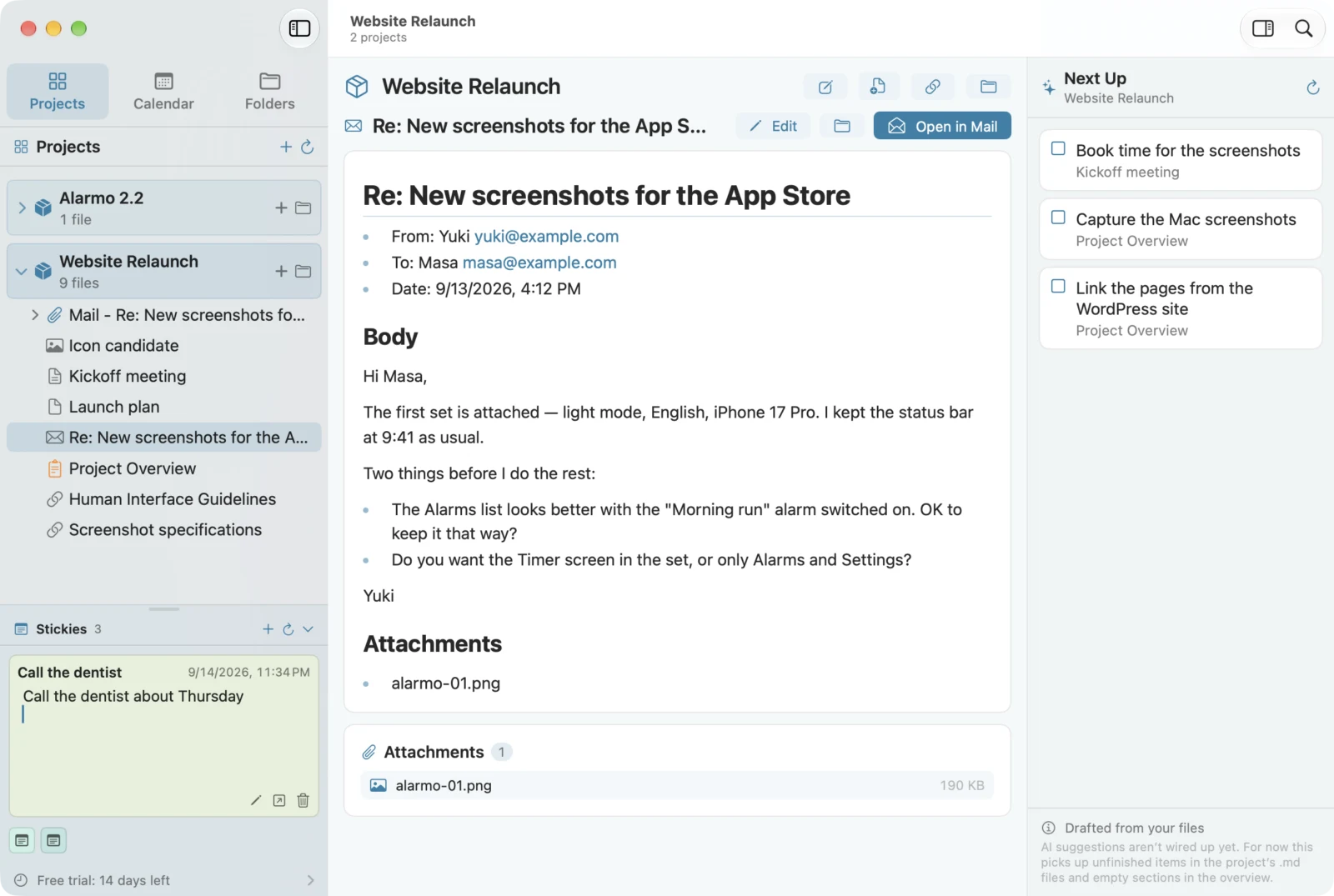
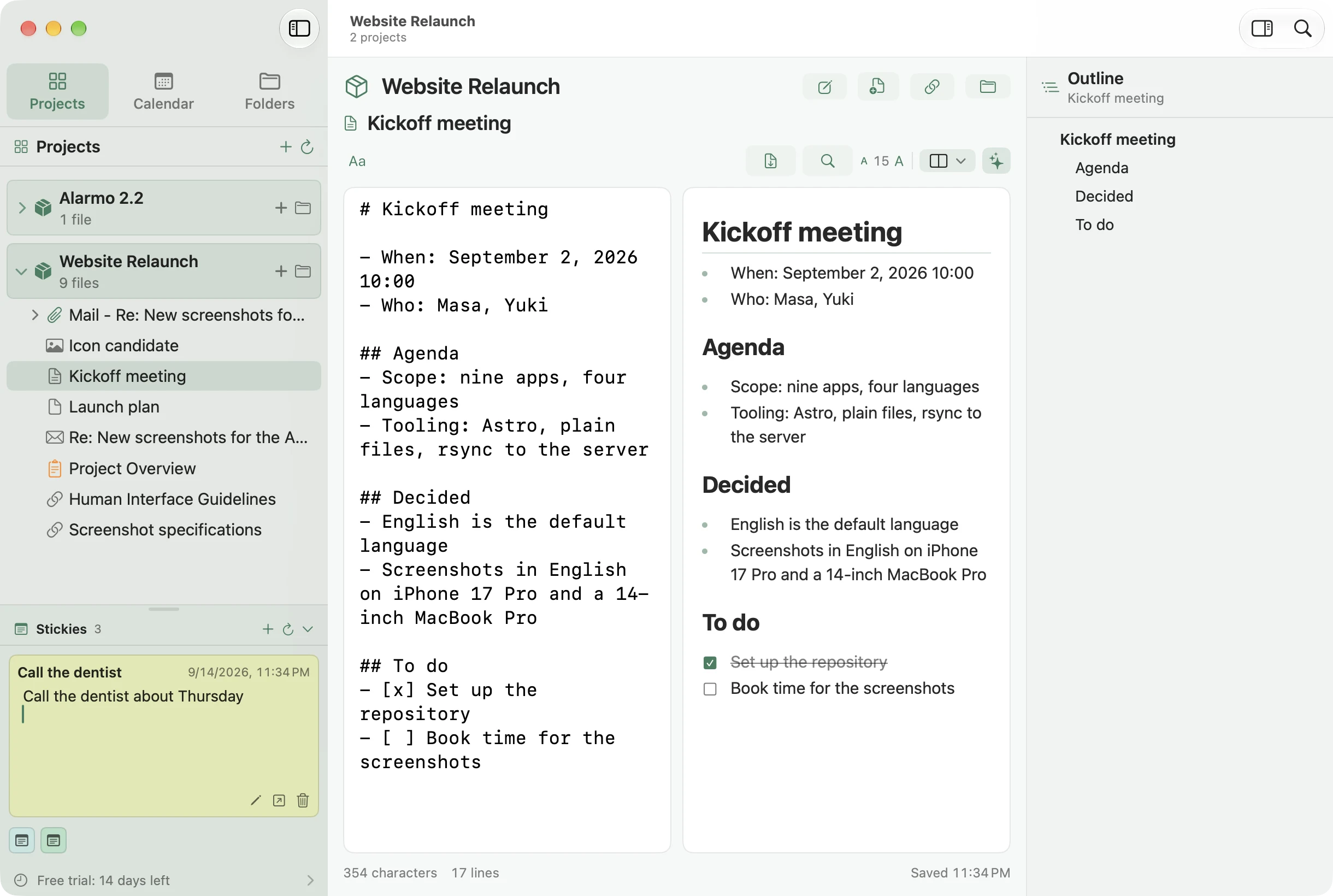
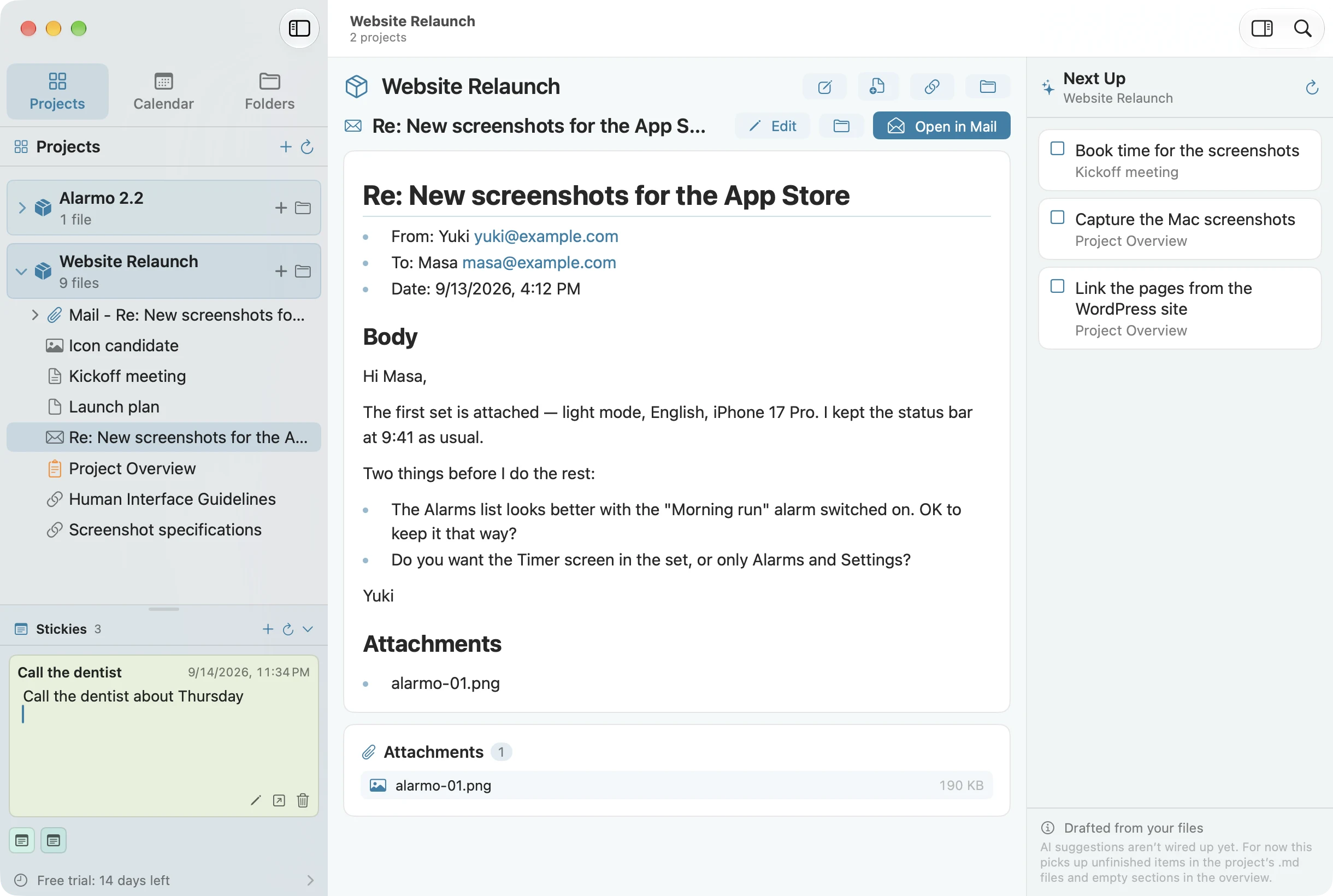
A project is a folder. It starts with an overview note — goal, background, people, where things stand, next steps — and everything that belongs to the project goes inside: files, notes, web pages, emails. Unfinished items in the project's notes surface under Next Up, and finished projects move to the archive.
- The overview template is yours to edit
- Unchecked tasks, empty headings and projects you haven't touched in a while are surfaced automatically
- Folder contents shown as a tree; drag to rearrange
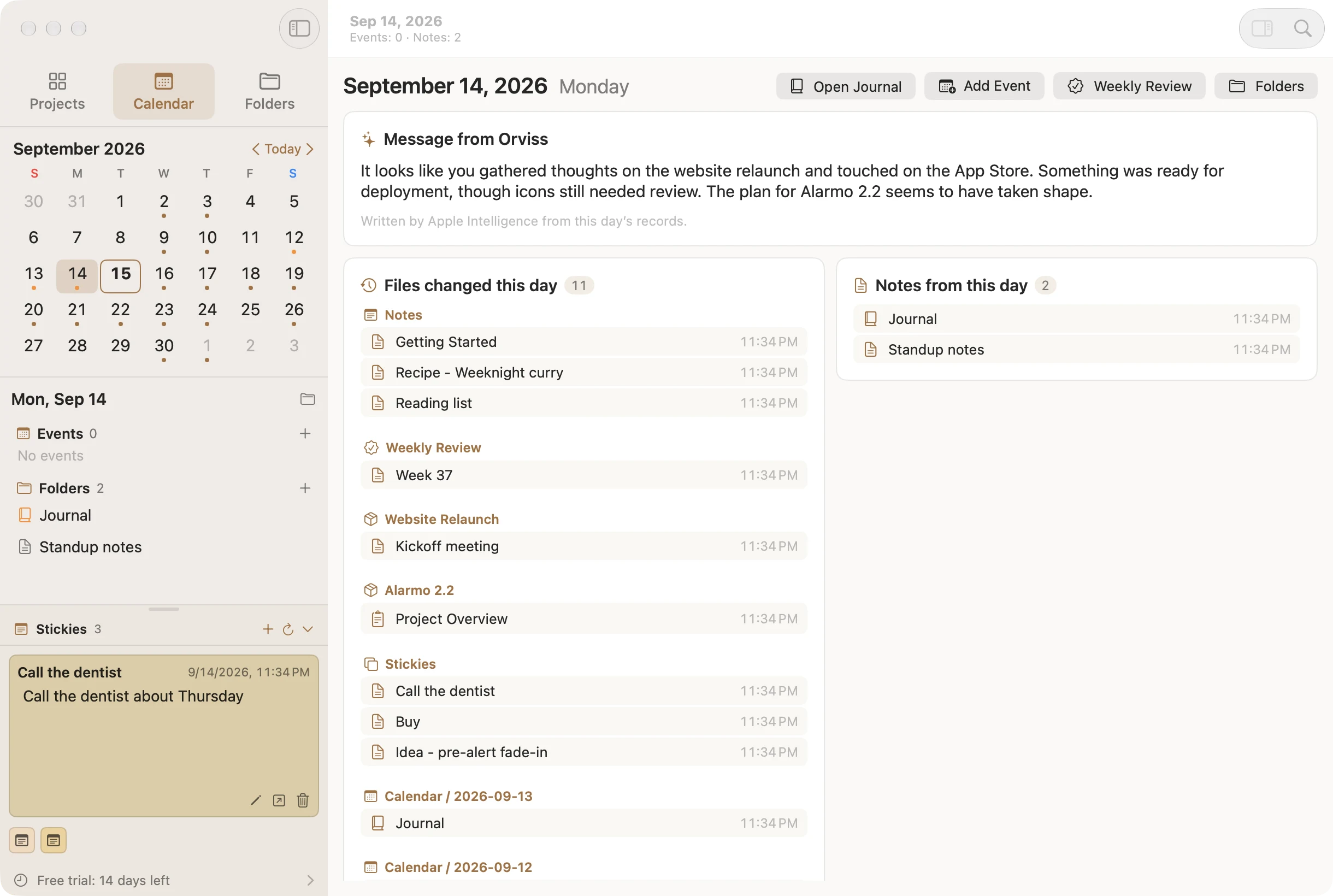
Calendar-based notes, day by day
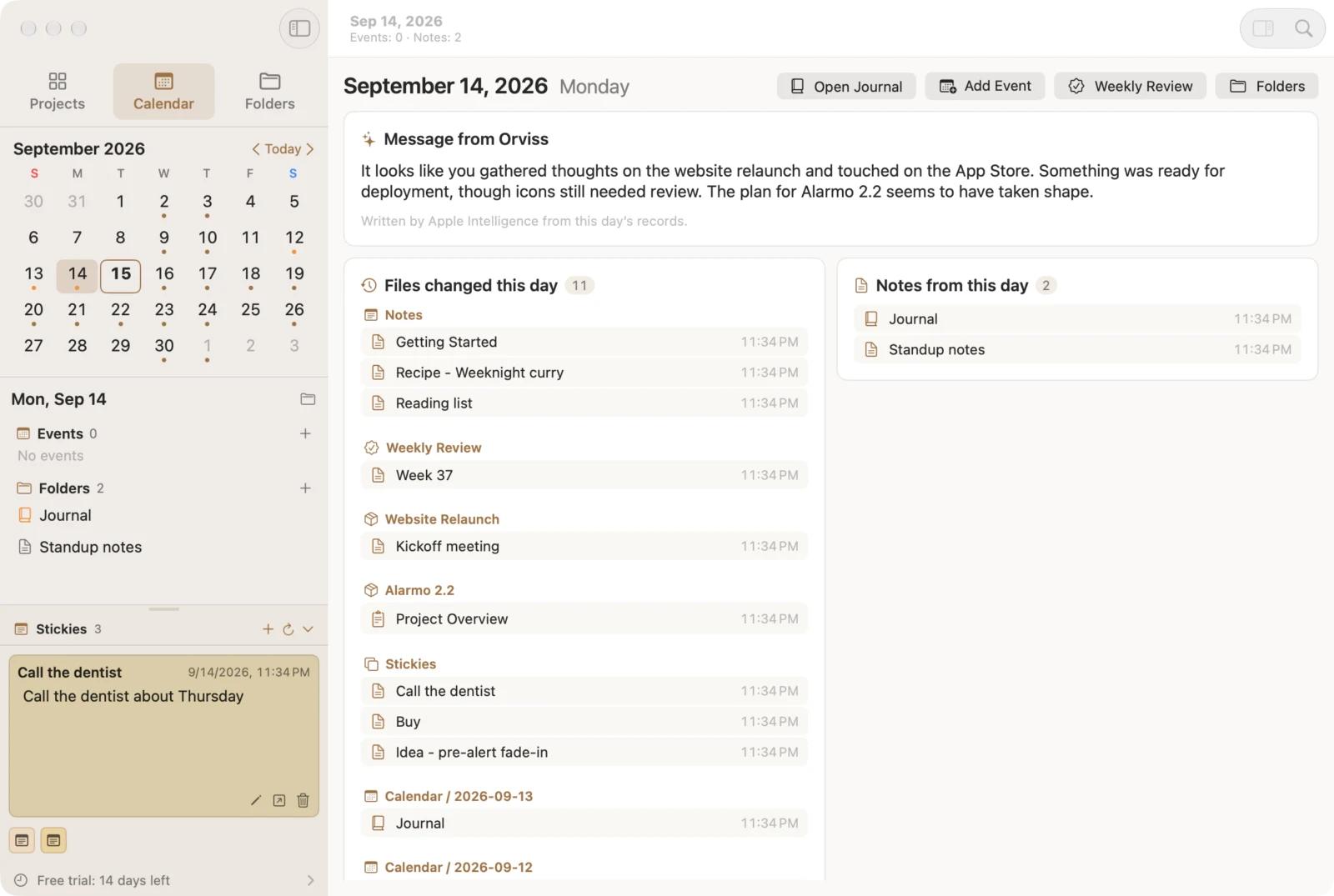
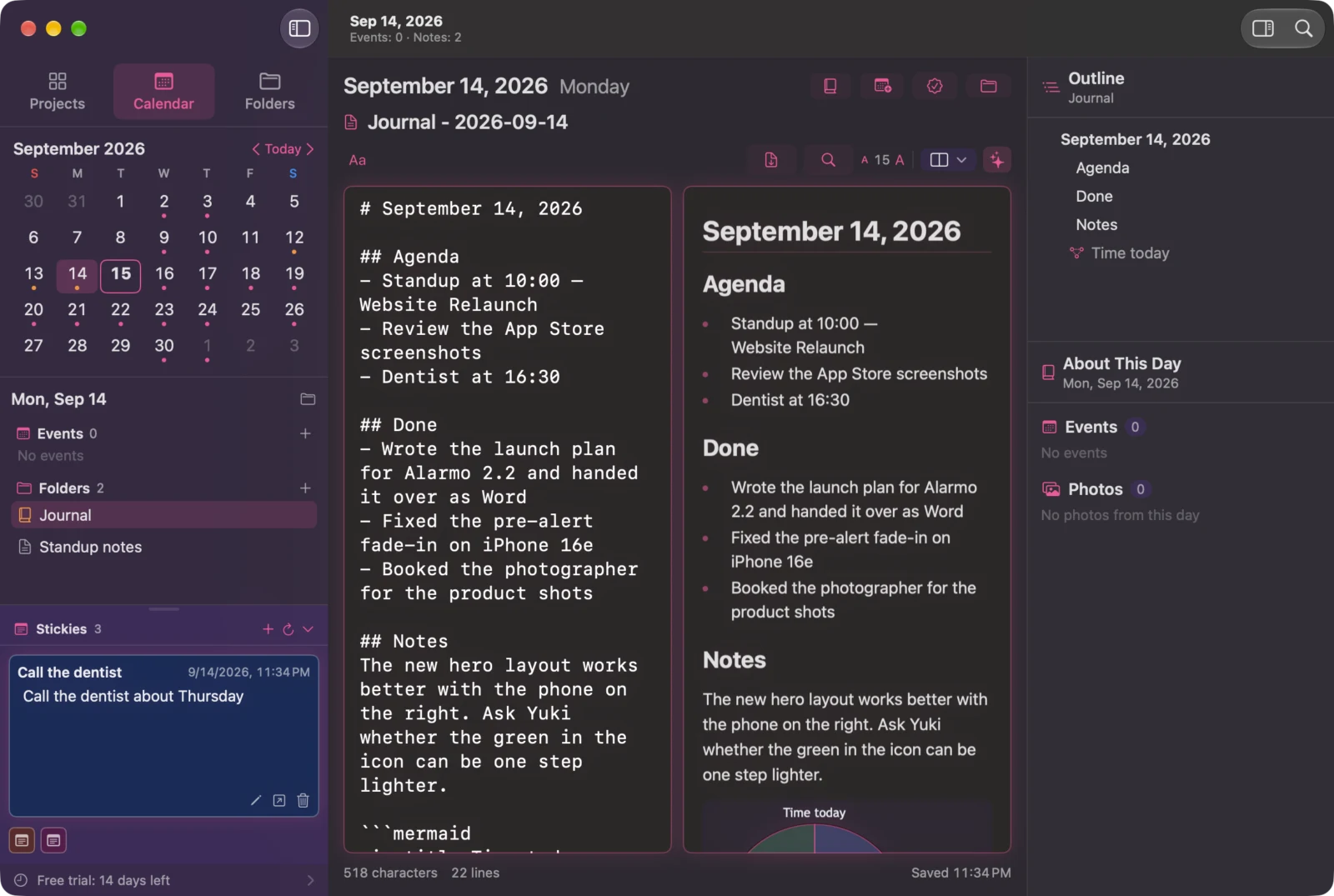
One folder per day. Open a date and the events from your calendar, the journal you wrote, the notes and files you changed, the photos you took and the steps you walked come together on one page. Write today's journal from a template, add a memo, drop in the files and emails that arrived that day — and one folder tells you what happened.
- Create and edit calendar events in place
- Several journal templates, with placeholders such as {{date}}
- Calendar, photo and step data are optional
Everything about a task, in one place
What sets Orviss apart is that a folder can hold more than Markdown. Drop files from the Finder as they are. Drop a page from Safari and it becomes a “URL – title.md” note with the title and link. Drop a message from Mail and it becomes a “Mail – subject.md” note with the sender, date, body and attachments — plus a link back to the original message. On iPhone and iPad (coming soon), the share sheet will do the same.
- Keep Word files, PDFs and images as they are
- Web pages become notes with a title and URL
- Emails become Markdown with body and attachments, linked to Mail
- They are all just files, so the Finder works too
A local second brain for your AI agent
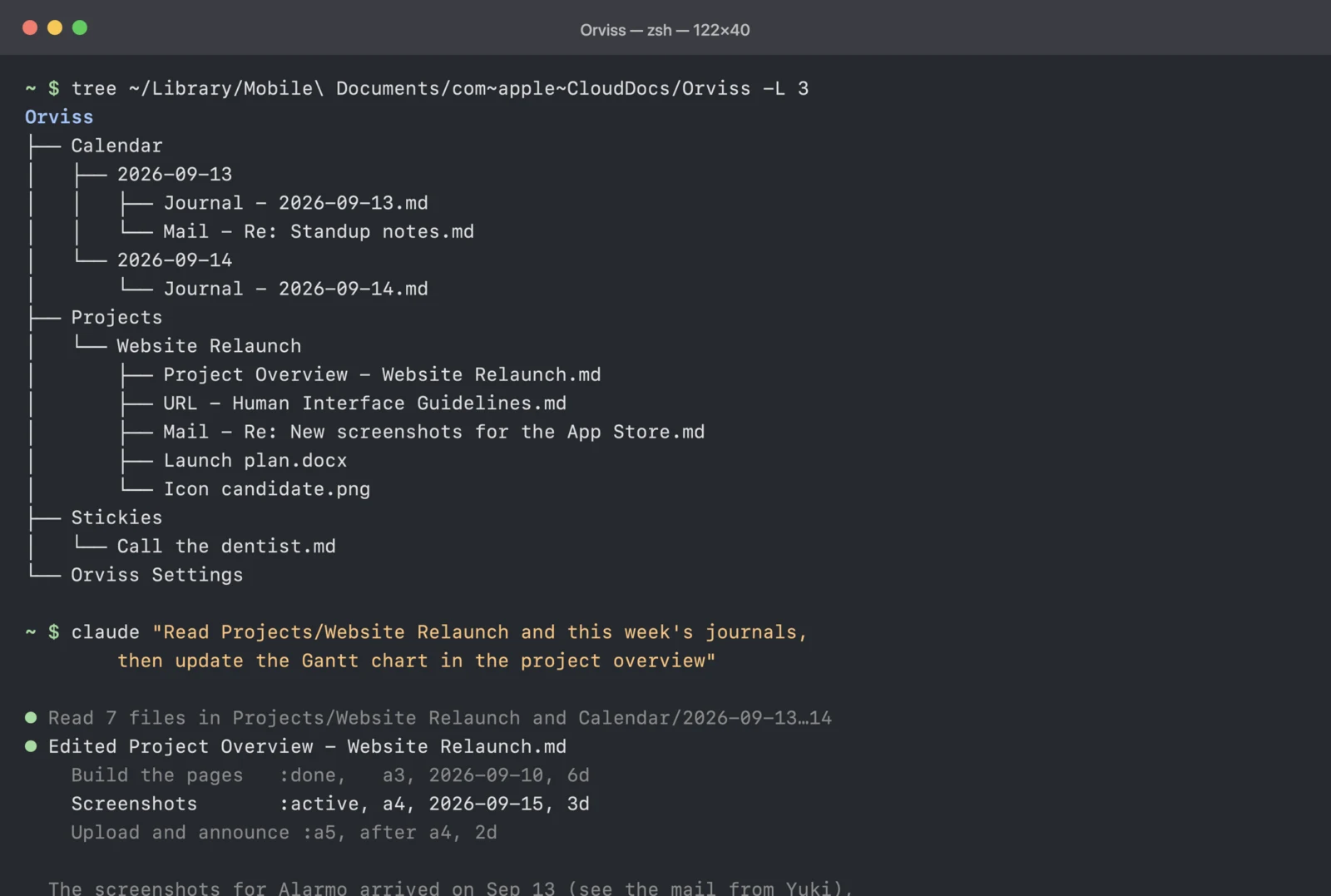
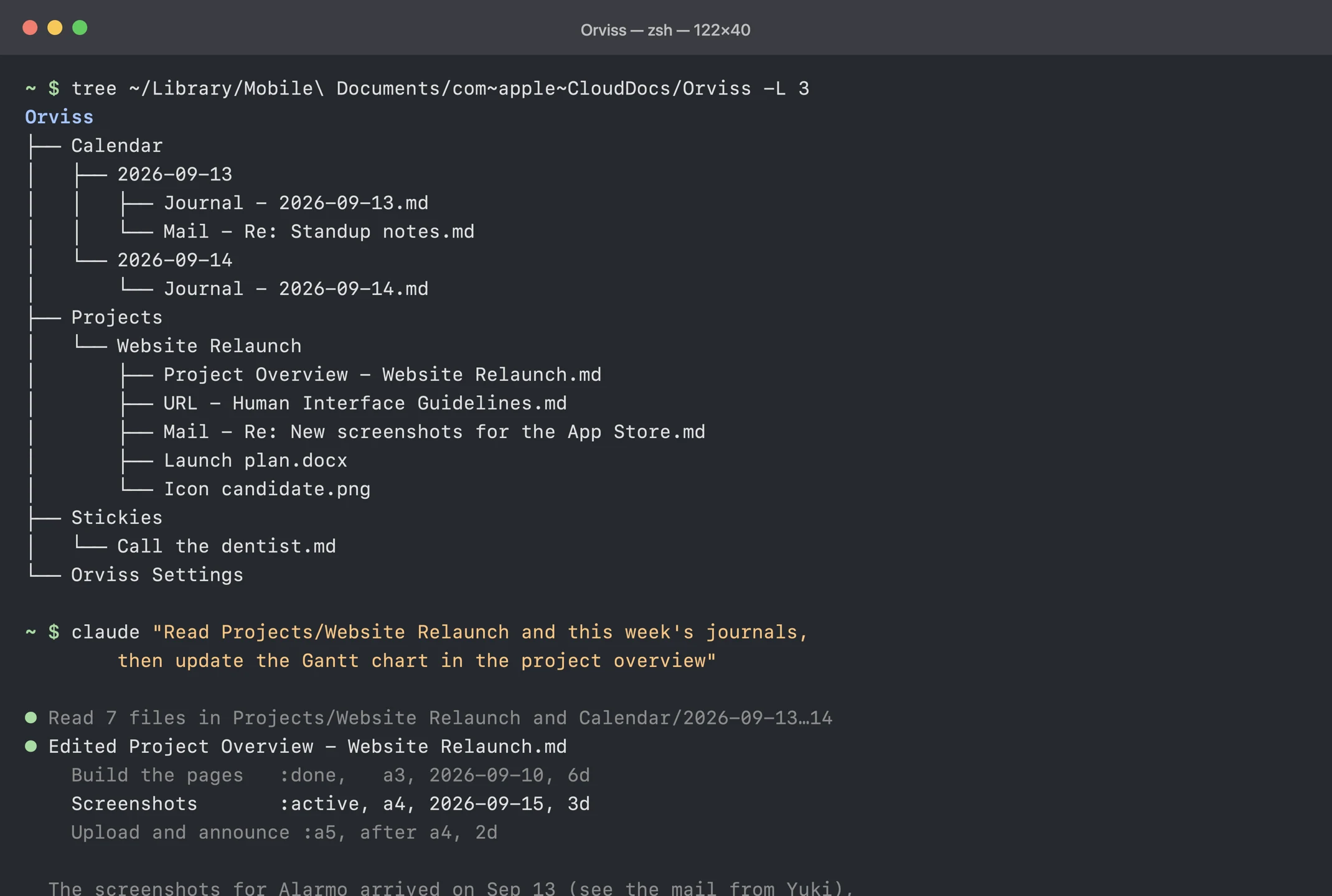
Everything Orviss manages is plain Markdown and ordinary files on your local disk — no database, no proprietary format. Point an AI agent such as Claude Code, Codex or Cursor at your Orviss folder and it can read your days and projects as context, write summaries and drafts, and even update a Gantt chart. Whatever the agent changes shows up in Orviss right away.
- Folders are named by date and project, so an agent never gets lost
- The “URL – ” and “Mail – ” naming lets links and emails be read as context
- No API keys, no integrations to set up — just share the folder
Markdown notes with Mermaid Gantt charts
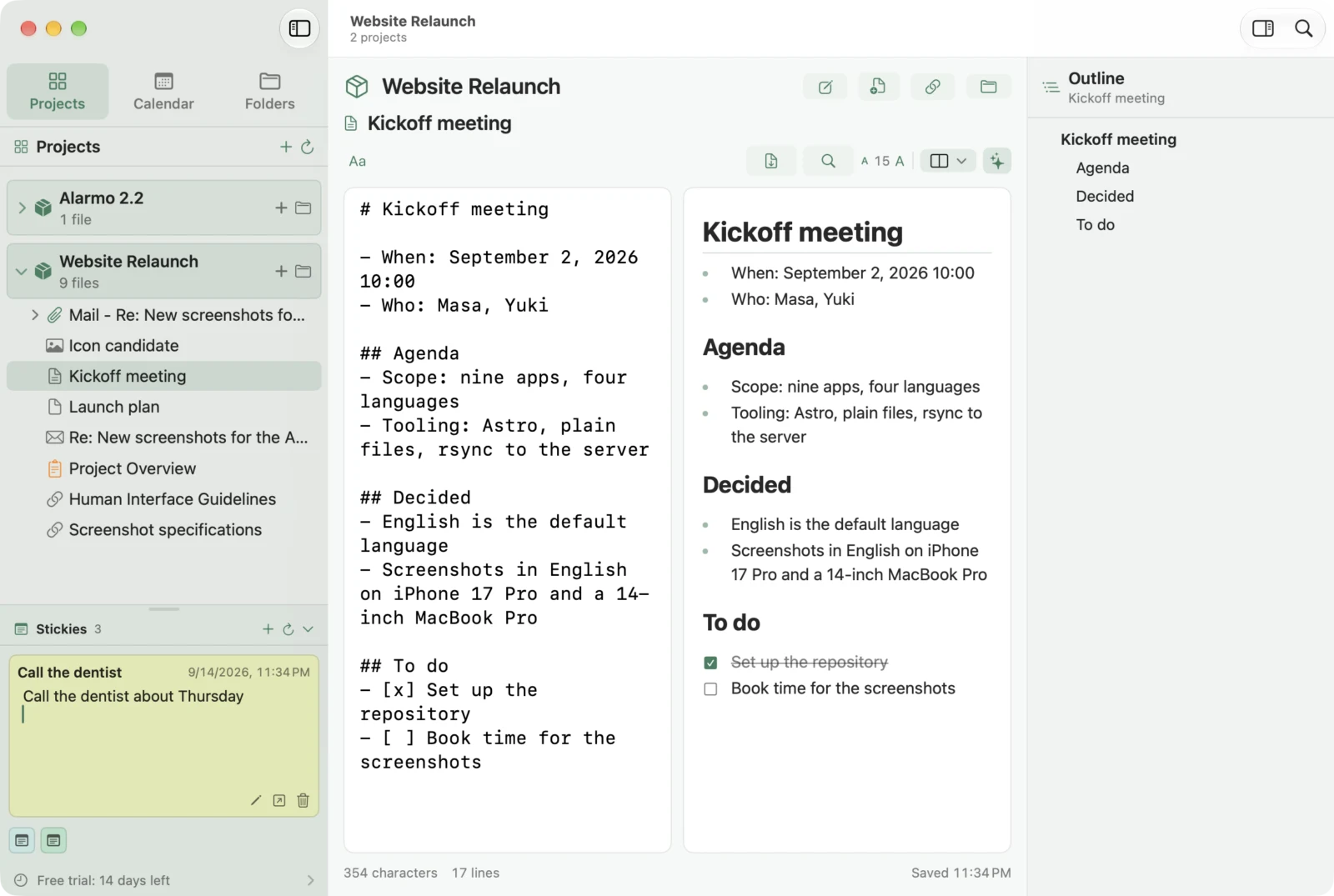
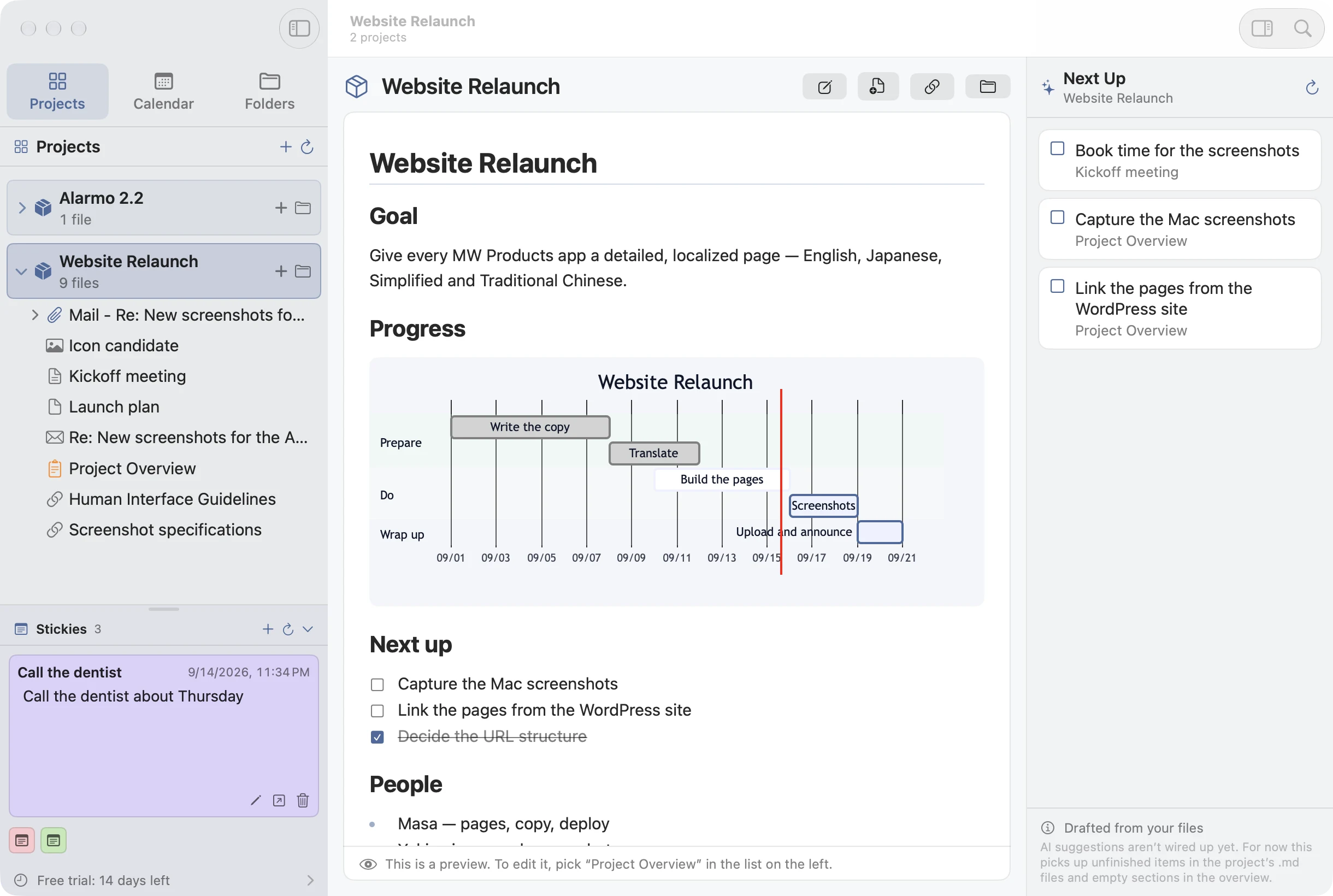
The Markdown editor with live preview handles tables, task lists and images, and renders Mermaid diagrams as you type. The project overview template comes with a Gantt chart, so tracking progress is a matter of adding a line. Flowcharts for procedures, timelines for history, mind maps for ideas — combine Markdown and Mermaid and the uses keep growing.
- Ten diagram types one click away: flowchart, sequence, class, state, ER, Gantt, pie, mind map, timeline and Git graph
- Drag headings and diagrams in the outline to rearrange a note
- Live Markdown, plain Markdown or rich text — and PDF export
Thoughts without a home go on stickies
The stickies in the bottom-left corner are for ideas that don't belong to a project or a day yet. Each sticky is a file; drop a .md into the Stickies folder and it appears. The journal, note and project overview templates are ordinary .md files in the Orviss Settings folder too, so you can shape them to the way you work.
Wherever you are
Orviss is available on Mac and Windows now, with iPhone and iPad versions coming soon. Your folders sync through iCloud Drive, and the Windows version can use the same Orviss folder through iCloud Drive or OneDrive. Today and Stickies widgets, Shortcuts for appending to the journal or creating notes, and a Share extension that saves web pages and emails. On supported devices, Apple Intelligence helps summarize the day or draft a note from a short description — on device.
How it works
- Choose where to keep it iCloud Drive, your Documents folder or any folder on your Mac. Orviss puts nothing but plain files there.
- Create a project, open today A project starts as a folder with an overview note; a day starts as a folder with a journal.
- Gather what belongs Drop files, web pages and emails into the folder. On iPhone and iPad (coming soon), you will send them from the share sheet.
- Write in Markdown and Mermaid Update the Gantt chart in the overview and jot tasks in your notes — they line up under Next Up automatically.
- Let your AI read it Open the Orviss folder in the AI agent you already use for summaries, drafts and updates grounded in your own records.
Orviss — questions and answers
Where are my notes and files stored?
In a folder you choose, as plain Markdown files and the original files — iCloud Drive (synced across devices), the app's Documents folder, or another folder on your Mac. You can open it in the Finder at any time.
Which AI agents can I use?
Any agent that can read and write files in a folder — Claude Code, Codex CLI, Cursor and the like. Just open the Orviss folder with it. Orviss needs no special setup or API key, and whatever the agent changes shows up immediately.
What happens to an email I drop in?
The original stays in Mail. Orviss saves a Markdown note with the sender, date, body and attachments, plus a link that opens the original message.
Can I use another editor?
Yes. Notes are ordinary .md files, so any Markdown app can read and write them. Orviss notices the change and reloads.
Do I need an account?
No. There is no account, no server and no database — only your files.
Which devices does it run on?
Mac (macOS 26 or later) and Windows (Windows 11 version 22H2 or later) today. iPhone and iPad versions are coming soon, and one purchase of Orviss Premium will cover Mac, iPhone and iPad; the Windows version is purchased separately on the Microsoft Store. Widgets and Shortcuts are supported. Access to Calendar, Photos and Health is optional and used only to show the day's events, photos and steps.
Is Orviss a Markdown notes app?
Yes. Every note is a plain Markdown file in an ordinary folder on your disk, so you can open it in another editor, search it with any tool and back it up like any other file.
Can I draw a Gantt chart in a note?
Yes. Write a Mermaid gantt block in a project overview note and Orviss renders it as a chart, so the schedule lives in the same Markdown file as the rest of the project.
Can I keep files and emails together with my notes?
Yes. Drop a file, a web page or an email into a project or day folder and it sits next to the notes for that task, in one place.