
Why TIME CALENDAR
- Your events on beautiful photos
- A frosted-glass blur you can adjust with a slider
- 9 built-in photos that can change automatically
- Your iCloud, Google and other calendars, as they are
- Your own photos as the background (TIME Premium)
- An iPhone and iPad version, coming soon
Articles about TIME CALENDAR
How-tos, examples and news about TIME CALENDAR.
What TIME CALENDAR can do
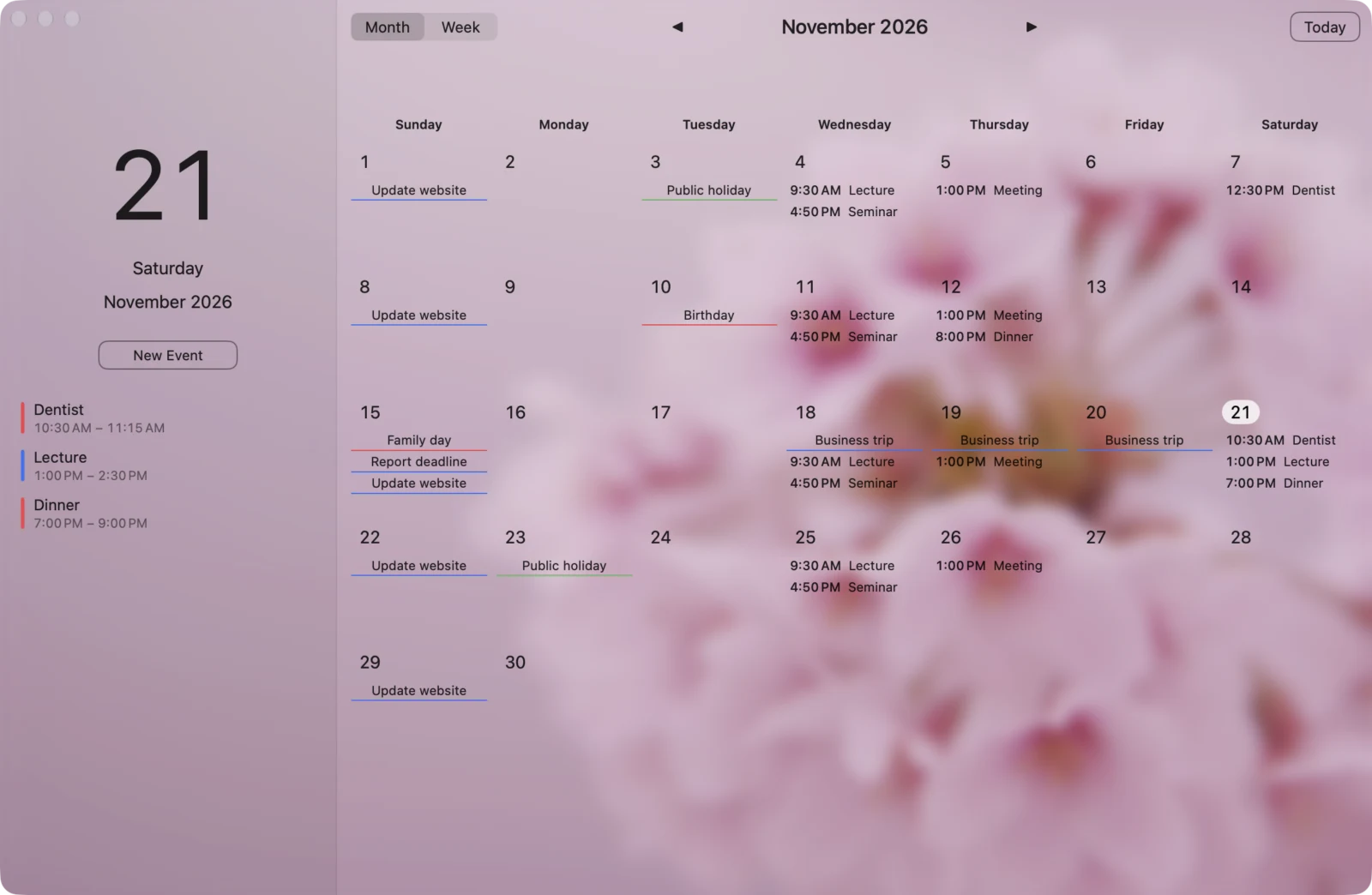
Your schedule, on a photo
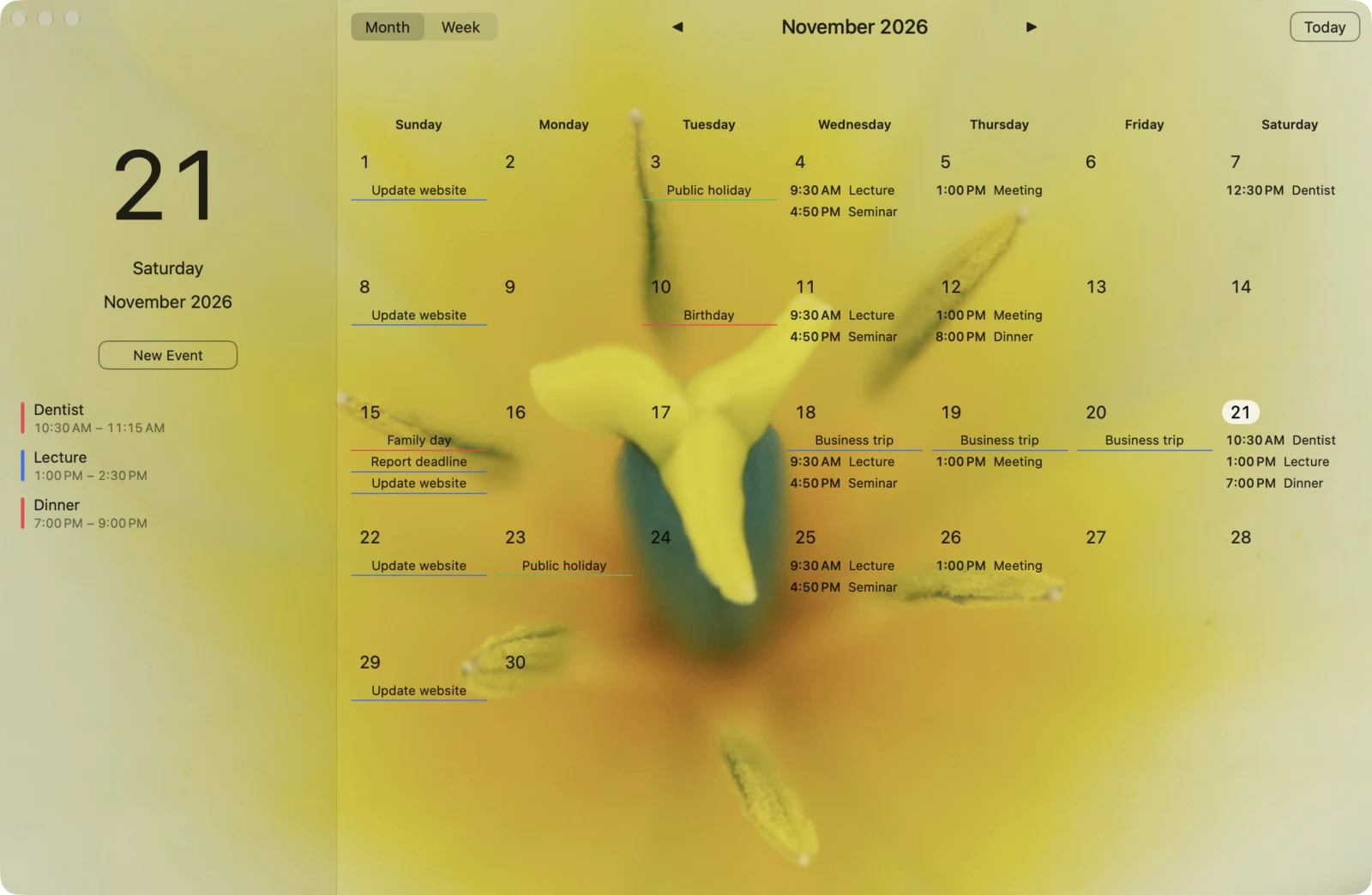
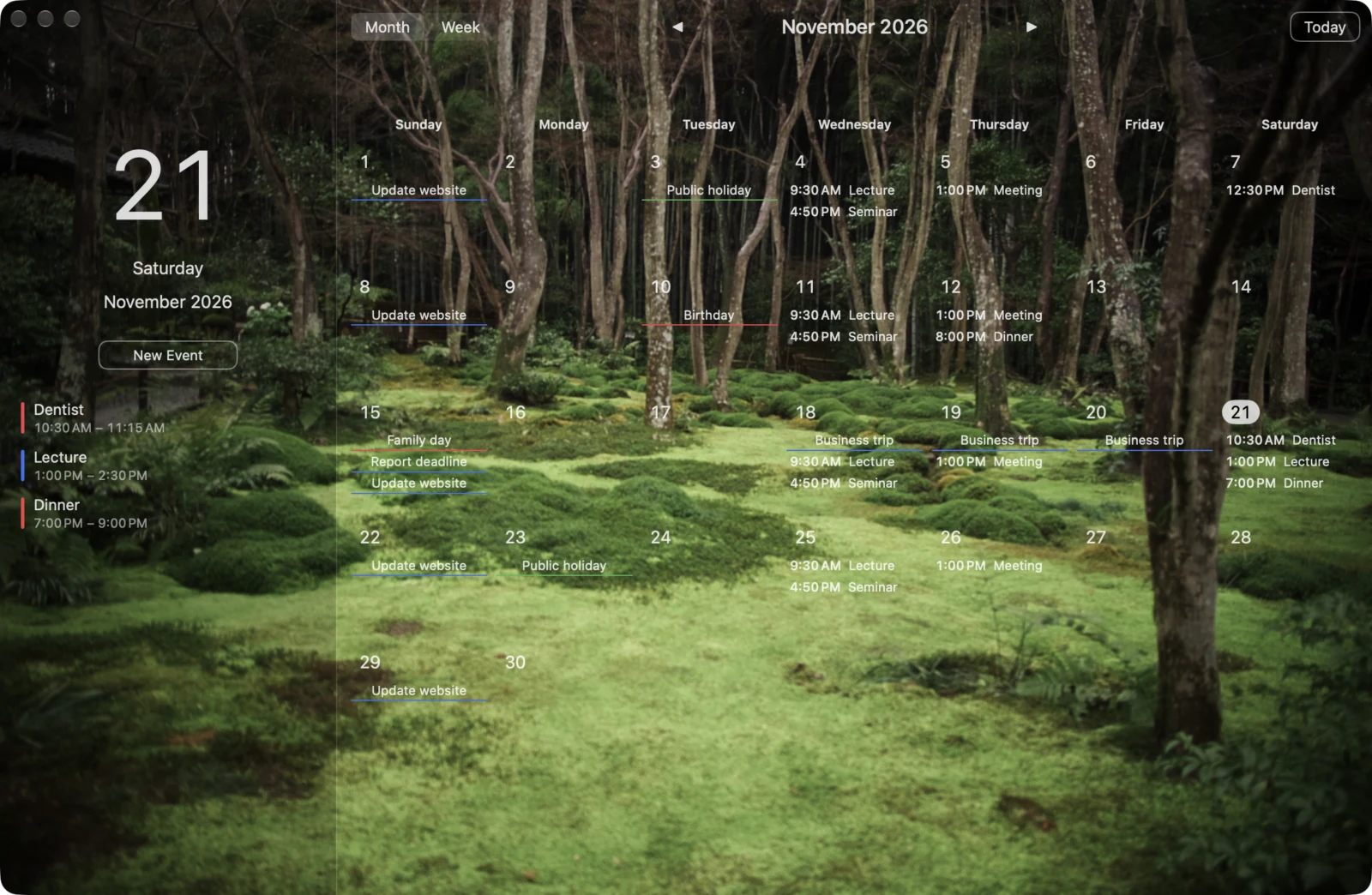
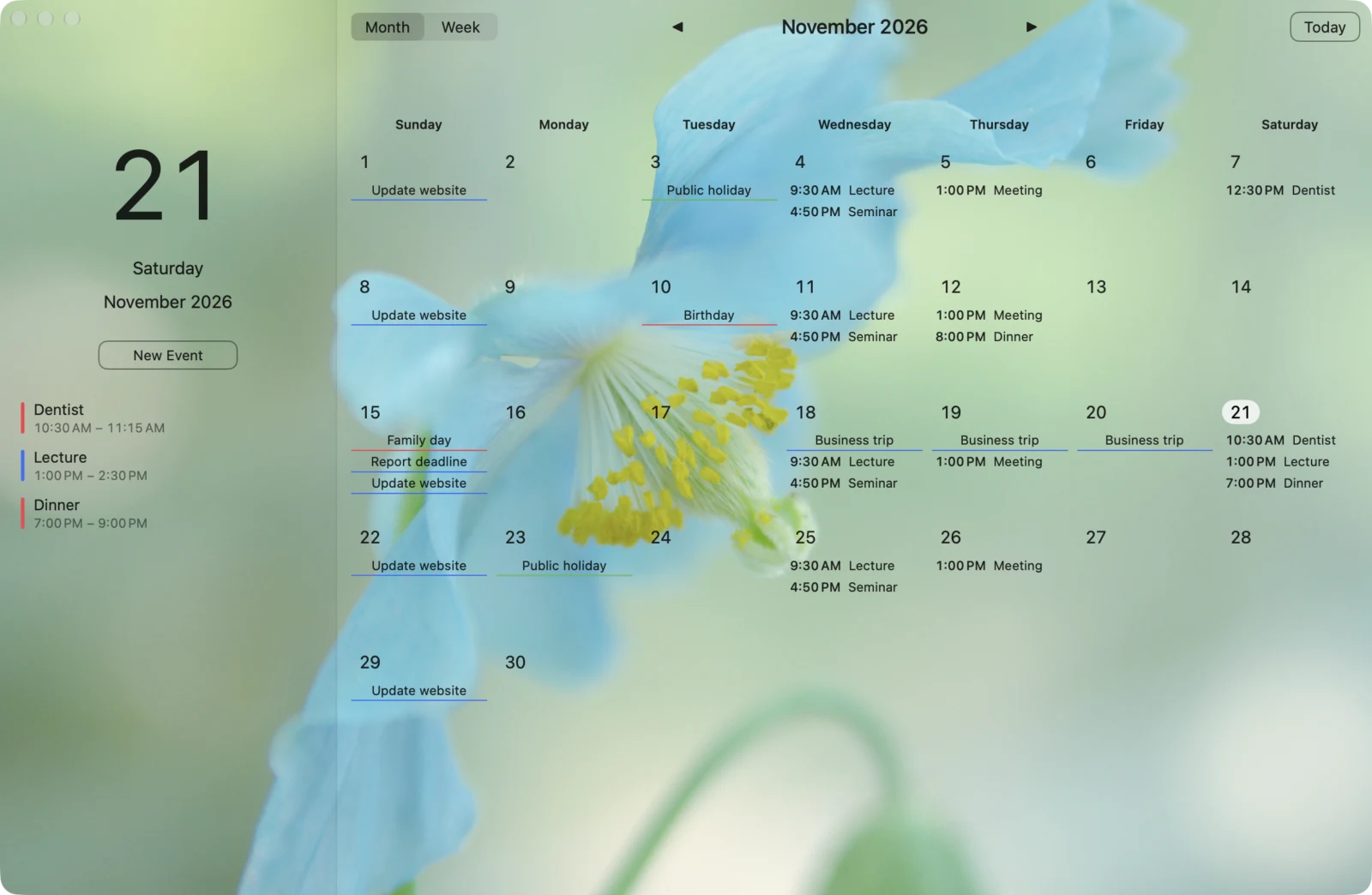
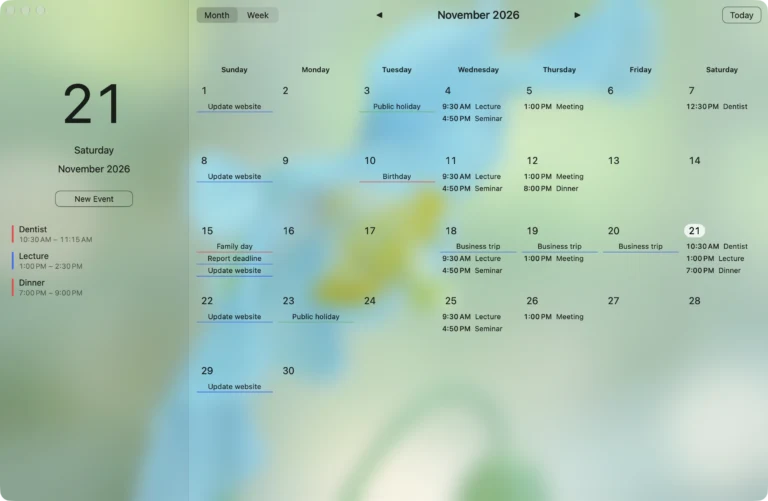
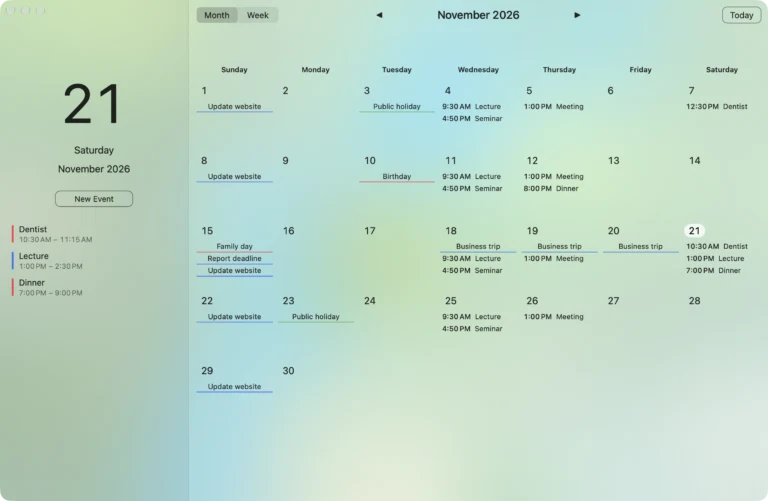
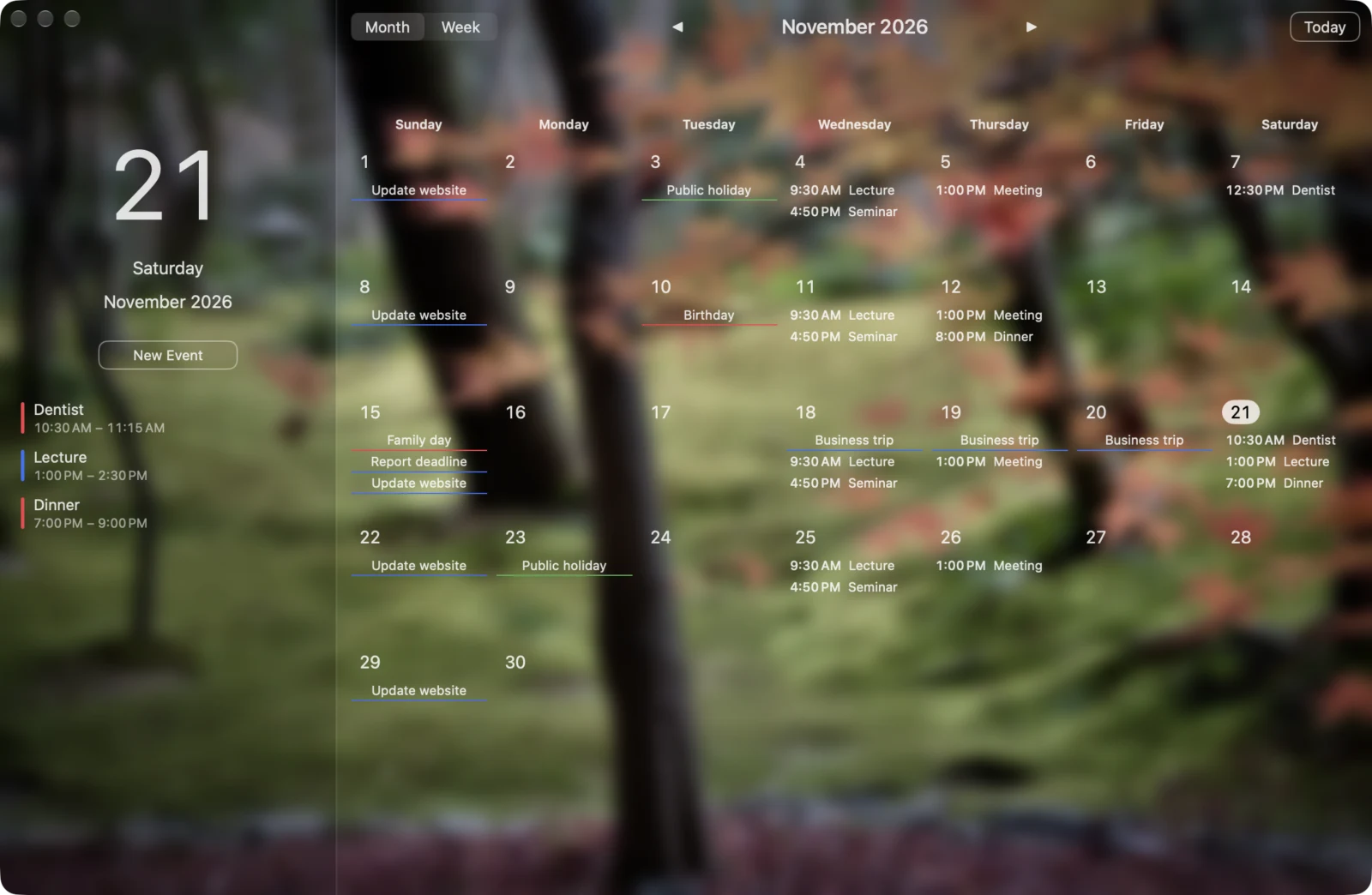
The month’s events are shown over a photo that fills the whole window. The column on the left lists today’s date and today’s events. The photo is blurred like frosted glass, so the text of your events stays easy to read on any photo.
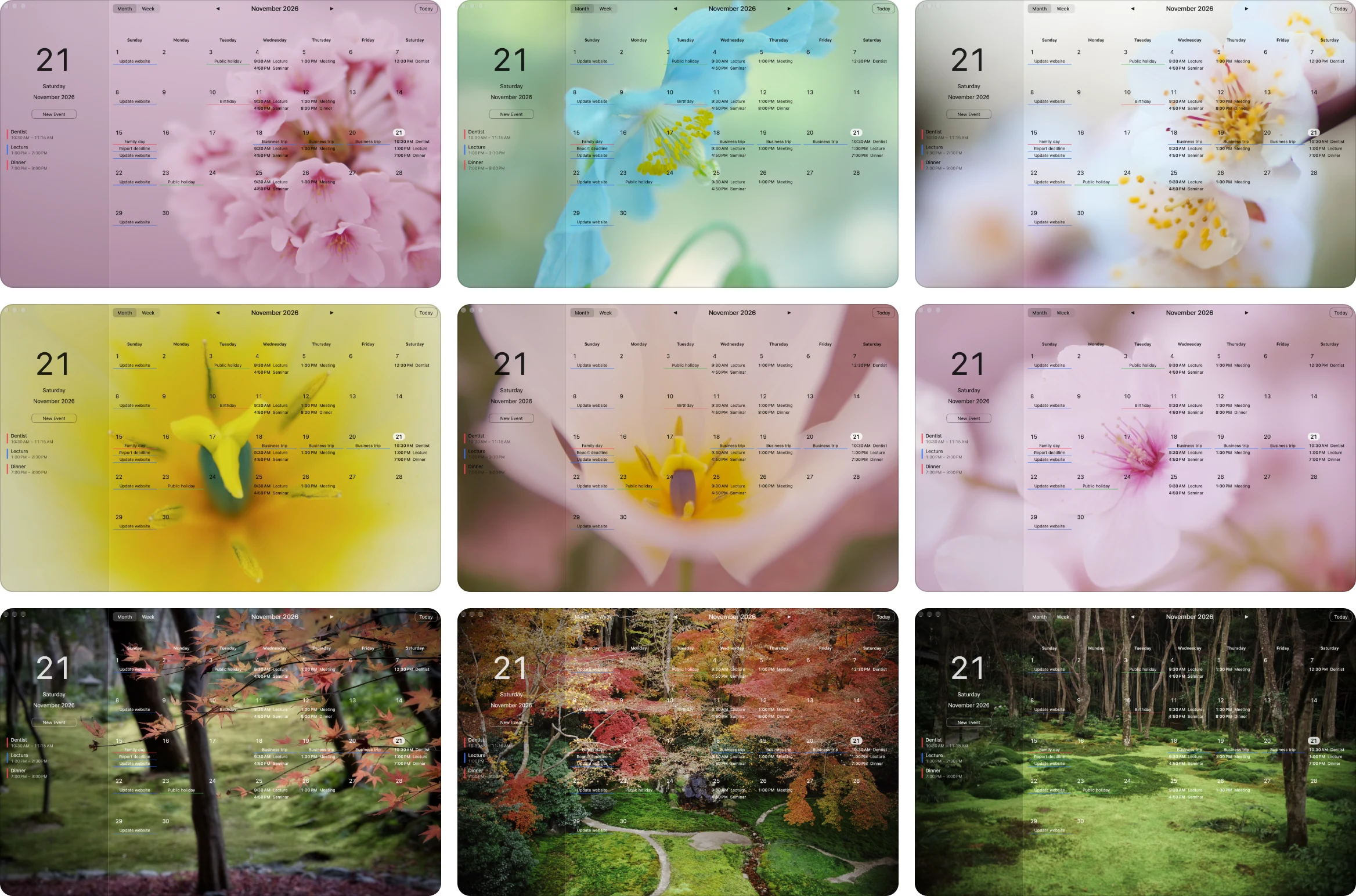
Choose your background from 9 beautiful photos
TIME comes with 9 built-in photos, including cherry blossoms, a blue poppy, plum blossoms, tulips and a garden of autumn leaves and moss. Select “Change Background” in Settings to open the list of photos, and pick the one you like. If you choose “Random”, the background changes automatically every 10 seconds, 1 minute or 10 minutes.
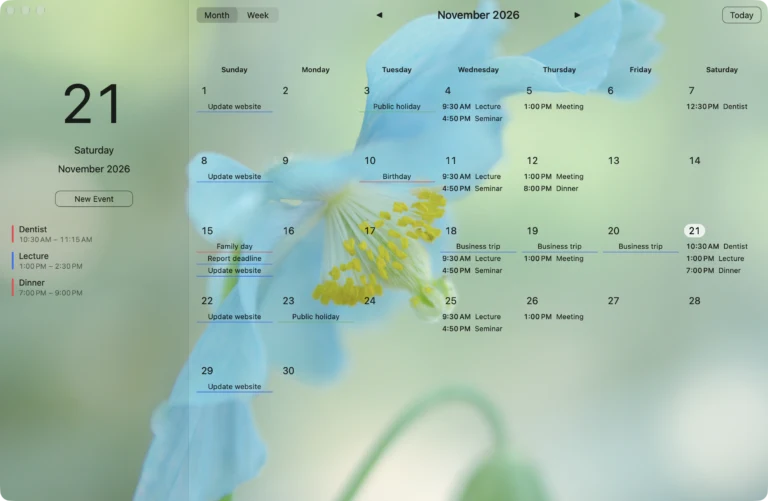
Adjust the frosted-glass blur to your liking with a slider
The “Frosted Glass Effect” slider in Settings changes how strongly the background is blurred. Move it all the way to the left and the photo looks crisp; the further right you move it, the more softly the photo blurs and the easier your events are to read. While you move the slider, the background is shown with the actual blur, so you can see how it looks as you decide.
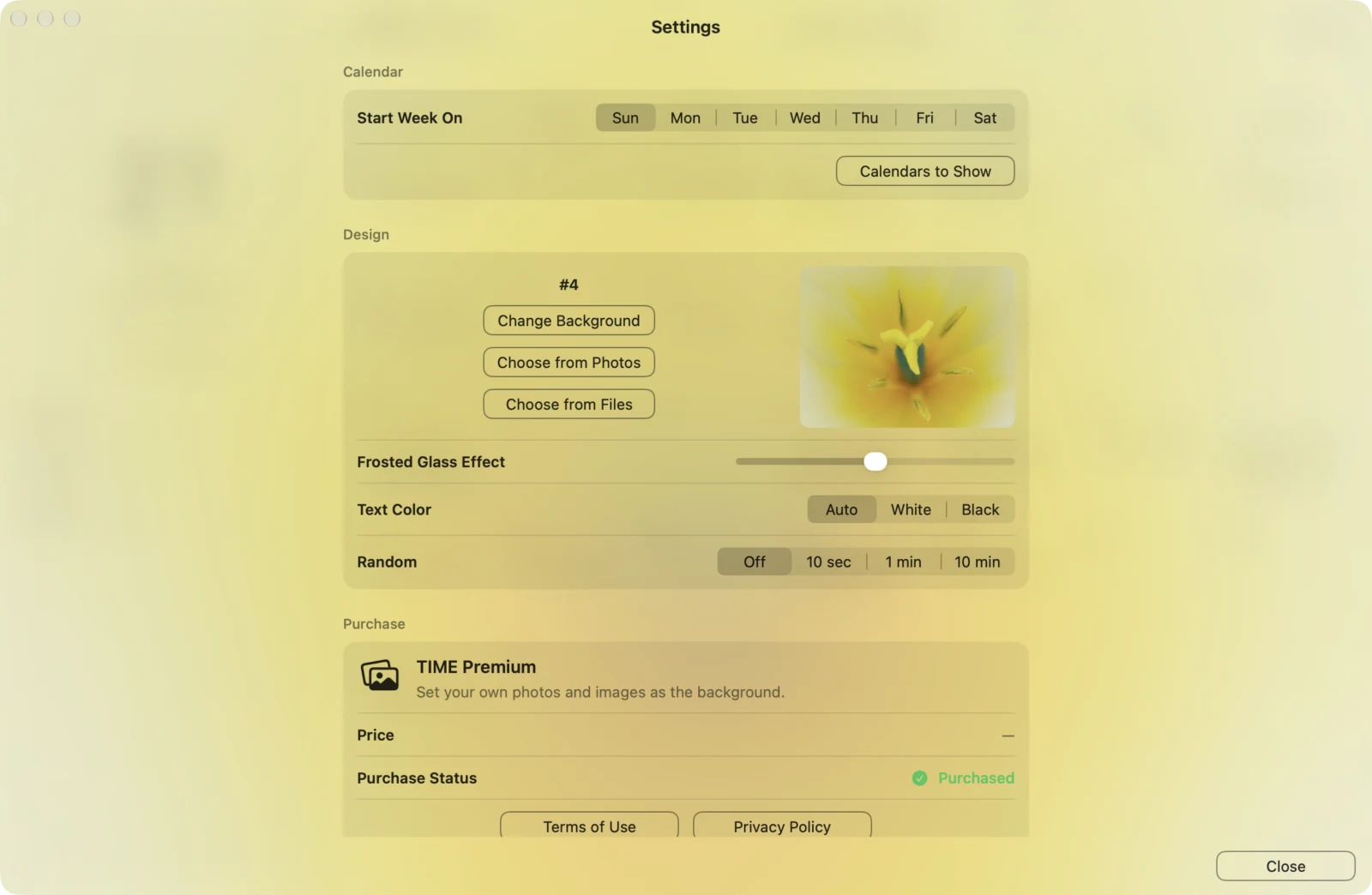
Background and appearance, all in one settings screen
You can change the background photo, the Frosted Glass Effect, the text color and the Random setting together in a single settings screen. Here you can also choose which day your week starts on and which calendars to show.
Text color that suits the photo
The text switches between black and white automatically to suit the brightness of the photo. On a dark photo, the text turns white. You can also choose “White” or “Black” yourself.
The calendars you already use
TIME shows and edits events from the accounts you’ve added to the Calendar app on your device (iCloud, Google, Exchange and more), just as they are. There’s no new account to sign up for. Events are read and saved through your device’s Calendar app, and TIME doesn’t send them anywhere.
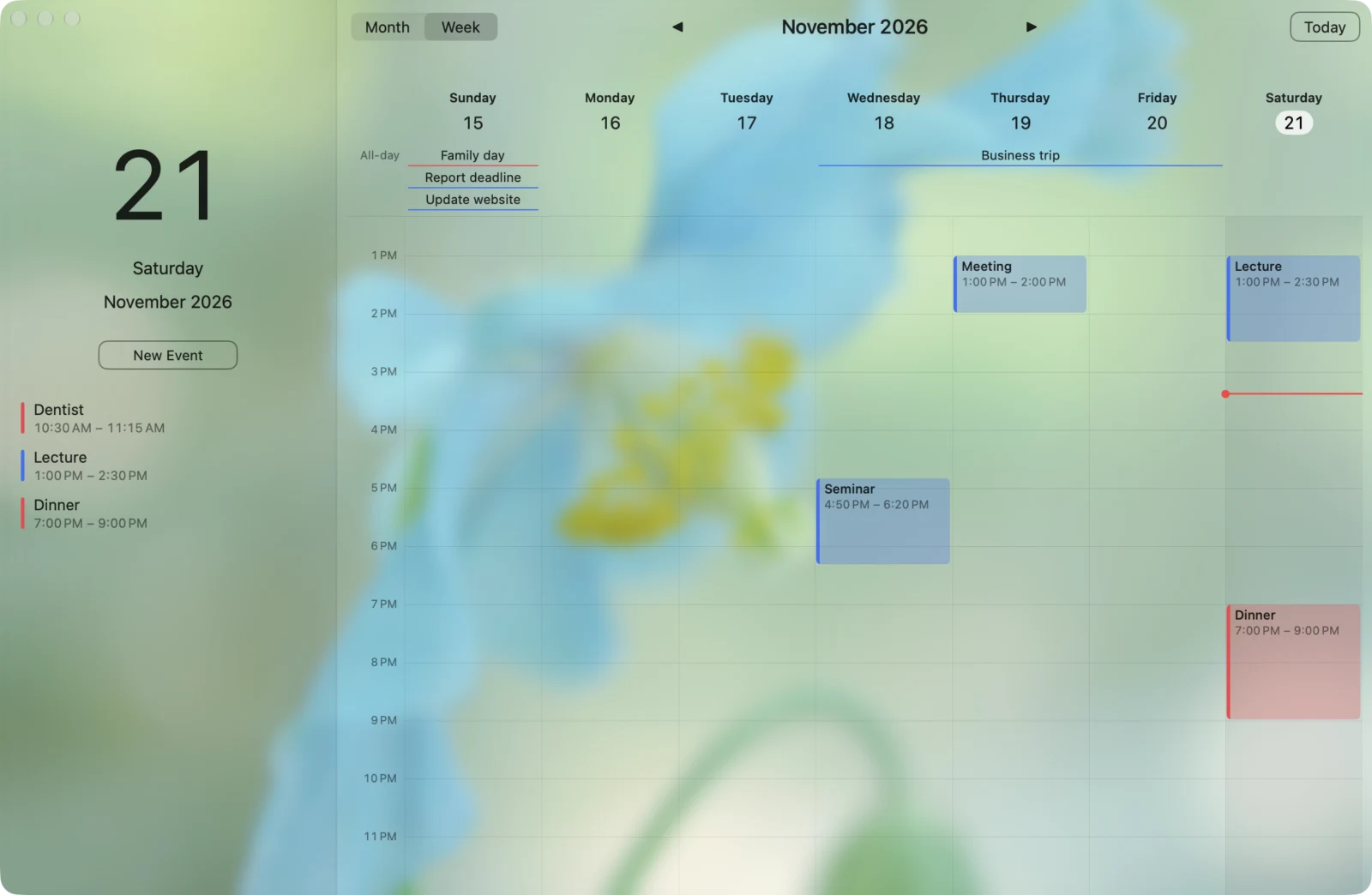
Month and week views
In month view, you can see the time and title of each day’s events at a glance. Week view is an hourly timeline that also shows all-day events and a line for the current time. Drag an event to move it to another day or time, or drag its edge to change its length. Overlapping events sit side by side, so none of them are hidden. On Mac, press ⌘1 to switch to month view and ⌘2 to switch to week view.
Create and edit events
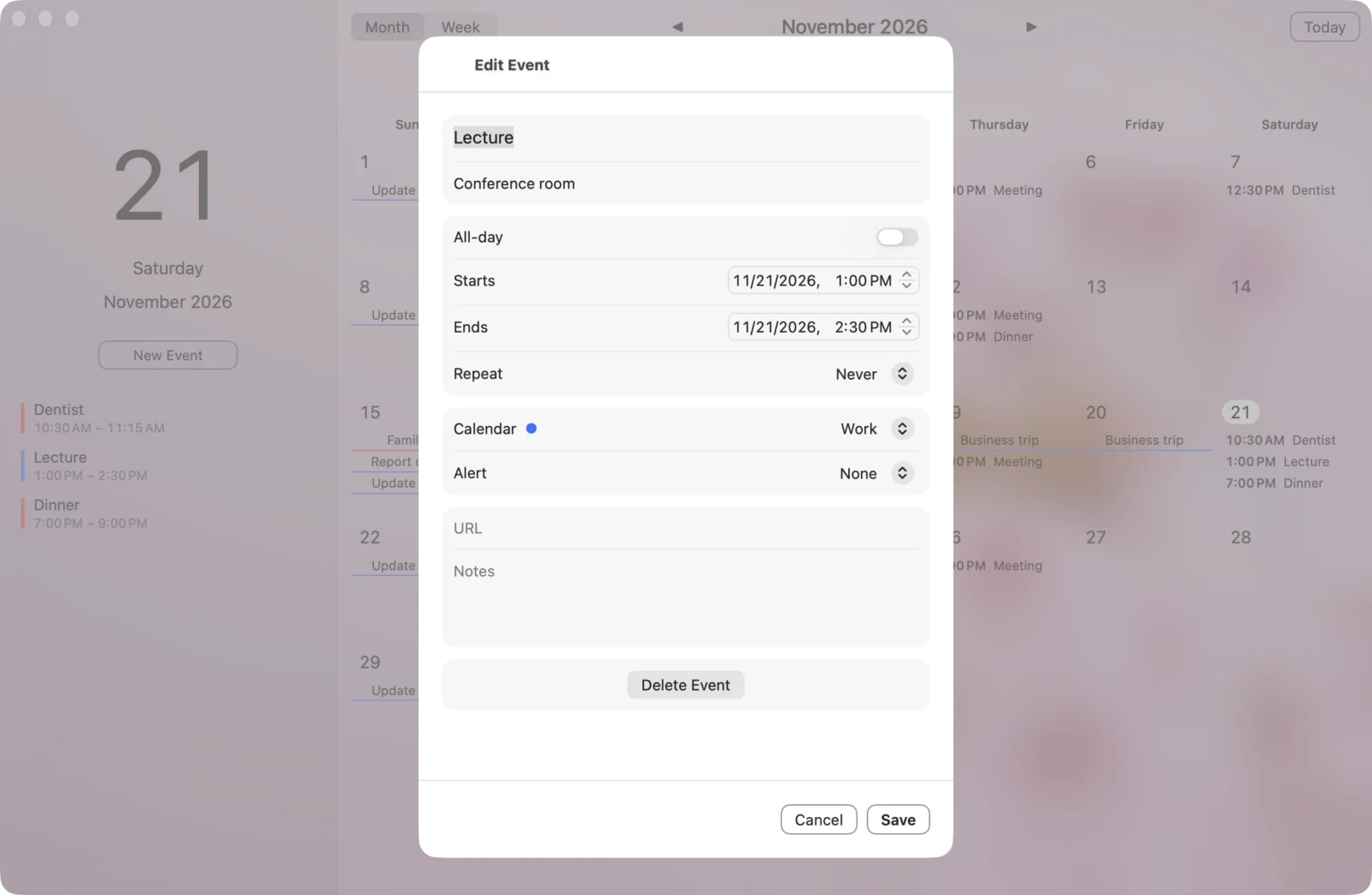
You can set the title, location, start and end, all-day, repeat, calendar, alert, URL and notes. For repeating events, choose “This Event Only” or “All Future Events” when you make a change. From the right-click menu, you can also copy, cut, paste and duplicate events. You can search event titles, locations and notes (⌘F), and go to a date you choose.
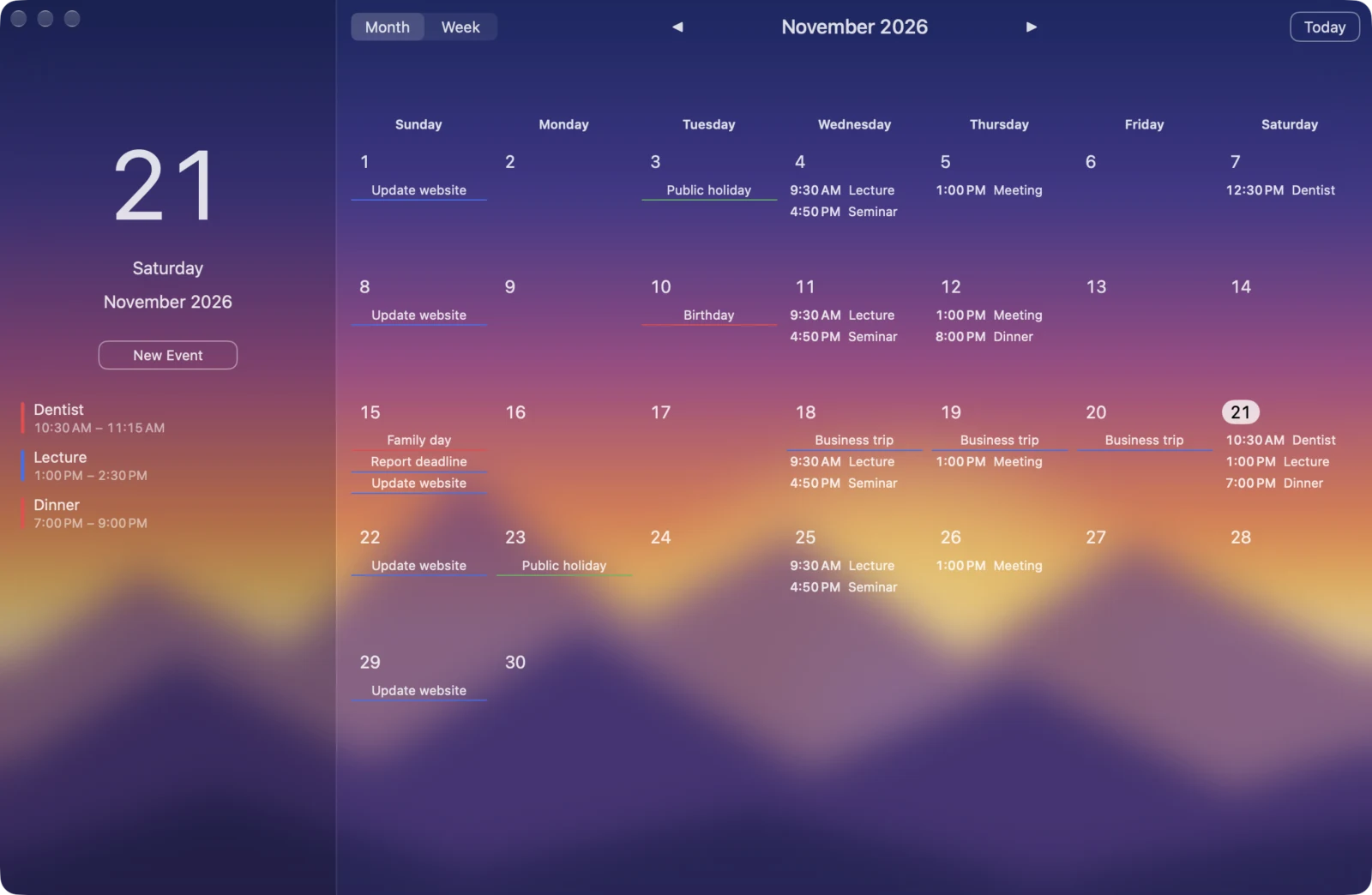
Your own photos as the background
You can use an image from the Photos app or from your files as the calendar’s background. Family or travel photos, a favorite illustration: any image will do. This feature is available with “TIME Premium”, a one-time in-app purchase. Every other feature is free.
Coming soon to iPhone and iPad
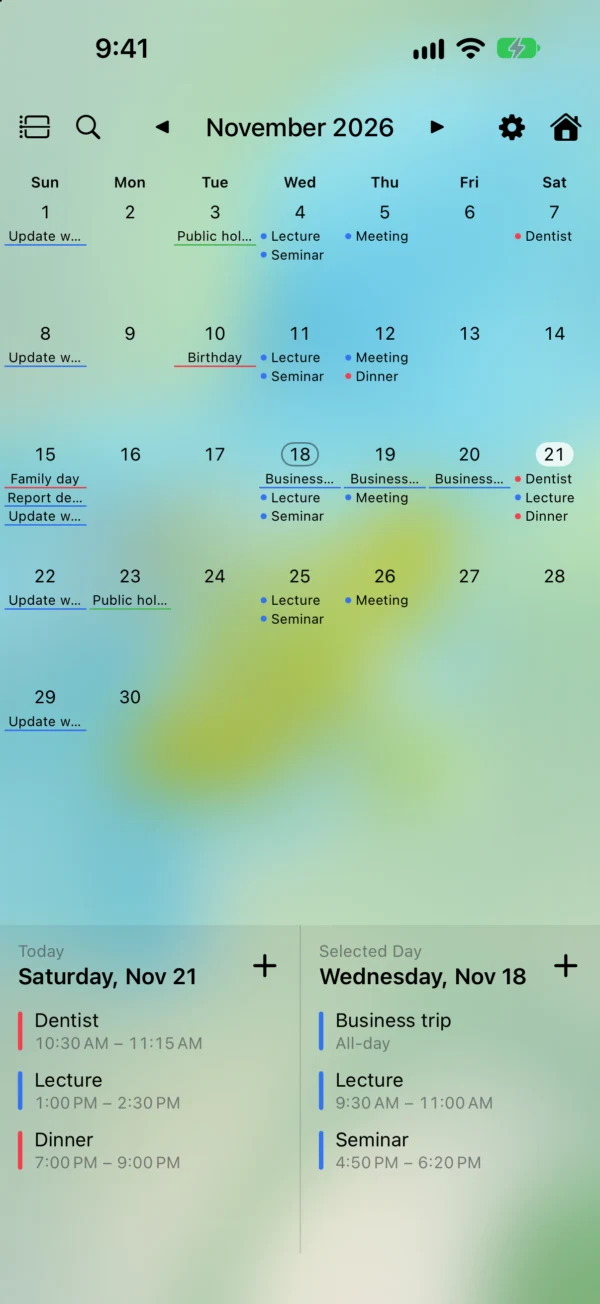
The iPhone and iPad version is being prepared for release. You’ll be able to use the same photo backgrounds and Frosted Glass Effect on iPhone and iPad too. The screens below are from the iPhone and iPad version, which is in development.
On iPhone, today and the selected day side by side
When you hold your iPhone or iPad in portrait, events for “Today” and the “Selected Day” are listed below the calendar. Swipe left or right to move to the previous or next month or week.
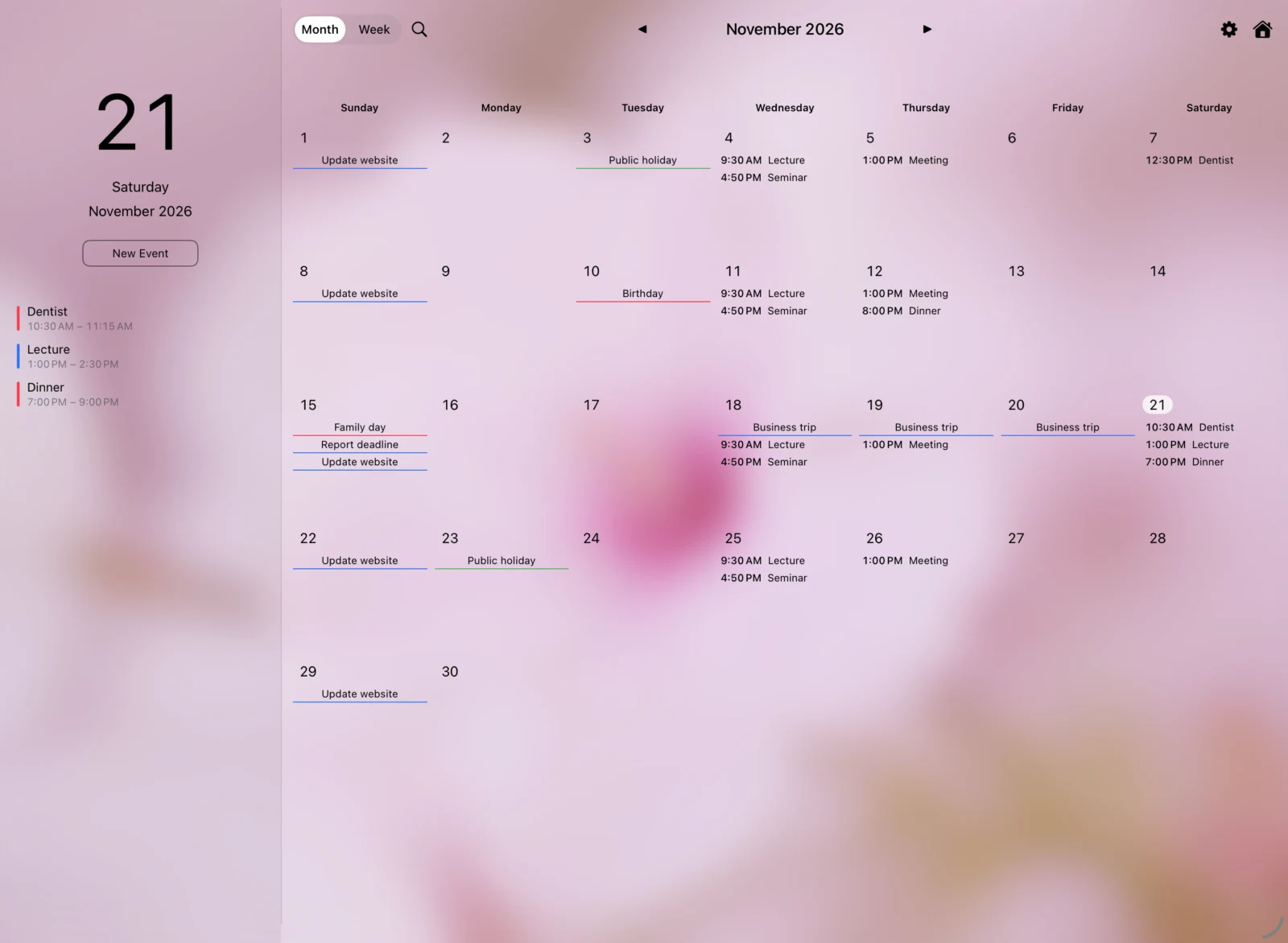
On iPad in landscape, the same layout as on Mac
When you hold your iPhone or iPad in landscape, today’s date and events sit on the left, with the calendar on the right, just as on Mac.
Lined up with the fold on iPhone Duo
On the foldable iPhone Duo, the borders between the calendar’s columns line up with the fold. When it’s partially open, TIME leaves a gap between the columns to avoid the fold, and the month and year move to the right of the fold. On the outer screen when it’s closed, TIME uses the same layout as on a regular iPhone.
TIME CALENDAR — questions and answers
Is it free?
Yes. TIME CALENDAR is free to use. Only one feature, setting your own photos or images as the background, requires “TIME Premium”, a one-time in-app purchase. There is no subscription.
Can I adjust the background blur?
Yes. The “Frosted Glass Effect” slider in Settings changes the strength of the blur. Move it all the way to the left and the photo looks crisp; the further right you move it, the more softly the photo blurs.
Can I change the background photo?
Yes. You can choose from 9 built-in photos and have them change automatically every 10 seconds, 1 minute or 10 minutes. With TIME Premium, you can also use images from the Photos app or from your files as the background.
Which calendars does it show?
TIME shows events from the accounts you’ve added to the Calendar app on your device. You can view and edit iCloud, Google, Exchange and other calendars just as they are. You can choose which calendars to show in Settings.
Do I need to create an account?
No. TIME reads and saves events through your device’s Calendar app. There’s no new account to create, and TIME doesn’t send your events anywhere.
Is there a version for iPhone and iPad?
The iPhone and iPad version is coming soon. It is being prepared for release, so please wait a little longer.
What’s new in TIME 3.0?
3.0 is a new version, rebuilt from the ground up. The design and the way you use it are new, the built-in photos have grown from 7 to 9, and it now supports 50 languages. Before, you had to buy TIME after a trial period; from 3.0, it is free to use, and only setting your own images as the background requires TIME Premium.
Which languages is it available in?
TIME CALENDAR is available in 50 languages, including Japanese, English, Chinese (Simplified and Traditional), Spanish, French and German.