
The Calendar app on Mac has no setting for using a photo as the background. If you want to see your events on a photo you like, one option is the calendar app TIME CALENDAR. TIME CALENDAR is a free app that shows the same events as the Calendar app on your Mac (iCloud, Google, Exchange and more) on top of beautiful photos. With version 3.0, released on November 17, 2026, the Mac app was rebuilt from the ground up.
This article uses screenshots to explain how to choose a background photo, adjust the frosted-glass blur, show your Google Calendar events and use your own photo as the background. The events on the screens are samples for illustration.
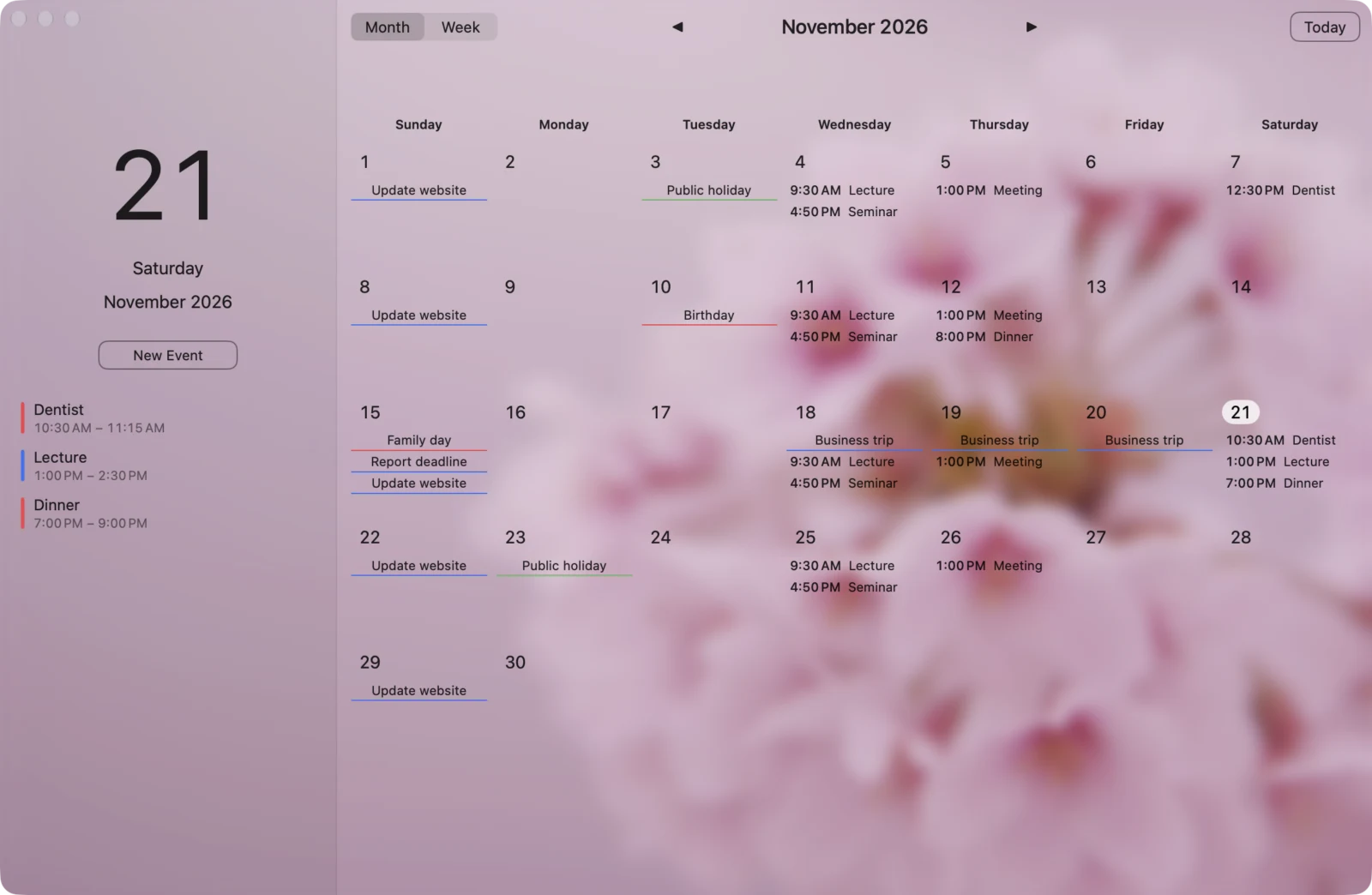
TIME CALENDAR at a glance
| Item | Details |
|---|---|
| Platforms | Mac (macOS 26 or later). An iPhone and iPad version is being prepared for release |
| Price | Free. Only one feature, using your own images as the background, is a one-time in-app purchase, “TIME Premium”. There is no subscription |
| Events | Shows and edits events from the accounts you’ve added to the Calendar app on your Mac (iCloud, Google, Exchange and more) |
| Backgrounds | 9 built-in photos, which can also change automatically every 10 seconds, 1 minute or 10 minutes |
| Blur | From none to maximum, with the “Frosted Glass Effect” slider in Settings |
| Views | Month view (⌘1) and week view (⌘2), plus event search (⌘F) |
| Languages | 50 languages, including Japanese, English and Chinese |
Can you use a photo as the background in the Calendar app on Mac?
No. Apple’s user guide lists Calendar settings such as how many days to show, the day the week starts on, accounts, notifications and time zones, but there is no setting for choosing a background image.
TIME CALENDAR reads the same events as the Calendar app and shows them on top of a photo. Events are read and saved through the Calendar app, so events you add or change in TIME also appear in the Calendar app, just as they are. There’s no new account to create, and TIME doesn’t send your events anywhere.
Choose your background from 9 beautiful photos
TIME comes with 9 built-in photos, including cherry blossoms, a blue poppy, plum blossoms, tulips and a garden of autumn leaves and moss. To choose a background in Settings:
- In the menu bar, choose TIME > Settings… (⌘,)
- Click “Change Background” to open the list of photos
- Click the photo you like to make it the background
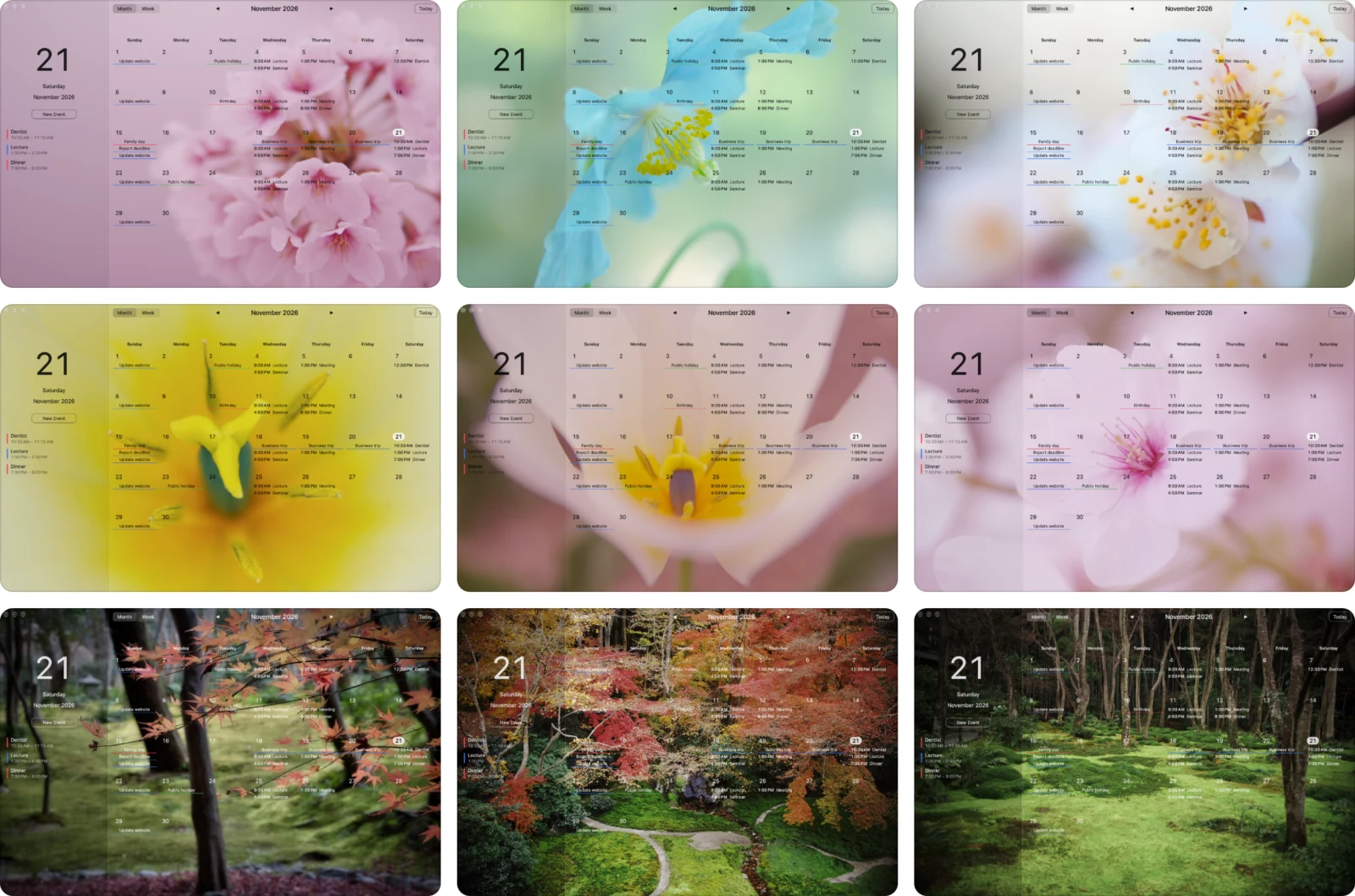
In the same screen, choose 10 seconds, 1 minute or 10 minutes under “Random”, and the background changes automatically. You can also choose which day your week starts on and which calendars to show (“Calendars to Show”) in this screen.
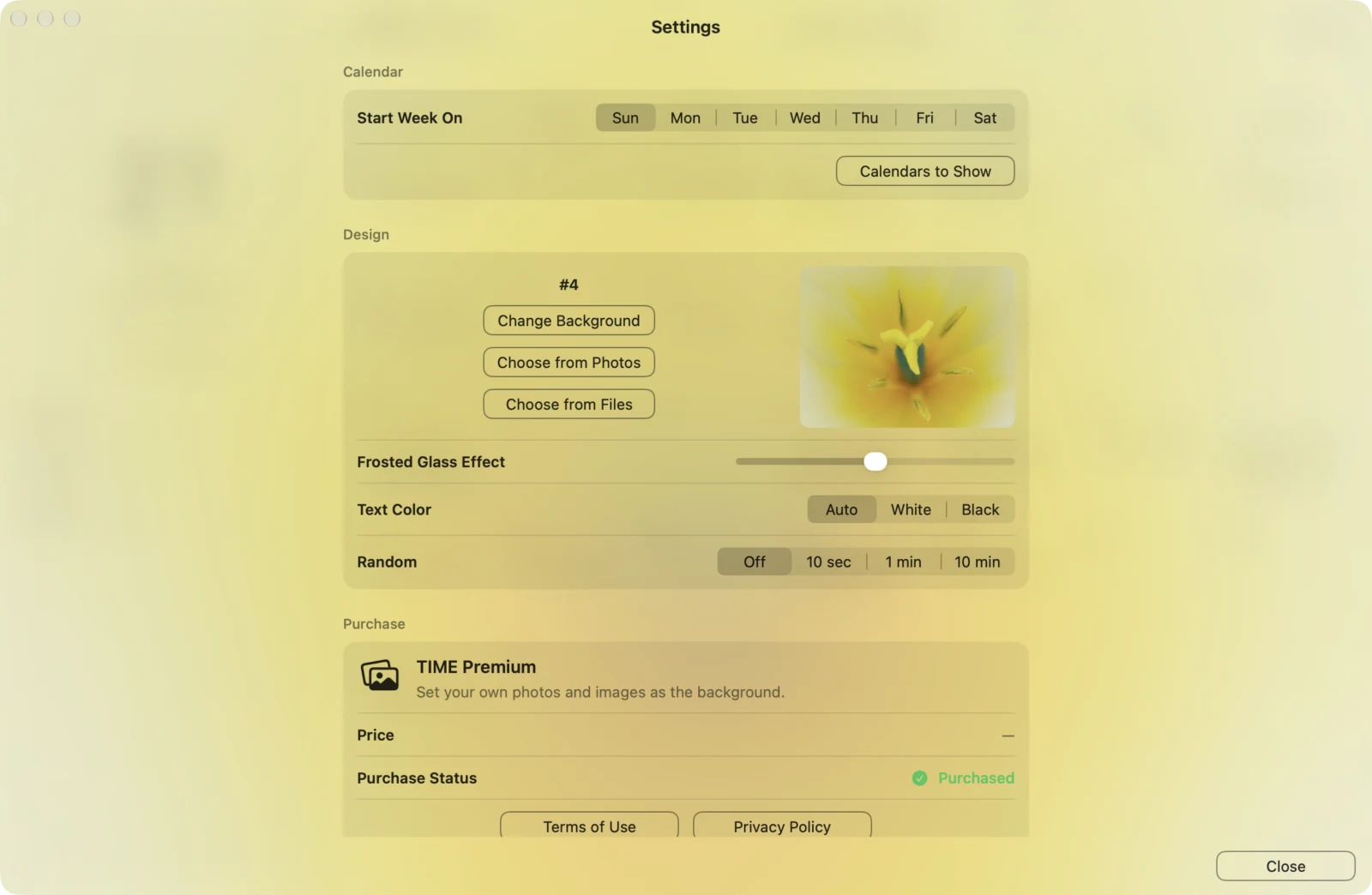
Set the frosted-glass blur to the strength you like with a slider
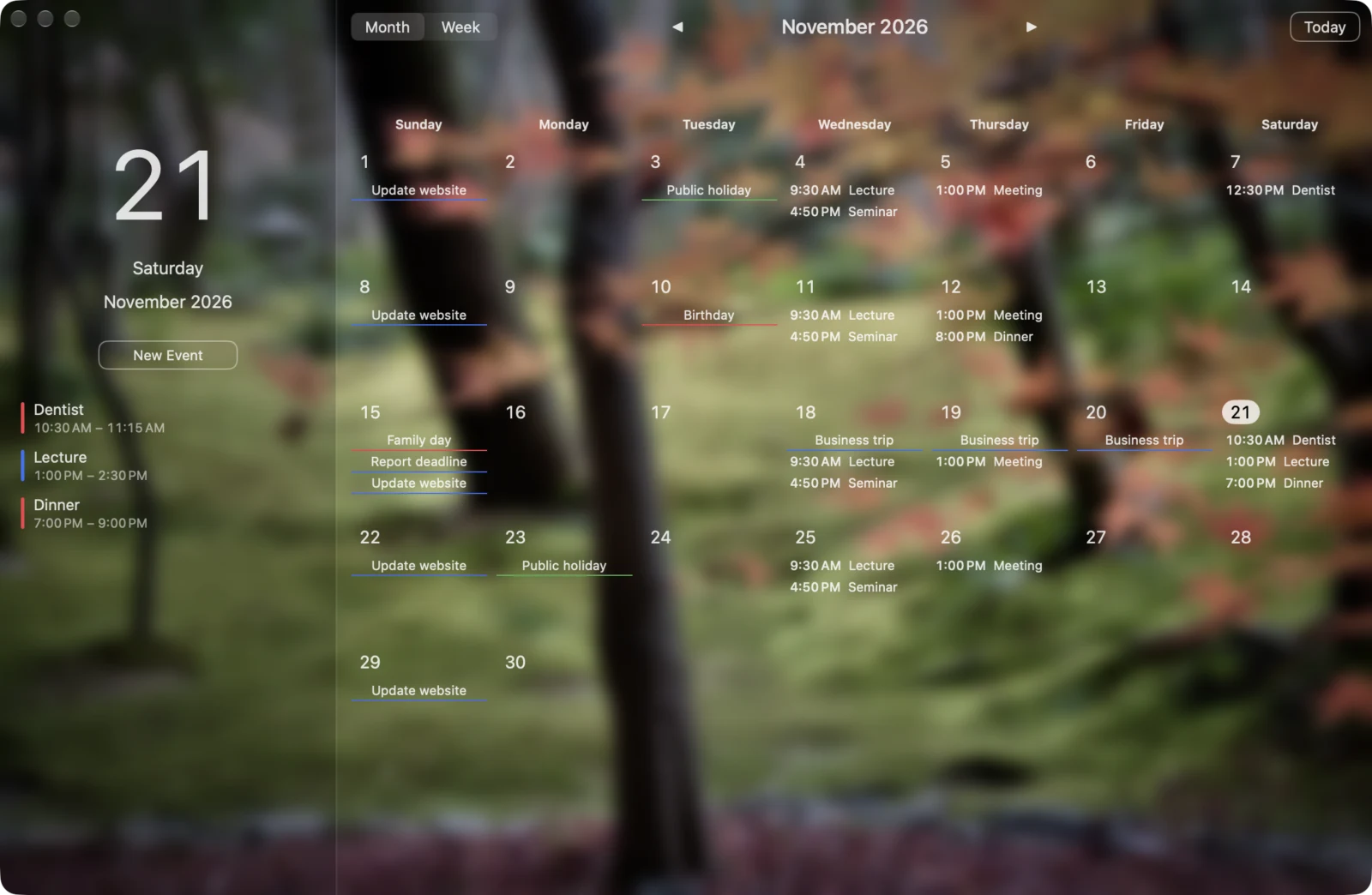
The photo is blurred like frosted glass. You can change how strong the blur is with the “Frosted Glass Effect” slider in Settings. Move it all the way to the left and the photo looks crisp; the further right you move it, the more softly the photo blurs and the easier the text of your events is to read. While you move the slider, the background is shown with the actual blur, so you can see how it looks as you decide.
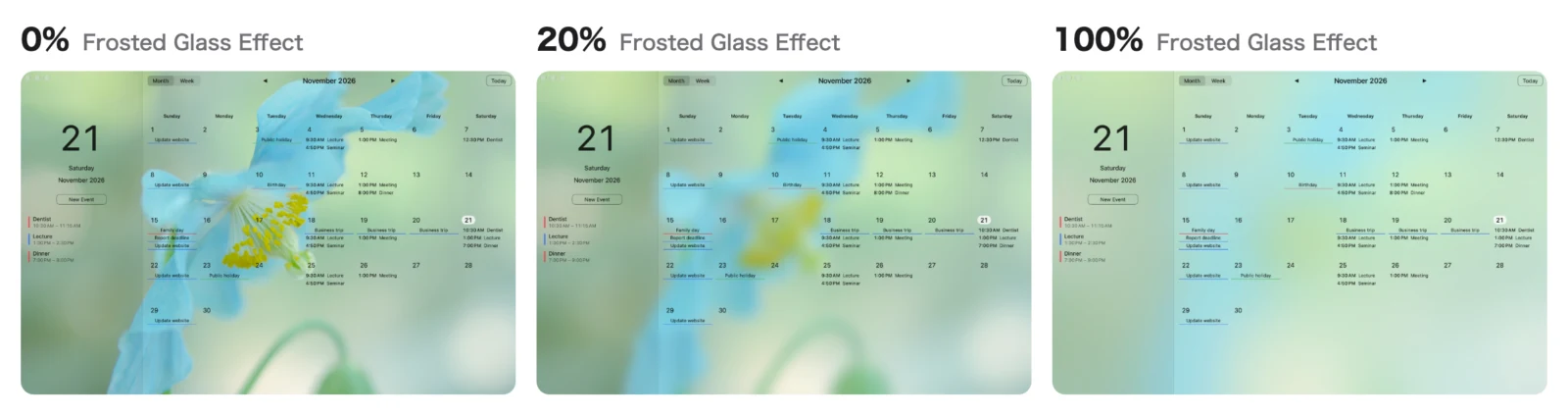
When you first open TIME, the blur is fairly strong (the slider is at 70%). If you want to see more of the photo, move the slider to the left. As the screens above show, even at 20% the shapes in the photo soften quite a bit.
The text color switches automatically to suit the brightness of the photo
If you set the text color to “Auto”, it switches between black and white automatically to suit the brightness of the photo. On a dark photo, the text turns white. You can also choose “White” or “Black” yourself.
How to show your Google Calendar or iCloud events
TIME CALENDAR shows events from the accounts you’ve added to the Calendar app on your Mac. Events that appear in the Calendar app (from iCloud and so on) also appear in TIME, just as they are. To show your Google Calendar events, first add your Google account to the Calendar app.
- Open the Calendar app and choose Calendar > Add Account
- Select Google from the list, click Continue, then follow the onscreen instructions to sign in
- Open TIME CALENDAR. The first time you open it, allow access to your calendars. Events from the account you added appear too
You can turn off calendars you don’t want to see under “Calendars to Show” in TIME’s settings. For other ways to use Google Calendar on Mac, see “3 ways to use Google Calendar on your Mac”.
Month and week views, and creating and editing events
In month view, you can see the time and title of each day’s events at a glance. Week view is an hourly timeline that also shows all-day events and a line for the current time. Drag an event to move it to another day or time, or drag its edge to change its length. Overlapping events sit side by side, so none of them are hidden.
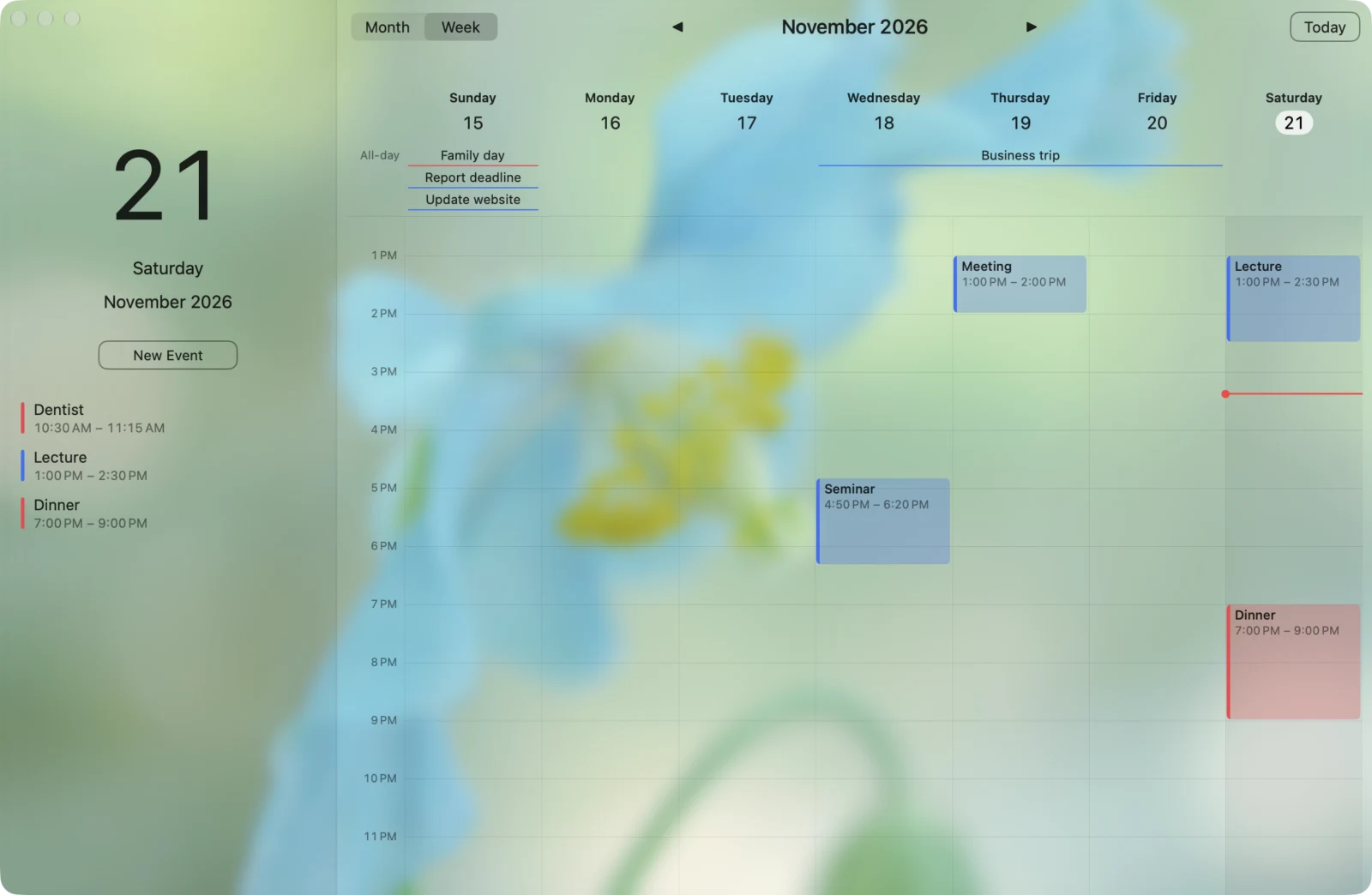
You can enter and change an event’s title, location, start and end, repeat, alert, notes and more in TIME. For repeating events, choose “This Event Only” or “All Future Events” when you make a change. You can also search event titles, locations and notes (⌘F), and go to a date you choose (⌘⇧T).
Use your own photos as the background (TIME Premium)
You can use an image from the Photos app or from your files as the calendar’s background. Family or travel photos, a favorite illustration: any image will do. The image you choose is scaled down and copied into the app. Even when you choose from the Photos app, TIME doesn’t ask for access to your whole photo library; it loads only the image you choose.
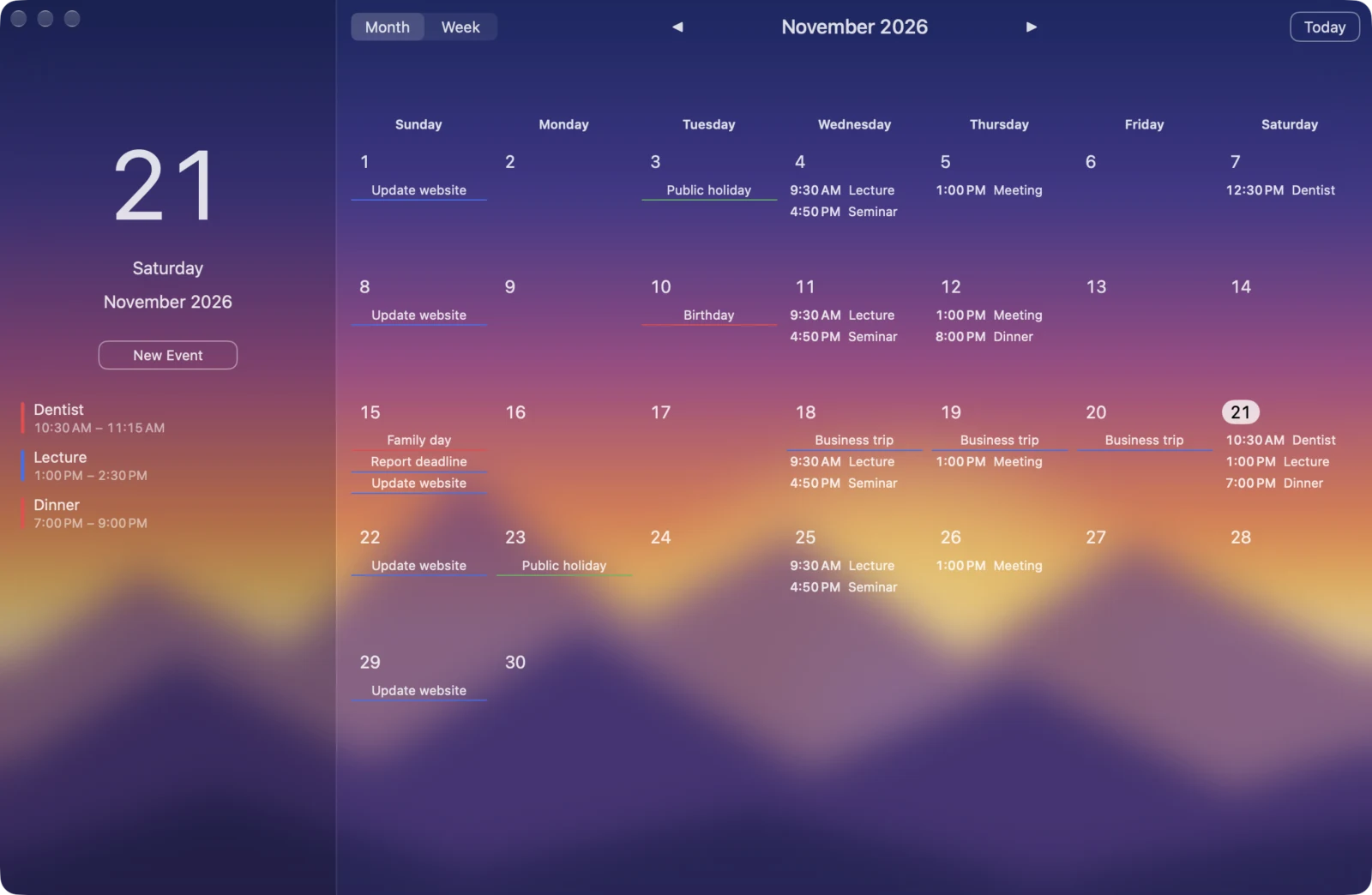
This is the only feature that requires “TIME Premium”, a one-time in-app purchase. Every other feature is free to use.
What’s new in TIME 3.0
TIME has been available for Mac since 2020. Here’s what changed in 3.0:
| Previous version (2.1) | 3.0 | |
|---|---|---|
| Overall | – | Rebuilt from the ground up, with a new design and new ways of using it |
| Built-in photos | 7 | 9 |
| Languages | Japanese and English | 50 languages |
| Price | Purchase after a 7-day trial | Free. Only using your own images as the background requires TIME Premium |
| Devices | Mac | Mac (an iPhone and iPad version is being prepared for release) |
Frequently asked questions
Is TIME CALENDAR free to use?
Yes. TIME CALENDAR is free to use. Only one feature, setting your own photos or images as the background, is a one-time in-app purchase, “TIME Premium”. There is no subscription.
Can I change the background of the Calendar app on Mac?
No. The Calendar app’s settings have no option for choosing a background image. If you want to see your events on a photo, one option is TIME CALENDAR, which shows the same events as the Calendar app on top of photos.
Can it show my Google Calendar events?
Yes. Once you add your Google account to the Calendar app on your Mac, your Google Calendar events also appear in TIME CALENDAR. To add the account, choose Calendar > Add Account in the Calendar app.
Can I make the background blur weaker so the photo is clearer?
Yes. Move the “Frosted Glass Effect” slider in Settings all the way to the left, and your events are shown on the photo with no blur. At first, the blur is fairly strong (the slider is at 70%).
Which versions of macOS does it work on?
It works on Macs with macOS 26 or later. You can download it from the Mac App Store.
Can I use it on iPhone or iPad?
Not yet: the iPhone and iPad version is being prepared for release. When it’s released, we’ll announce it on the TIME CALENDAR page on this site.
Summary
- The Calendar app on Mac has no setting for using a photo as the background
- TIME CALENDAR is a free app that shows the same events as the Calendar app (iCloud, Google, Exchange and more) on top of beautiful photos
- You can choose a background from 9 built-in photos and have it change automatically every 10 seconds, 1 minute or 10 minutes
- The “Frosted Glass Effect” slider changes the strength of the blur; all the way to the left, the photo looks crisp
- Only using your own photos as the background requires TIME Premium, a one-time purchase