Answers and meeting notes from AI, READMEs on GitHub, instructions from a colleague — these days we receive more and more files ending in “.md”. Inside is plain text written in Markdown.
But a .md file often doesn’t open in a readable way when you double-click it. This article shows how to use Markdocx, an app for Mac and Windows, as a viewer for .md files.
Can’t just double-click a .md file and read it?
A .md file is a text file where headings are marked with “#”, bold with “**” and tables with “|”. Double-click one and it opens in an app like TextEdit with all the symbols showing, or you are asked which app to use.
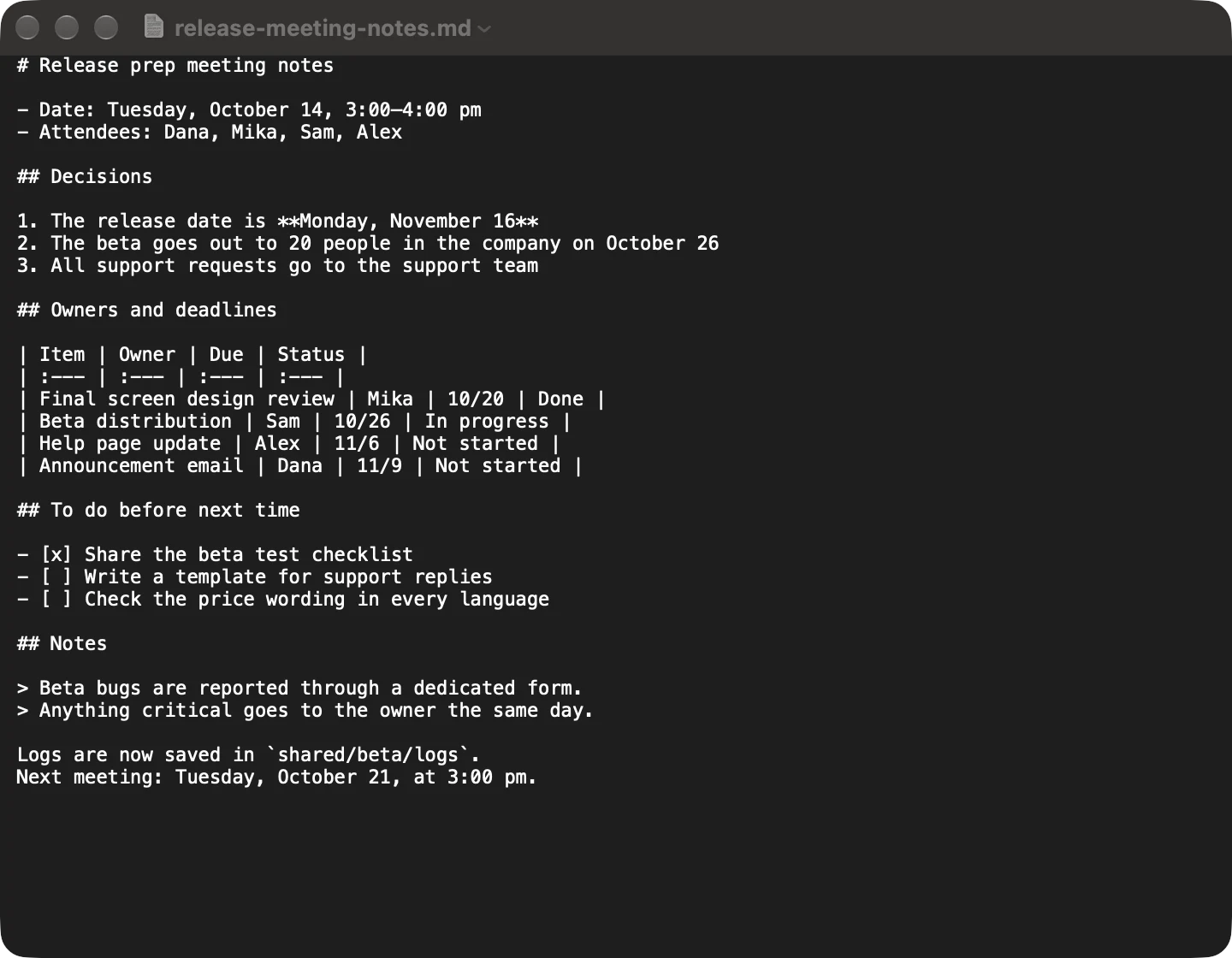
The content is the same, but it is hard to read, and the table is barely readable at all. To see it properly, you have to paste it into a web service or open a preview in a developer’s editor — one extra step every time.
Double-click and read it as a clean document
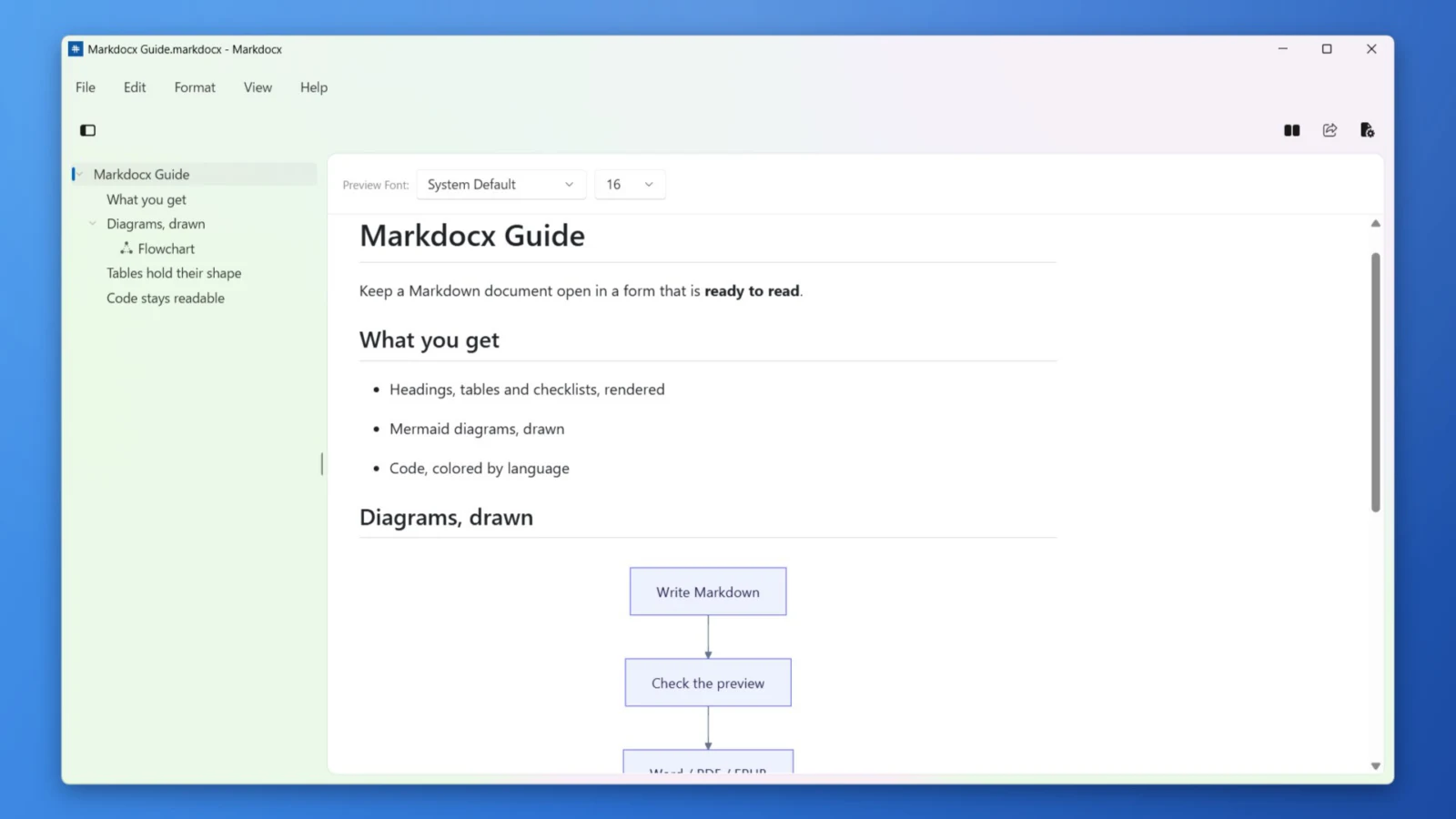
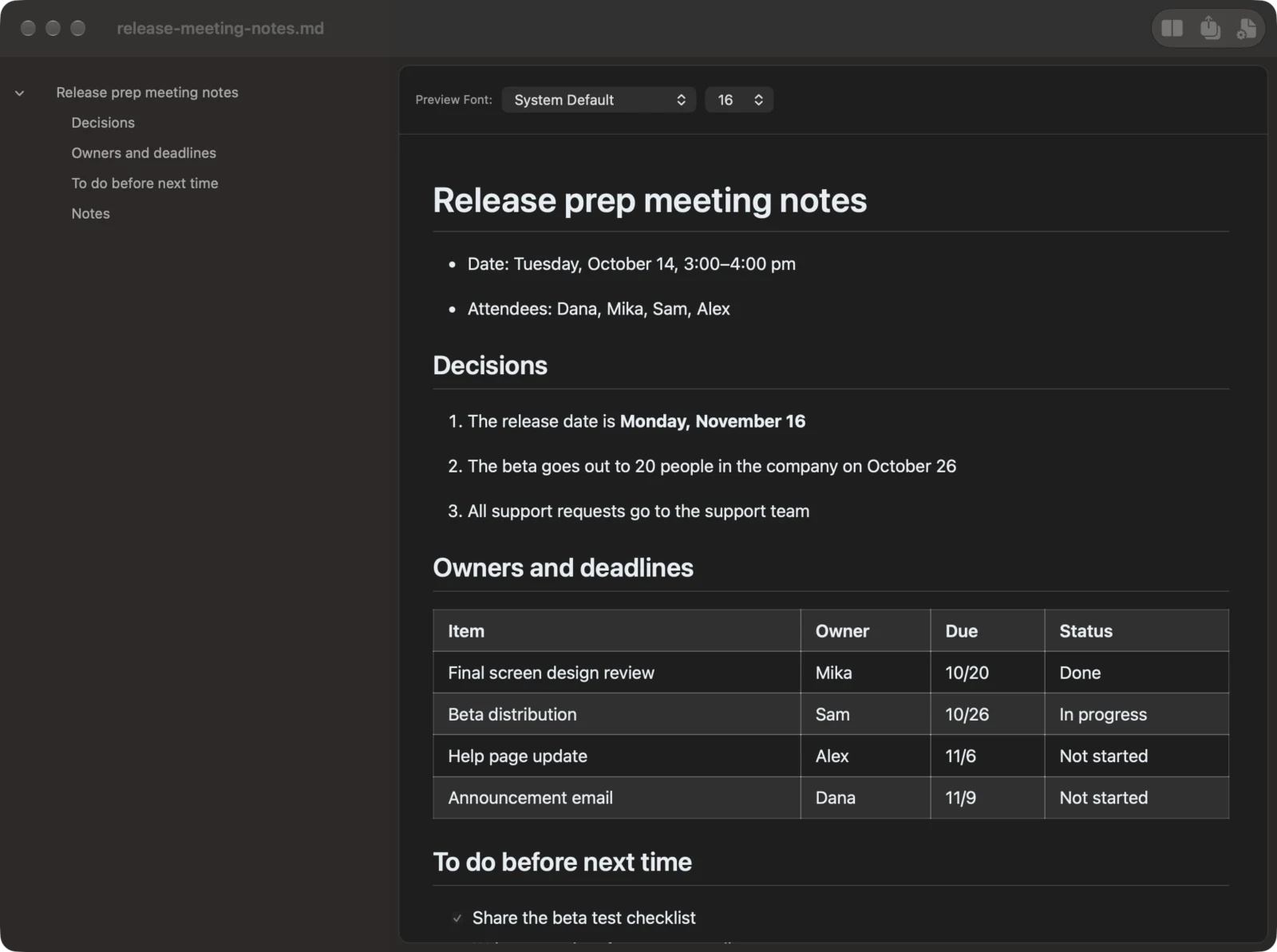
Open a .md file in Markdocx and the headings, lists, tables, checklists, quotes and code appear as a clean document. Make Markdocx the app for .md files, and from then on a double-click is all it takes.
On a Mac
- Select a .md file in the Finder and choose File > Get Info
- Under “Open with”, choose Markdocx
- Click “Change All…”, then click “Continue” to confirm
On Windows
- Right-click a .md file and choose Open with > Choose another app
- Select Markdocx in the list and click “Always”
The preview, right away
- The preview appears the moment the file opens. No pasting into another app, no converting
- Headings, bulleted and numbered lists, tables, checklists, quotes and code blocks are laid out properly, with code colored by language
- Switch to the preview-only layout and it reads like any other document. For .md files, Markdocx remembers the layout you chose and opens the next file the same way
- Headings are listed in the outline on the left, so you can jump to any part of a long document
- Change the preview’s font and text size at the top of the window
Edit with the preview beside you
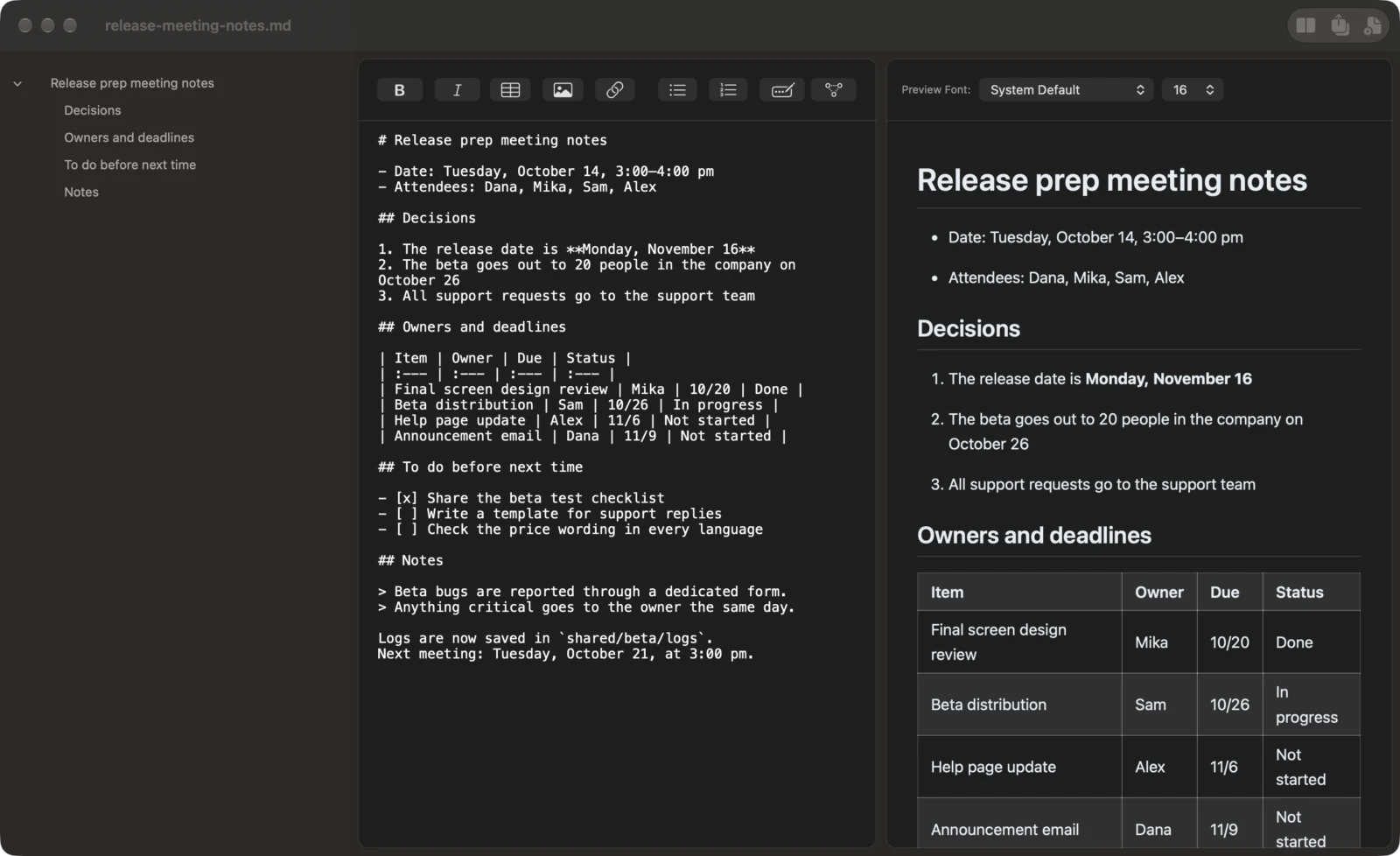
When you spot something to fix, use the Layout button in the toolbar to bring up the editor.
- Put the editor and the preview side by side or one above the other. What you type shows up in the preview right away
- Scrolling stays in sync between the editor and the preview, so you never lose your place
- The formatting toolbar inserts bold, links, tables, images, lists and more — no need to remember every bit of Markdown syntax
- Your work is saved automatically. A .md file stays a .md file, so it still works on GitHub and in other apps
Reading and editing stay free
Markdocx is available on the Mac App Store and the Microsoft Store. Every feature is free for the first 14 days. After that, opening, reading, previewing and editing .md files stay free with no time limit. No account is needed.
The only things that need a one-time purchase are export to Word, PDF, EPUB, HTML and other formats, and importing Word documents. Mermaid diagrams are covered in “How to manage projects with Markdown and Mermaid Gantt charts”, and export to Word in “3 ways to convert Markdown to Word (.docx) on Mac”.
Requirements
The Mac version runs on macOS 26 or later, and the Windows version on Windows 11 and Windows 10 (version 1809 or later). The app is available in 33 languages.