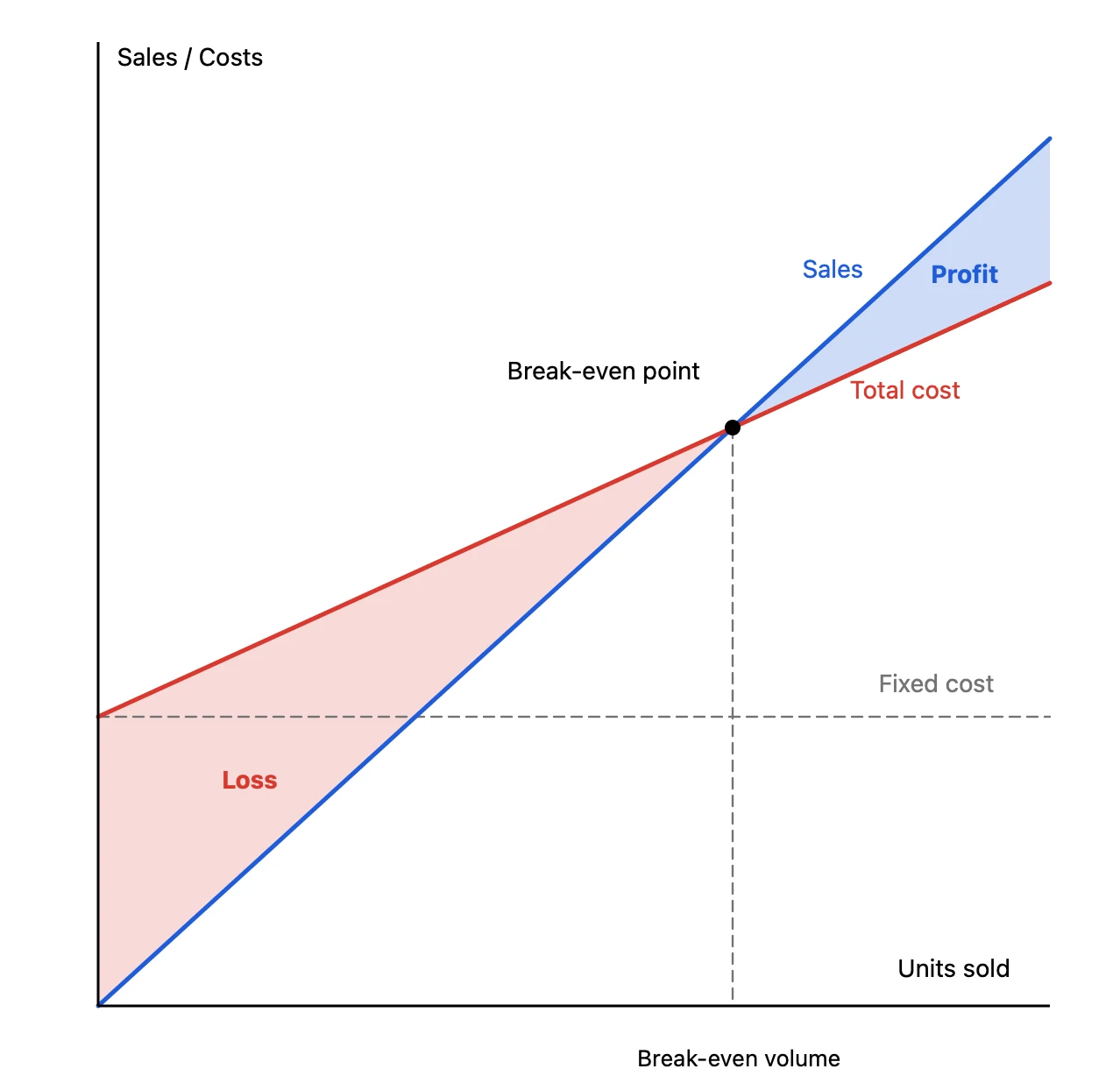
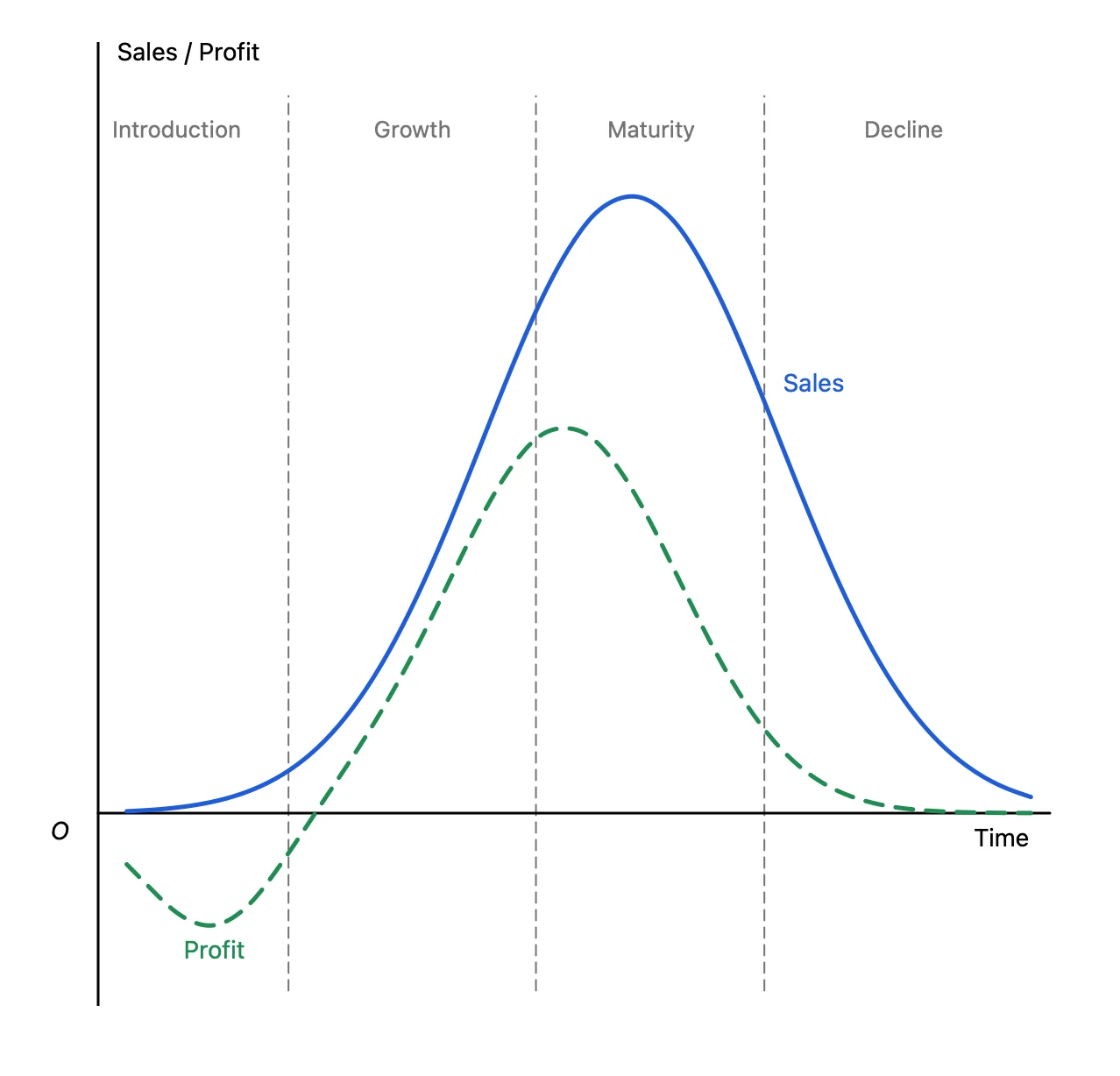
A break-even chart, the product life cycle, the diffusion of innovations curve. Proposals, training sessions and internal presentations are full of graphs like these that explain an idea. Unlike charts of actual sales figures, they get the idea across through the shape of the lines, where they cross and how areas are shaded.
Yet these graphs are surprisingly awkward to make. An Excel chart can’t draw a line without data, and with PowerPoint shapes, smooth curves and shaded areas are fiddly. Graph Sketcher is a Mac app that turns the shape you sketch by hand into a clean graph. Export it as a vector PDF and place it straight on your PowerPoint or Keynote slides.
Business graphs made with Graph Sketcher
Every graph in this article was made in Graph Sketcher and exported as a PDF.
Tips for business graphs
The basics, such as setting up axes and drawing curves, are covered in detail in the article on economics graphs. Here are the techniques business graphs use most.
Hide the numbers on the axes and use words
In a graph that explains an idea, tick numbers only get in the way. In the Axes tab, hide ticks and tick labels, then add axis names such as “Sales / Costs” and “Units sold” with Text.
Label lines beside the lines, not in a legend
Place names such as “Sales” and “Total cost” with Text at the end of each line or right next to it. Nobody has to match a legend to the lines, so the slide can be read at a glance. Words you want to stress can be set in bold.
Match the colors to your deck
Change the color of any line or fill freely in the Style tab of the inspector. Matching your company template’s colors keeps the graph from looking out of place on the slide. Use meaningful colors consistently across the deck — blue for profit, red for loss — and they need no explanation.
Shade areas as closed shapes
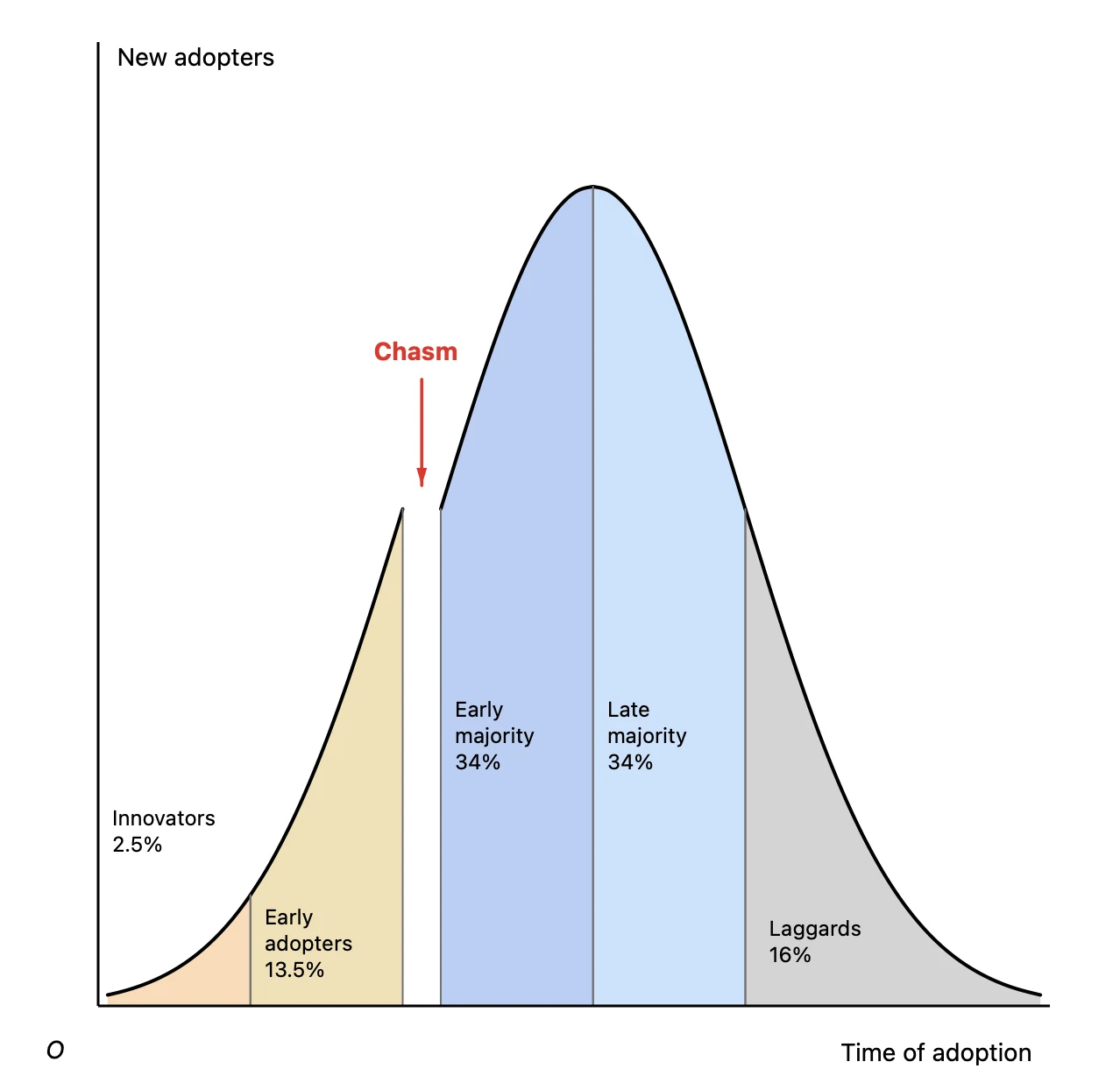
When areas carry the meaning, as with profit and loss or the five segments of the diffusion curve, use fills. Enclose each area with a single line to make a closed shape, then click inside it with Fill. Lower the opacity and lines or text on top stay readable.
Make dividers and guide lines dashed
Draw the dividers between life-cycle stages, the fixed-cost level and the lines dropped from an intersection to the axes as thin dashed lines, so they stand apart from the main lines. Select a line and change its style and width in the Style tab.
Use the Data tab when the numbers are fixed
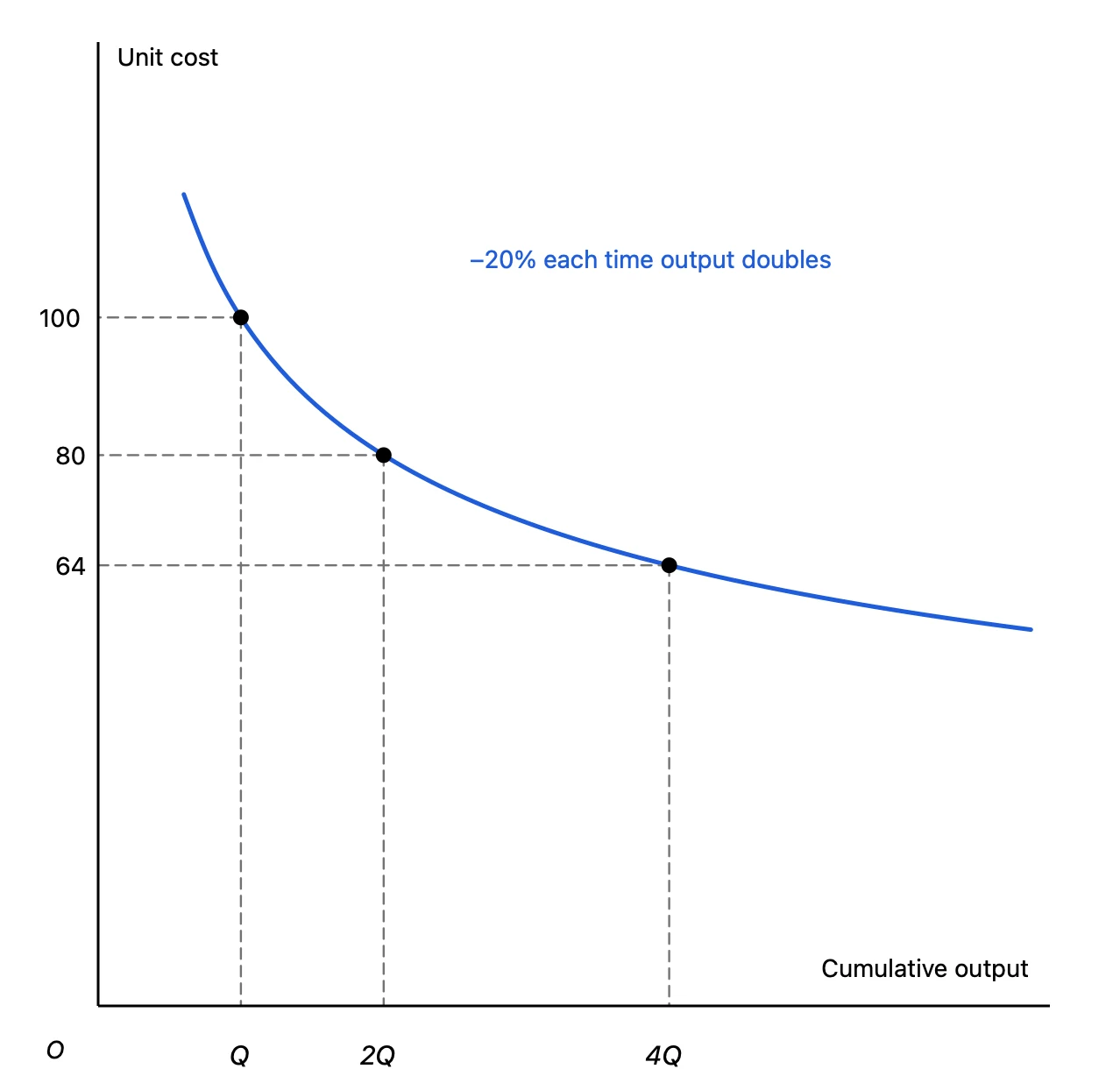
If you have estimates of fixed and variable costs, type point coordinates directly in the Data tab to place the break-even point exactly where the calculation puts it. It also helps whenever the numbers in your explanation and in the graph must match, like “80% at each doubling” on the experience curve.
Place them in PowerPoint or Keynote
Click Export in the toolbar and choose PDF as the format to get a vector PDF. Lines and text stay sharp even when projected large or printed.
- In PowerPoint for Mac, choose Insert → Pictures → Picture from File and pick the exported PDF; it goes onto the slide as a picture
- Keynote, Word and Pages work the same way
- For tools that can’t place a PDF as an image, such as Google Slides, or for decks whose recipients’ setup you don’t know, export a PNG instead (at 2× resolution)
When you reuse the same graph in quarterly reports or in decks for different products, duplicate the Graph Sketcher document, edit it and export again. Line weights and text sizes stay consistent, so the whole deck keeps one look.
Price and requirements
Graph Sketcher is available on the Mac App Store. Every feature is free for 3 days from first launch, then it’s a one-time purchase. There is no subscription. It requires macOS 14 or later.