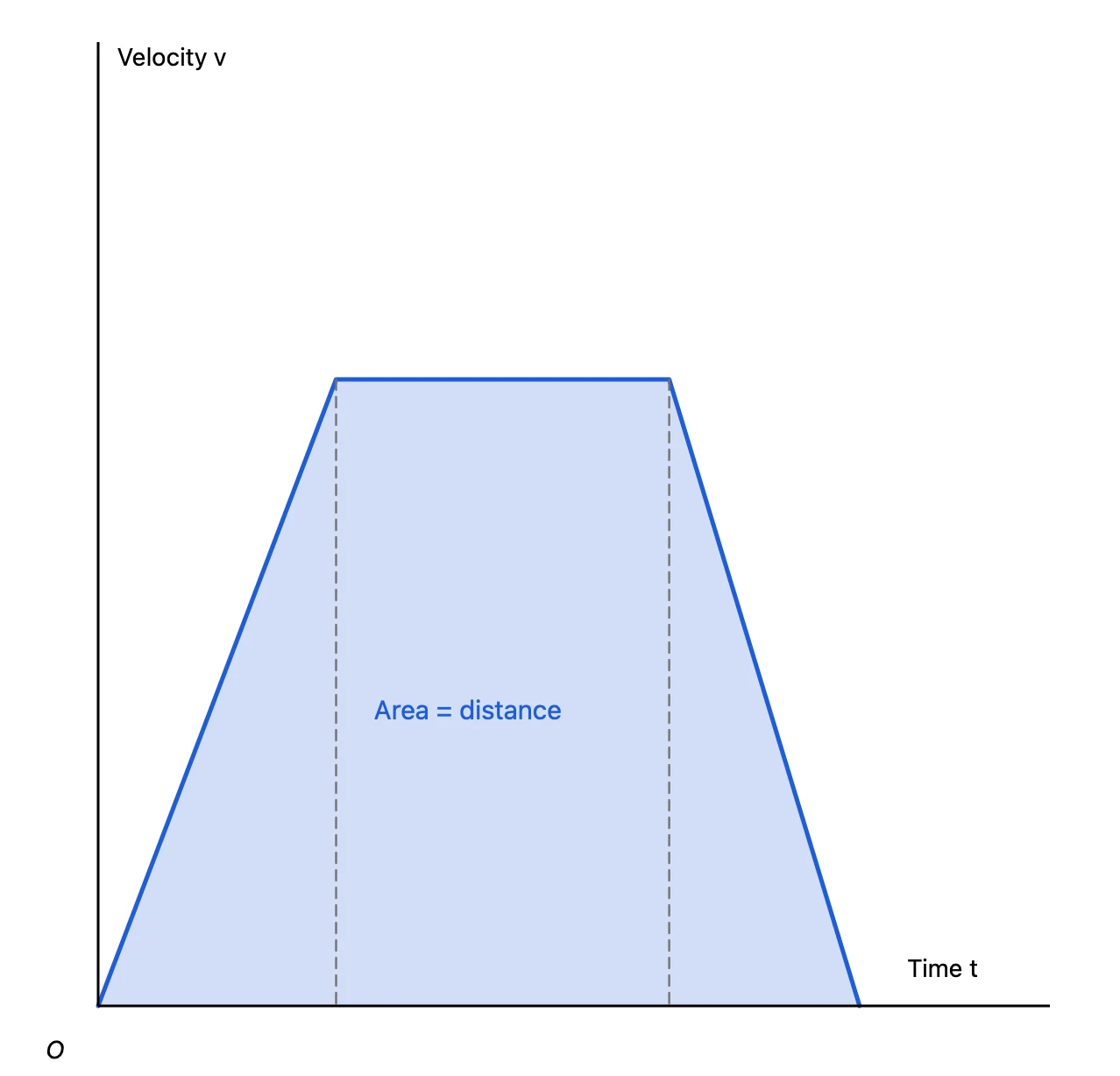
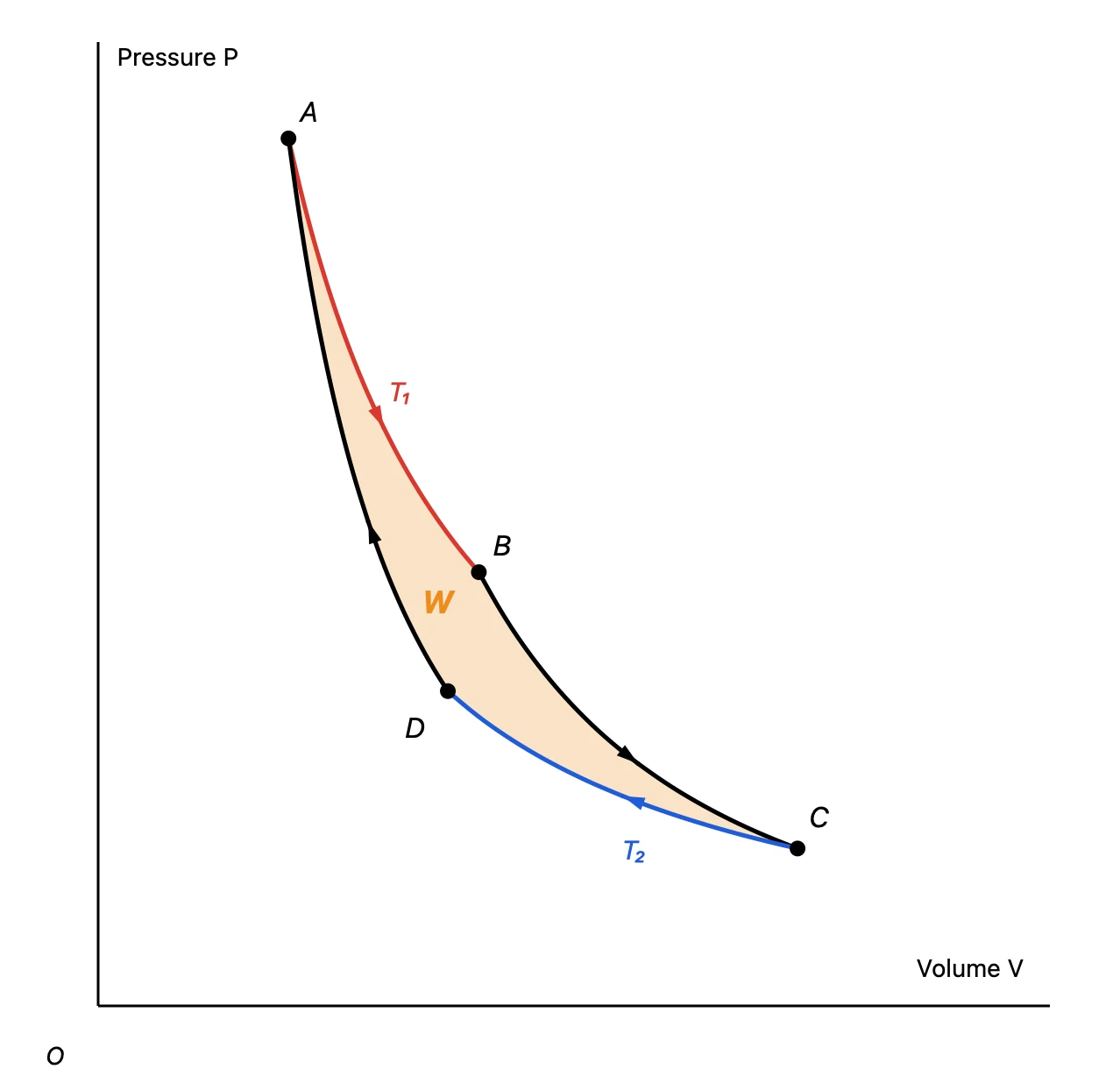
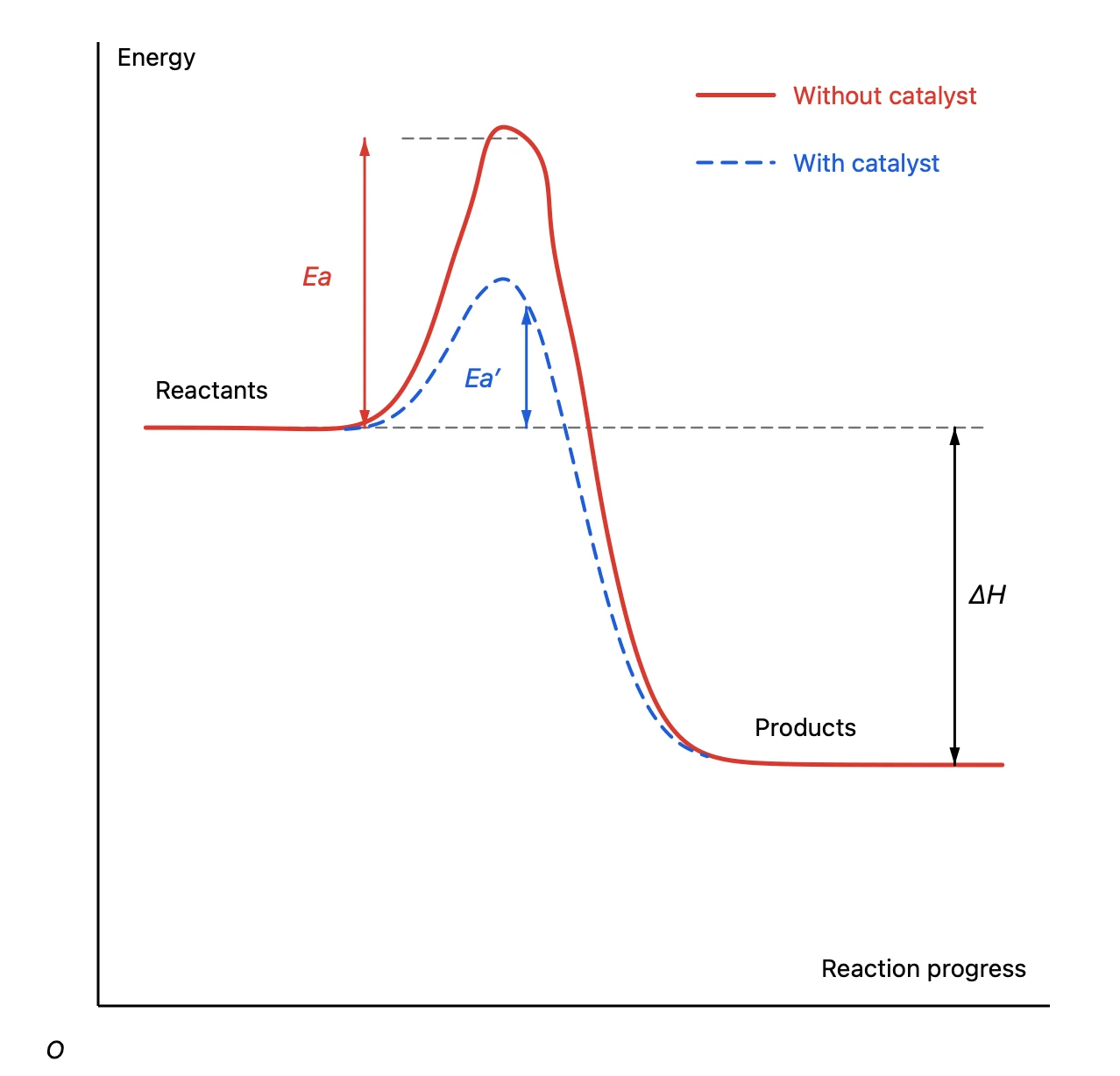
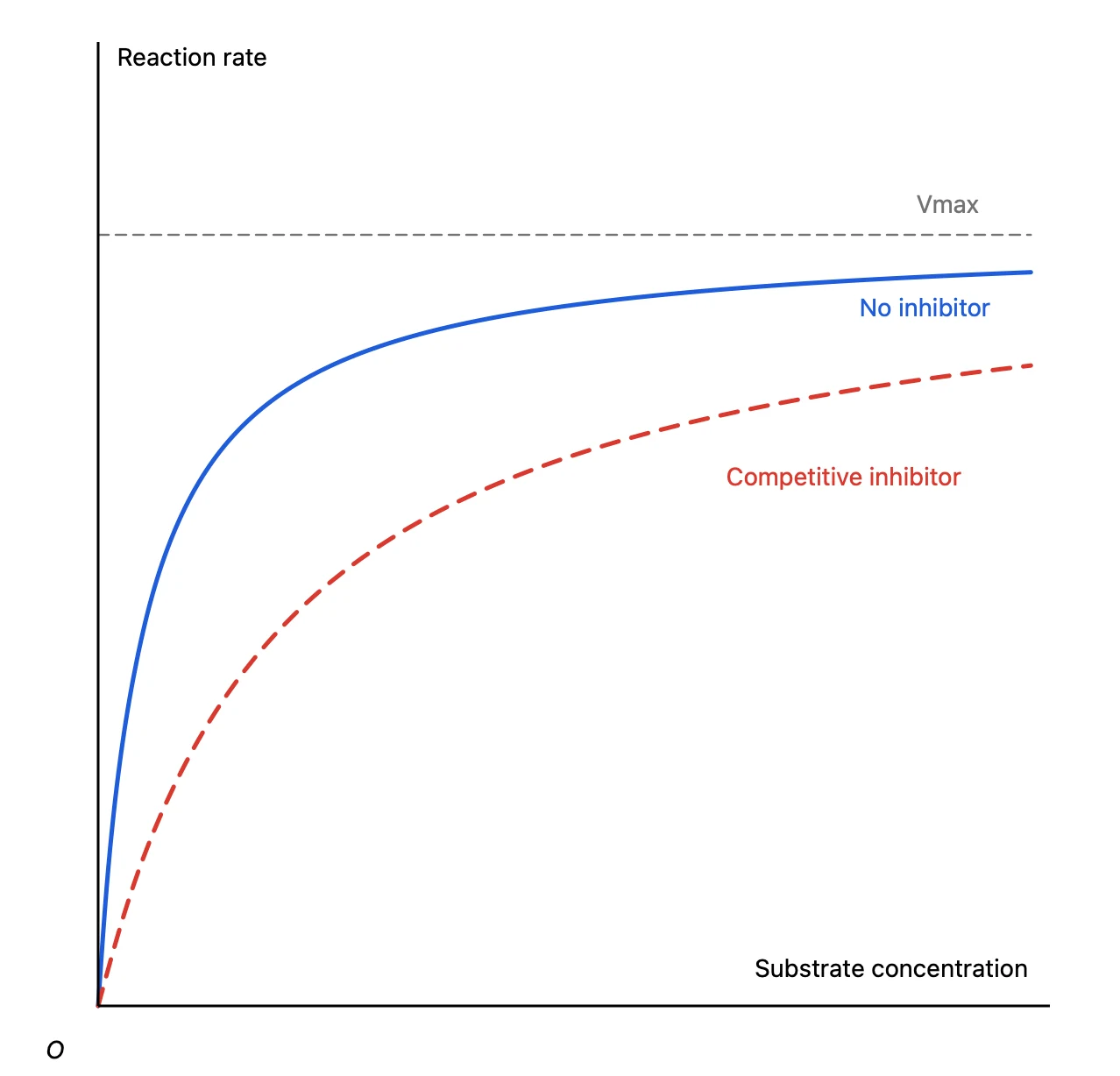
The velocity-time graph in physics, the reaction energy diagram in chemistry, the enzyme rate curve in biology. Science lessons and worksheets call for graphs that explain a shape again and again. What matters is not precise data but the shape of each curve, the area it encloses and how things change when a condition changes.
Graph Sketcher is a Mac app that turns the shape you sketch by hand into a clean graph. It handles shaded areas, arrows and dashed comparison lines, and exports vector PDFs you can place straight onto worksheets and slides. This article walks through classic physics, chemistry and biology graphs and the techniques for drawing them.
Science graphs made with Graph Sketcher
Every graph in this article was made in Graph Sketcher and exported as a PDF.
Tips for drawing science graphs
The basics, such as setting up the axes and drawing curves, are covered in detail in the article on economics graphs. Here are the techniques science graphs use most.
Hide the ticks and keep just the symbols
In the Axes tab, turn off ticks and tick labels to keep only the axis lines. Place the symbols for quantities such as t, v, P and V with Text and set them in italics, as textbooks do. Add the origin O as text too.
Sketch curves by hand, then refine them
You don’t need an equation to draw an isotherm or an enzyme rate curve. Drag with the Draw tool and your stroke becomes a smooth curve that keeps the shape you drew. Fine-tune details such as the height of the hump in an energy diagram later by dragging points with the Modify tool.
Shade areas as closed shapes
When an area carries meaning — the distance on a velocity-time graph or the work on a P-V diagram — fills do the job. Enclose the region with a single line so it forms a closed shape, then click inside it with Fill. Lower the opacity so text and lines on top stay readable.
Show direction and differences with arrows
Select a line and, in the Style tab of the inspector, add an arrow to its start, its end or both. Use an arrow at the end only for the direction of a cycle, and arrows at both ends for a difference such as the activation energy or ΔH.
Overlay changed conditions as dashed lines
To compare conditions — with and without a catalyst, with and without an inhibitor — overlay the second curve on the same graph as a dashed line. Guide lines such as the height of Vmax are easier to tell apart from the main curves when they are thin and dashed.
Match the numbers in a problem with the Data tab
In the Data tab, you can type point coordinates directly. Place the corners exactly where a problem puts them — say, “accelerates to 10 m/s in 2 seconds” — so the figure and the answer agree even when students have to calculate an area.
Place them on worksheets and slides
Click Export in the toolbar and choose PDF as the format to get a vector PDF. Lines and text stay sharp whether you zoom in or print.
- Insert the exported PDF as a picture straight into worksheets you make in Word or Pages
- Place it on PowerPoint or Keynote slides the same way
- If you write papers or tests in LaTeX, include the PDF as is with
\includegraphics - For tools that can’t take a PDF as an image, such as Google Slides, export a PNG instead (at 2× resolution)
When you only want to change the numbers for a quiz, duplicate the Graph Sketcher document, edit the coordinates and export again. You get variations of a problem with the same line widths and text sizes.
Price and requirements
Graph Sketcher is available on the Mac App Store. Every feature is free for 3 days from first launch, then it’s a one-time purchase. There is no subscription. It requires macOS 14 or later.