Company rules, operations manuals, proposals: most work documents are still written in Word. When you want an AI to read them and answer your questions, or an AI agent to use them as a reference while it works, Markdown is easier to work with than Word.
This article shows how to use Markdocx, an app for Mac and Windows, to turn Word documents (.docx) into Markdown and hand them to AI. The conversion happens entirely inside the app, so you don’t need to upload your documents to an online converter.
Markdown is easier to hand to AI
Some chat AIs, such as Claude, let you attach Word documents as they are (Claude Help Center). Even so, converting them to Markdown has these advantages.
- You can see for yourself what the AI reads. If you hand over a Word file, you can’t tell how accurately the AI read it. In Markdown, headings, lists and tables are all written out as text, so what you hand over is right there in front of you
- You choose what to hand over. You can delete the parts that mustn’t leave the company, or chapters that aren’t relevant, before you pass it on
- You can put it in an AI agent’s folder. AI agents like Claude Code and Codex work by reading and writing the text files in a folder. A Word .docx file is XML packed into a ZIP file, so it can’t be read and written like a text file. In Markdown, the agent can refer to it directly and even edit it
- It works as instructions as it is. CLAUDE.md and AGENTS.md, the instruction files for agents, are Markdown too. Copy the parts you need from your company rules in Word, and they become rules the agent reads every time
Turn Word into Markdown with Markdocx
Markdocx can import a Word document (.docx) and turn it into Markdown. You don’t need a converter such as Pandoc, and no command line.
- Choose Import from Word… from the File menu
- Choose the Word document to import, then click Import
- The document, now in Markdown, opens as a new document. Check the result in the preview, then save it in Markdown (.md) format
These are the steps for the Mac version. The Windows version can import Word documents in the same way.
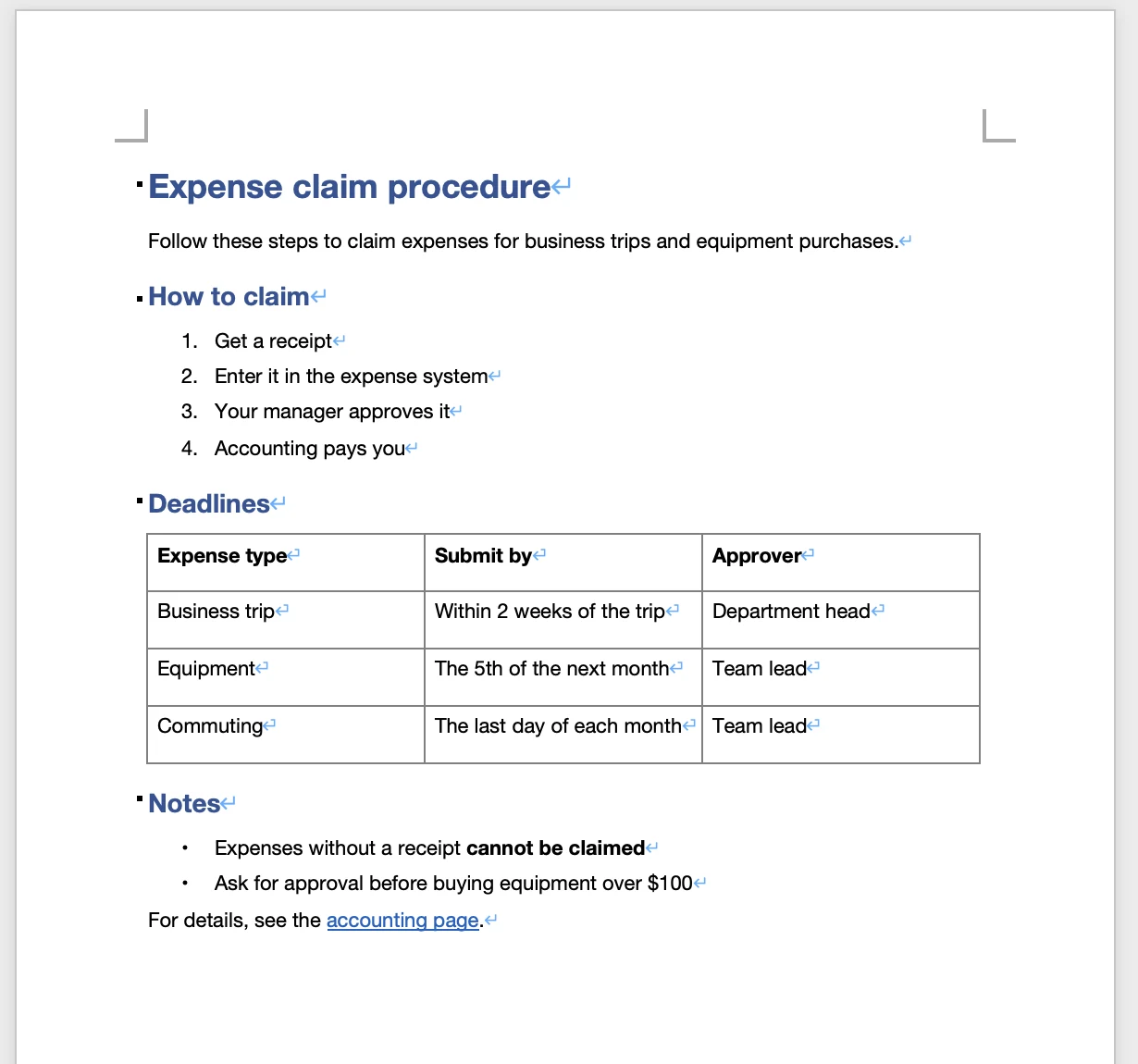
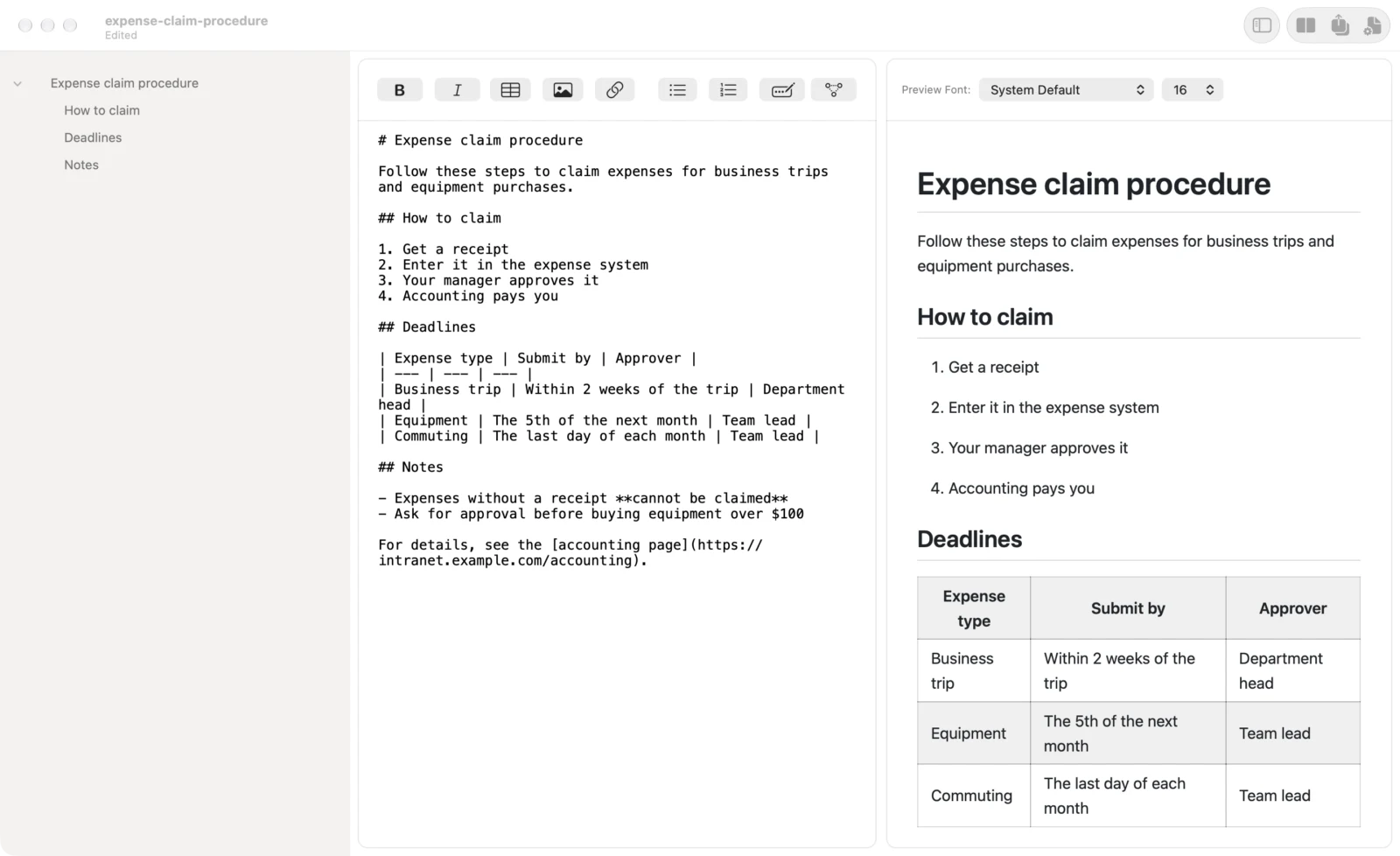
Word formatting becomes Markdown like this.
| In Word | In Markdown |
|---|---|
| Heading styles such as “Heading 1” | Headings that start with # |
| Bulleted and numbered lists (nested ones too) | Lists with – or 1. |
| Tables (column alignment too) | Tables with columns separated by | |
| Bold, italic, strikethrough | **bold**, *italic*, ~~strikethrough~~ |
| Links | [text](URL) |
| Images | Images. The .md format can’t keep images, so save in Markdocx (.markdocx) format if you want to keep them too |
Formatting that Markdown can’t express, such as text color and size or page setup, isn’t carried over. What you hand to AI is the content and its structure, so that’s all you need. Older .doc files and password-protected documents can’t be imported, so save them again as .docx in Word first.
Once it’s in Markdown
Hand it to AI as reference material
Attach it to a chat AI as a .md file, or paste in its contents. For documents you use again and again, such as rules and manuals, add them to a feature that lets the AI keep reference material, and you won’t have to attach them every time.
Put it in an AI agent’s folder
Keep it in your work folder as a .md file, and you can point the agent to it: “Follow the steps in docs/operations-manual.md.” If the manual is out of date, you can even have the agent update it.
Use it as material for CLAUDE.md
Copy the parts of your company’s writing rules and work procedures that you want the agent to follow every time into CLAUDE.md. Both are Markdown, so you can reuse the headings and lists as they are. Find out more about CLAUDE.md in our article on AI agents’ .md files.
Turn the AI’s edits back into Word
Open the Markdown your AI edited in Markdocx and choose Word (.docx) when you export, and it becomes a Word document again. Headings, tables and images carry over, so you can pass it to people who want it in Word. Find out more about exporting to Word in our article on Mermaid and export to Word.
Convert confidential documents without them leaving your computer
Converting Word to Markdown with an online service means uploading your file to the internet. With Markdocx, the conversion happens entirely on your Mac or PC.
- You don’t have to send your documents to an outside service to convert them
- Once a document is in Markdown, you can delete the parts that mustn’t leave the company before you hand it to AI. You decide what the AI gets to see
If your company has rules on how to use AI, follow them when you hand documents over.
Pricing and requirements
Markdocx is available on the Mac App Store and the Microsoft Store. Word import and export to Word, PDF and other formats are unlocked with a one-time purchase. Every feature is free for the first 14 days, so you can try it on your own Word documents first. After that, opening, reading and editing .md files stay free with no time limit. There is no subscription.
The Mac version runs on macOS 26 or later, and the Windows version on Windows 11 and Windows 10 (version 1809 or later). The Mac and Windows versions are purchased separately, each in its own store.