“Do you have an hour for a meeting sometime next week?” You ask in chat or by email, wait for replies, and when someone can’t make it, you suggest new times. Scheduling a meeting often takes several rounds before anything is settled.
But if your attendees keep their schedules in Google Calendar, you can check before you ask. Galna is a Mac and Windows app built exclusively for Google Calendar. Just add attendees to an event, and it checks when everyone is free and suggests times that work for all.
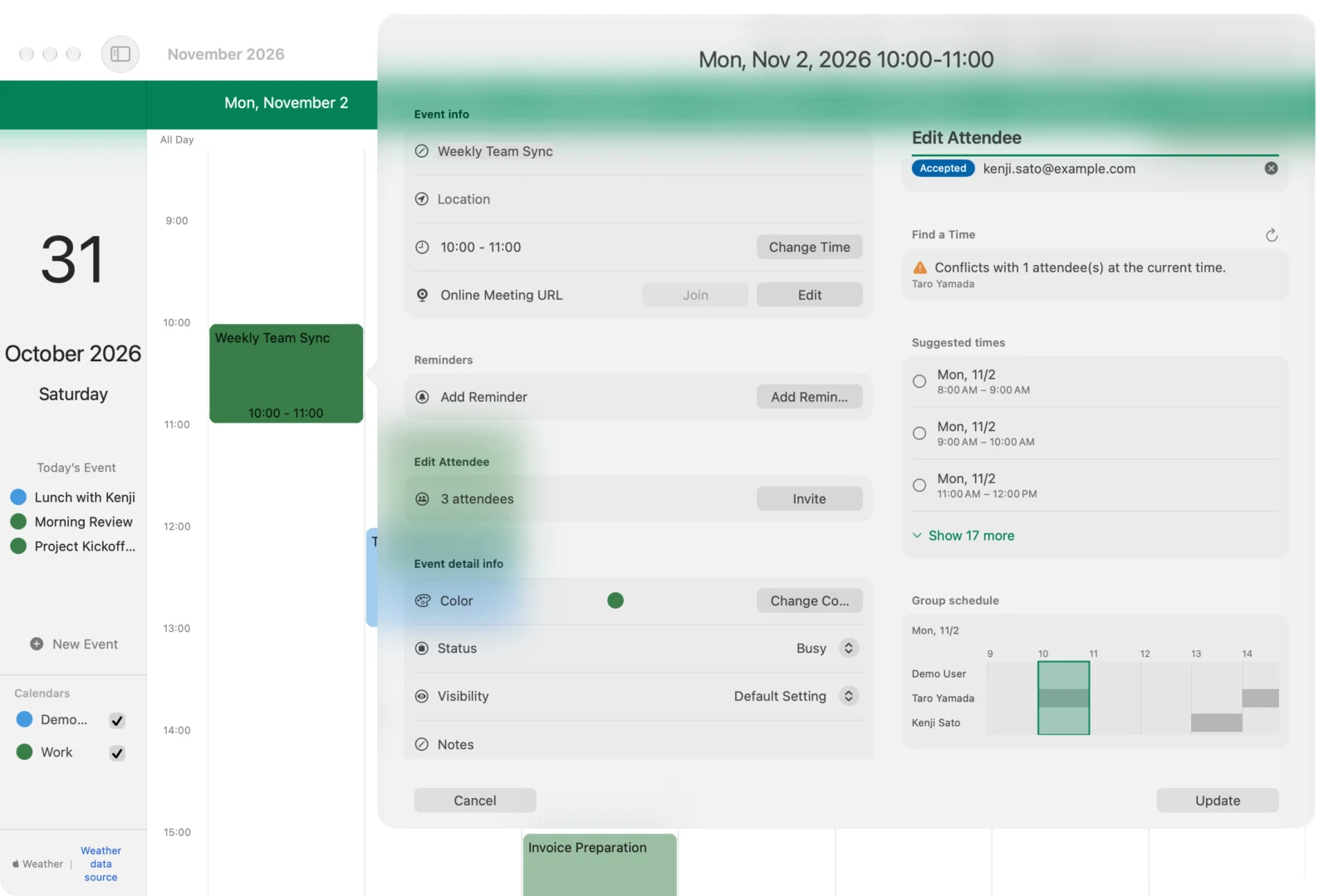
Add attendees, and see when everyone is free
Open an event in Galna and add attendees, and “Find a Time” appears below the list of attendees. It tells you three things.
- Whether the current time works: If anyone is busy, it says so, for example “Conflicts with 1 attendee(s) at the current time.”, and shows their name. If everyone is free, it shows “Everyone is free at the current time.”
- Times when everyone is free (Suggested times): From today through the next 2 weeks, between 8 AM and 8 PM, it suggests times of the same length when you and all attendees are free. It shows the first few, and “Show N more” shows the rest
- How everyone’s schedules overlap (Group schedule): It lines up the busy times of you and your attendees on a single timeline
How scheduling works
- In week view, double-click roughly the date and time you have in mind to create an event (you can also open an existing event)
- Under “Edit Attendee”, click “Invite” and add attendees by email address. Names from your contacts are suggested, so you don’t have to type everything
- Under “Find a Time”, check whether anyone is busy at the current time
- If someone is, choose one of the “Suggested times”. In the group schedule, you can compare the chosen time with everyone’s events
- Click “Update” to save the event at the chosen time. For events with attendees, you can choose whether to let them know about the change by email
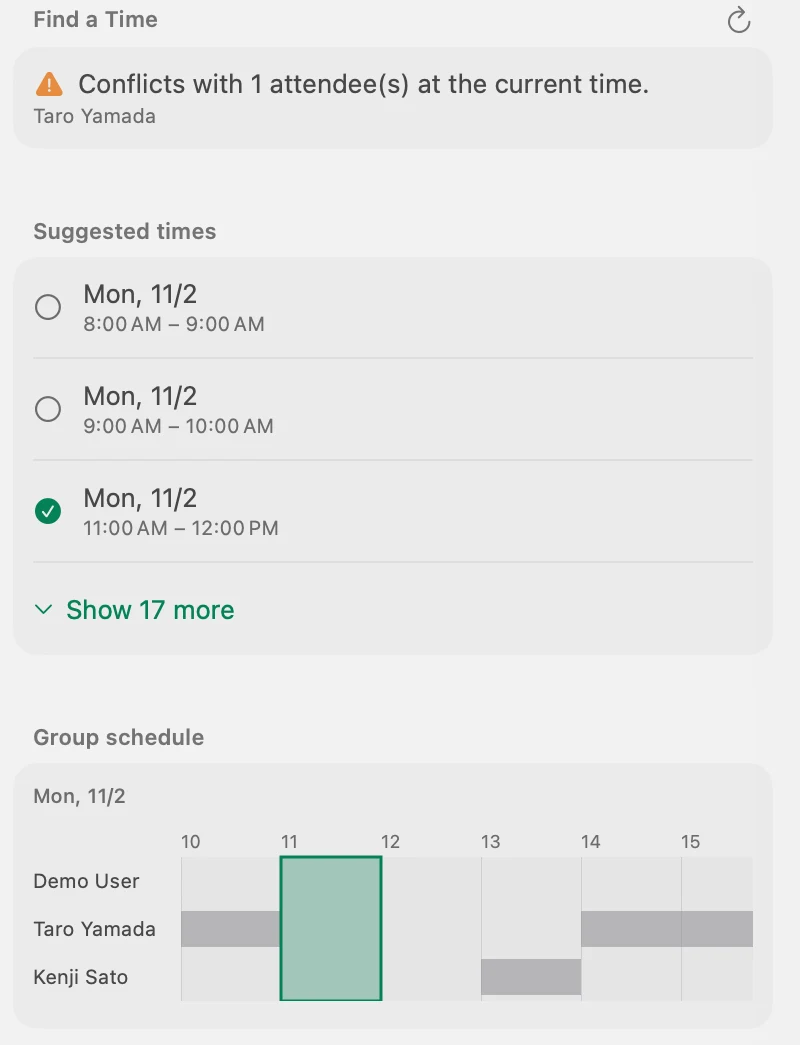
Check and fine-tune in the group schedule
In the group schedule, busy times are shown in gray, and the time of this event in a green frame. You can drag the frame to move it, and drag its left or right edge to change its length (in 15-minute steps). It’s handy when you want a time that isn’t among the suggested times, or just want to shift it a little. The new time takes effect when you click “Update”.
A Google Meet link in one click
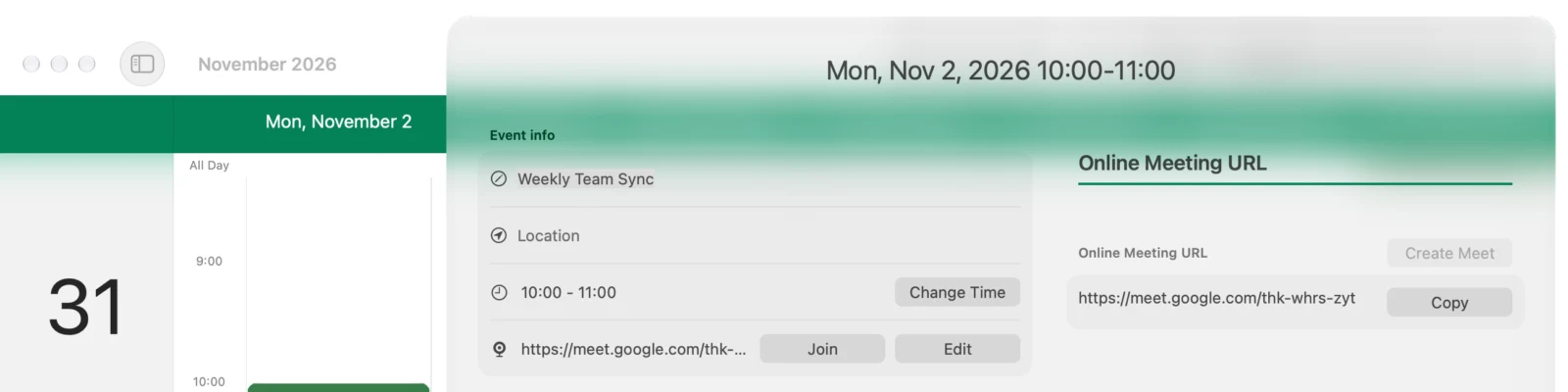
For an online meeting, click “Edit” next to “Online Meeting URL”, then “Create Meet”, and a Google Meet link is added to the event. If you paste a Zoom or Microsoft Teams link instead, you can join the meeting with one click from the event’s “Join” button on the day (Mac version).
Whose availability you can see, and whose you can’t
Galna checks availability using the free/busy information in Google Calendar. You can see when people are free if they use the same organization’s Google Workspace or share their calendar with you. All you see is whether they have something scheduled at that time; event names and details are not shown.
For people who don’t share their availability, such as people outside your organization, Galna can’t check their schedule. In that case it shows their name after “Couldn’t get availability for:” and doesn’t say that everyone is free. Ask those people when they’re available, as you always have.
“Find a Time” on Windows too
The Windows version, “Galna Calendar”, also has “Find a Time”. It shows who is busy at the chosen time, suggests times when everyone is free, and lays everyone’s day out on one timeline. You can add a Google Meet link with one click, too.
Pricing and requirements
Every Galna feature is free for the first 7 days. After that, the Mac version is available as a one-time purchase or a monthly subscription (macOS 15 or later). The Windows version is a one-time purchase on the Microsoft Store, bought separately from the Mac version (Windows 11 version 22H2 or later). A Google account is required.
Your calendar data is processed on your Mac or PC and is never sent to our servers. Galna communicates directly with Google’s services. Galna is not an official Google app.
Galna can also show Japan’s rokuyo (a traditional cycle of six lucky and unlucky days, such as taian and butsumetsu) on your calendar. Learn more in our article on showing rokuyo in Google Calendar.