If you only need to see your events, the calendar app that comes with your computer is enough. But if you set up meetings in Google Calendar, or want to keep work and personal events apart, Galna, an app made just for Google Calendar, is the easiest fit.
Your work schedule lives in Google Calendar, yet Google has no official calendar app for Windows or Mac. So most people keep Google Calendar open in a browser tab.
This article compares three ways to use Google Calendar on your computer.
- Use it in a browser
- Add your Google account to Outlook on Windows or the Calendar app on Mac
- Use Galna, an app made just for Google Calendar (on Windows it’s called Galna Calendar)
Option 1: Use it in a browser
This is the most dependable option. It’s free, every Google Calendar feature is there, and new features arrive here first. But when you use it every day, small annoyances add up.
- It starts with hunting for the tab: you search through all your open tabs for the calendar. Close it by mistake, and you open it all over again
- Notifications are easy to miss: event notifications assume your browser and the Calendar tab are open
- It’s hard to tell which account you’re in: with several Google accounts for work, a client and personal use, you have to check the top-right corner to know whose calendar you’re looking at
- A quick check takes many steps: open the browser, find the tab, wait for it to load. Even seeing your next event takes effort
Chrome and Edge can install the page you have open as an app. Google Calendar then opens in its own window with an icon in the taskbar or Dock, so it no longer gets lost among your tabs. But it’s still the same page you’d open in the browser, so telling accounts apart is just as hard.
Option 2: Add your Google account to Outlook on Windows or Calendar on Mac
Add your Google account to the app that comes with your computer, and your Google Calendar events show up there. It’s free, and notifications arrive as your computer’s own notifications.
Windows: the new Outlook
Support for the Mail and Calendar apps in Windows 11 ended at the end of 2024, and the new Outlook has taken over their role. Add your Google account under Accounts in Settings, and your Google Calendar events appear alongside Gmail.
- Your Google data is also kept in Microsoft’s cloud: the new Outlook syncs a copy of your Gmail email, calendar and contacts with Microsoft’s data centers (Microsoft’s explanation)
- Meeting features are built for Microsoft 365: the feature for seeing attendees’ availability works between Microsoft 365 calendars, so you can’t check when people on Google Calendar are free. Online meetings center on Teams, and adding a Google Meet link requires an add-in
- It sits alongside other events: if you also use Outlook.com or your company’s Microsoft 365 calendar, those events share the same screen as your Google Calendar events
Mac: Calendar
Add your Google account under Internet Accounts in System Settings and turn on Calendars, and your Google Calendar events appear in the Calendar app on your Mac.
- You can’t create a Google Meet link (you can open a link that’s already there)
- You can’t check all attendees’ availability at once
- It mixes with your iCloud events: family and hobby events synced with your iPhone sit in the same app as your work events. When you share your screen to pick a date, your personal events show too
Both are fine for seeing your events. But every time you schedule a meeting or add Google Meet, you end up going back to the browser.
Option 3: Use Galna, an app made just for Google Calendar
Galna is a Mac and Windows app we built just for Google Calendar. Sign in with your Google account, and you can check, create and edit events without opening a browser. We built it to fill the gaps left by both the browser and the apps that come with your OS.
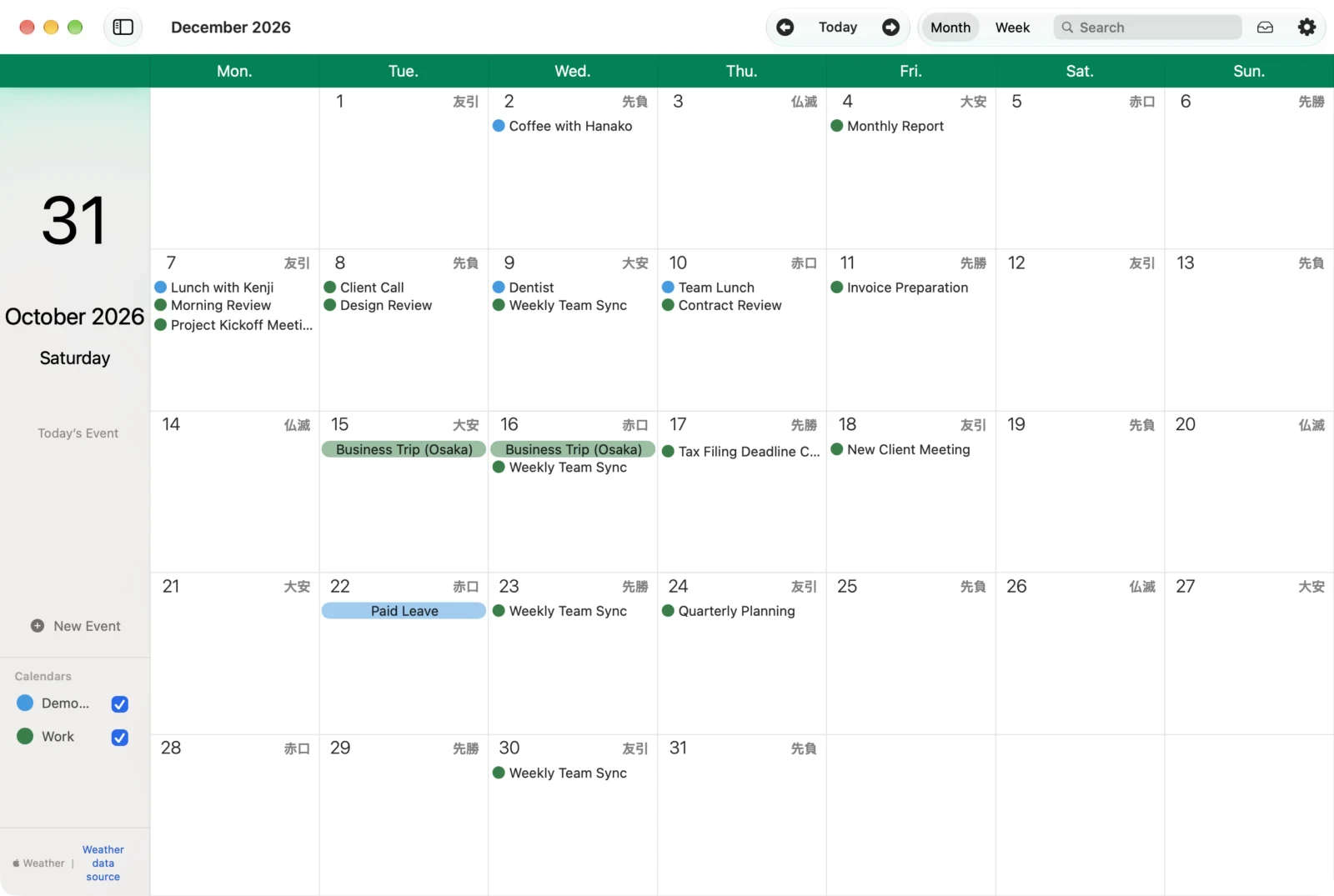
No need to open a browser
- It’s a separate app, so there’s no tab to hunt for
- Check today’s events in one click from the menu bar on Mac or the notification area on Windows
- Event notifications arrive in Notification Center on Mac and as Windows notifications
- Galna keeps your events on your computer, so the calendar appears the moment you open the app. Changes sync with Google in the background
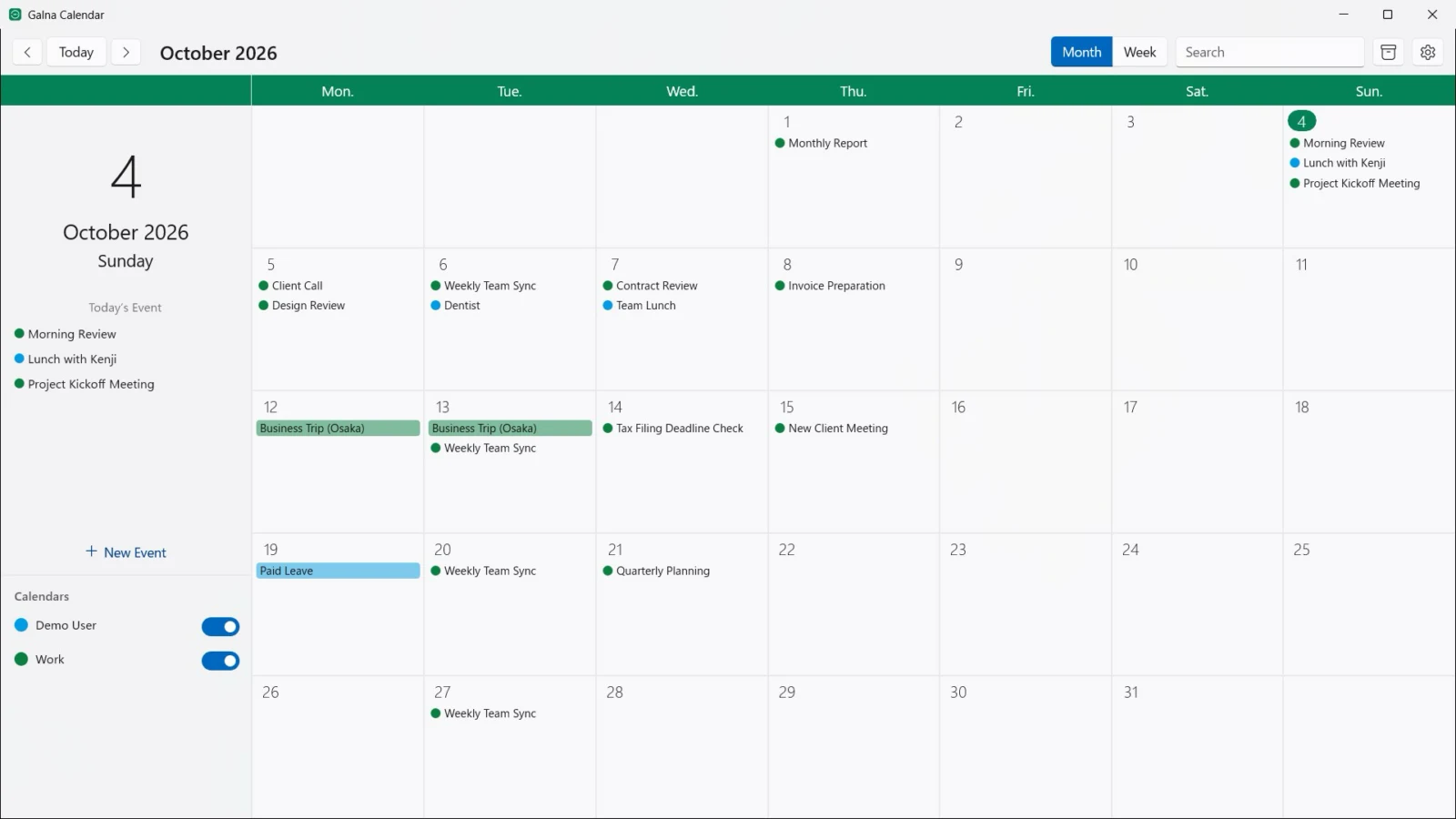
Everything a meeting needs, inside the app
Galna has the Google Calendar features that the apps that come with your OS don’t.
- Everyone’s availability: add attendees, and “Find a Time” checks for conflicts and offers “Suggested times” when everyone is free (learn more)
- Google Meet in one click: press “Create Meet”, and a meeting URL is added to the event. On Mac, you can also join in one click from a Zoom or Teams URL pasted into the event
- Replying to invitations: reply to the invitations you receive, such as accepting or declining, right in the app
- Recurring events: daily, weekly, monthly (such as the second Tuesday) or yearly, with an end date or a number of times
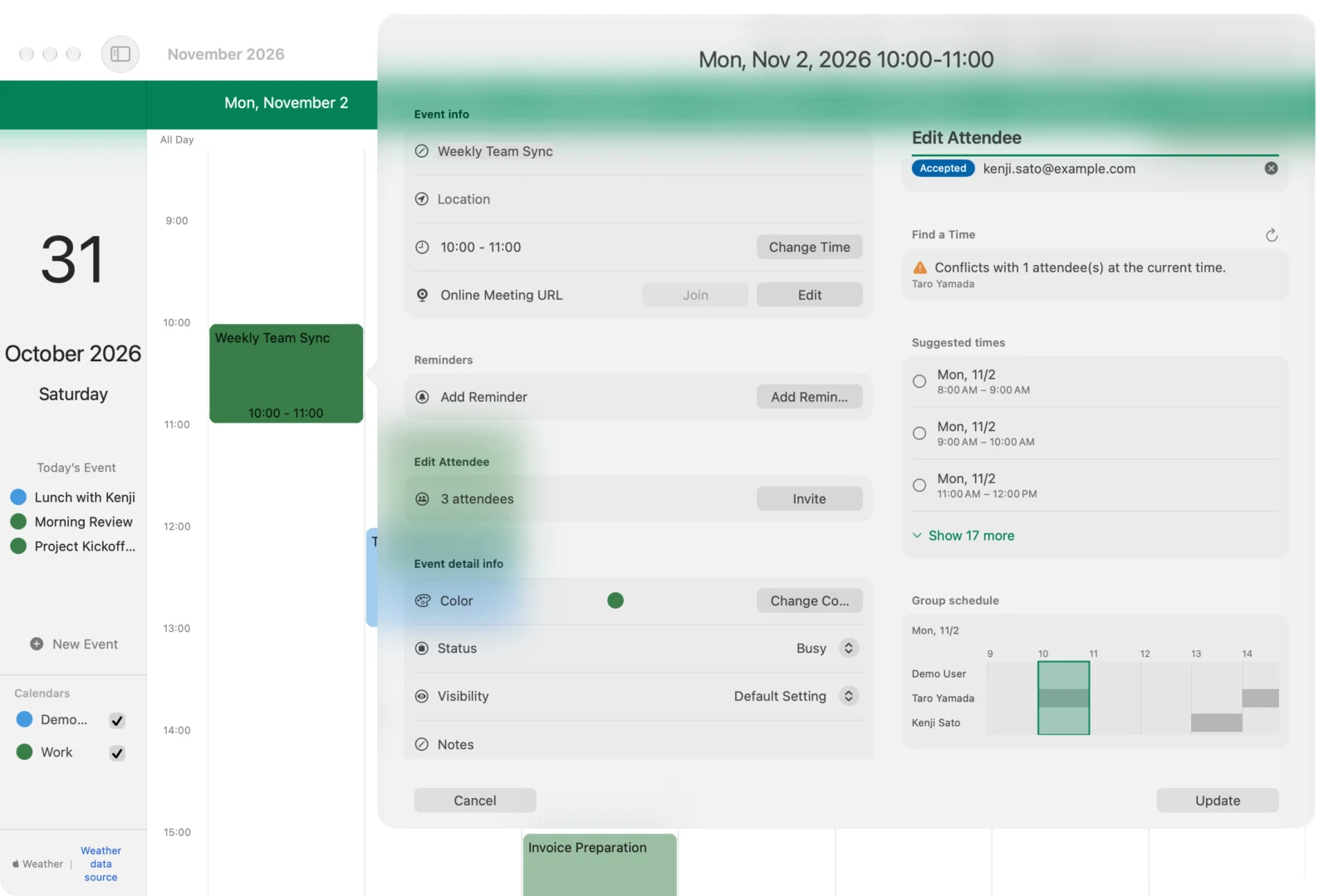
Keep work and personal life apart
- Galna shows only Google Calendar. It doesn’t mix with iCloud or Outlook.com events
- You can open a separate window for each Google account side by side, so you won’t mix them up (on Mac, you can also give each account its own theme color; learn more)
- There’s no need to touch System Settings or Outlook’s account settings. When a project ends, you can sign out of just that account
Your data goes only between your computer and Google
Galna processes your calendar data on your computer and talks directly to Google’s services. It never copies your events to our servers or to another company’s cloud.
It can also show the rokuyo
Turn on “Show Rokuyo (Lucky and unlucky days of the Japanese calendar)” in Settings, and the rokuyo, the six-day cycle of lucky and unlucky days in the Japanese calendar such as Taian and Butsumetsu, appear next to the dates in month and week views. Neither Google Calendar in a browser nor Calendar on Mac can do this (learn more).
Comparing the three options
Galna is the only one that lets you handle everything, meetings included, in one app without opening a browser.
| Browser | New Outlook (Windows) | Calendar (Mac) | Galna | |
|---|---|---|---|---|
| Cost | Free | Free (comes with Windows) | Free (comes with Mac) | Free for 7 days, then a one-time purchase (monthly also available on Mac) |
| Use without opening a browser | ✕ (a separate window if you install it as an app) | ○ | ○ | ○ |
| Event notifications | △ (while the browser is open) | ○ | ○ | ○ |
| Add a Google Meet link | ○ | △ (requires an add-in) | ✕ | ○ (one click) |
| Everyone’s availability | ○ (Google’s “Find a time”) | ✕ | ✕ | ○ (Galna’s “Find a Time”) |
| Keep work and personal apart | △ (accounts are hard to tell apart) | ✕ (shown with Microsoft events) | ✕ (shown with iCloud events) | ○ (a window per account) |
| Where your event data is kept | Google and Microsoft’s cloud | Google and your Mac | Google and your computer |
Settings for Google Calendar itself, such as sharing a calendar, are done in the browser whichever option you choose.
Which one to choose
- You only need to see your events, for free → Outlook on Windows, Calendar on Mac
- You open Google Calendar only now and then → the browser (installing it as an app helps too)
- You open it many times a day, schedule meetings with others, and want to keep work and personal apart → Galna
Galna is an app for people who use Google Calendar for work every day. It isn’t a good fit if you want to see calendars other than Google, such as iCloud or Outlook, together in one app.
Galna pricing and requirements
All features are free for the first 7 days. You need a Google account to use it.
- Mac: macOS 15 or later. On the Mac App Store, after the free period you can choose a one-time purchase or a monthly subscription
- Windows (Galna Calendar): Windows 11 version 22H2 or later. A one-time purchase on the Microsoft Store, separate from the Mac purchase
Galna is not an official Google app. If you only want to compare the options on a Mac, see also “3 ways to use Google Calendar on your Mac”.