Many freelancers, sole proprietors and people with side jobs manage their work schedule in Google Calendar. When you need to share events with clients or send invitations with a Google Meet link, Google Calendar is simply the quickest way to get things done.
But once you try to use Google Calendar on a Mac, you’ll find it’s surprisingly fiddly. In this article, we’ll sort out those hassles and show you how to keep your work and personal calendars cleanly separated.
Isn’t using Google Calendar in a browser a hassle?
Google Calendar has no official Mac app, so you usually open it in a browser. But when you use it every day, the small annoyances add up.
- It starts with hunting for the tab: you dig through dozens of open tabs to find the one with your calendar. Close it by accident, and you have to open it all over again
- You lose track of which account you’re looking at: when you juggle several accounts, such as your own Google account and one issued by a client, you can’t tell whose calendar is open without checking the top-right corner of the browser. Sometimes you even add an event to the wrong account
- It’s easy to miss notifications: if your browser or the tab is closed, event notifications may not reach you
- Too many steps for a “quick check”: open the browser, find the tab, wait for it to load… Even checking a single event takes effort
You can connect it to Calendar on your Mac, but…
You can add a Google account to the Calendar app on your Mac. Once you do, your Google Calendar events show up in Calendar on your Mac.
But this approach comes with its own problems.
Work and personal events get mixed in the same calendar
Calendar on your Mac already holds your iCloud calendars synced with your iPhone, and many people keep family plans, doctor’s appointments and hobbies there. Add your work Google Calendar on top of that, and all your work and personal events end up side by side in a single app.
- When you share your screen with a client to settle on a time, they can see your personal events too
- Work notifications and personal notifications all come from the same Calendar app
- You can keep them apart by showing and hiding calendars, but switching every time isn’t realistic
The more your work blurs the line between work and life, as freelancing often does, the cleaner it is to split them by app: “personal in Calendar on your Mac (iCloud), work in a separate app”.
Adding the account is a hassle in the first place
To add a Google account to Calendar on your Mac, you need to follow these steps.
- Open System Settings and choose Internet Accounts
- Click Add Account, choose Google, and sign in on the Google sign-in screen that appears
- Allow access, then choose the items to sync (Mail, Contacts, Calendars and so on). If you only want the calendar, turn the other items off
If you have an account for each client, you repeat these steps every time. When a project ends, you then have to remove the account in System Settings. All you wanted was to see a calendar, yet you end up changing settings for your entire Mac.
On top of that, Calendar on your Mac can’t create Google Meet links or check all attendees’ availability at once (we compare the options in “3 ways to use Google Calendar on your Mac”).
What you really want is an app where you “just sign in with your Google account”
In the end, this is the kind of app you want:
- Made just for Google Calendar, showing your events as soon as you open it
- Ready to use as soon as you sign in with your Google account, with no changes to System Settings
- A separate app from Calendar on your Mac (iCloud), so work and personal events never mix
With Galna, you just sign in with your Google account
Galna is a Mac app we built exclusively for Google Calendar.
The first time you open it, you’ll see a sign-in screen. Click the Google button, sign in to the Google account you use for work on the Google sign-in screen that appears, and your calendar shows up. There’s no need to open System Settings.
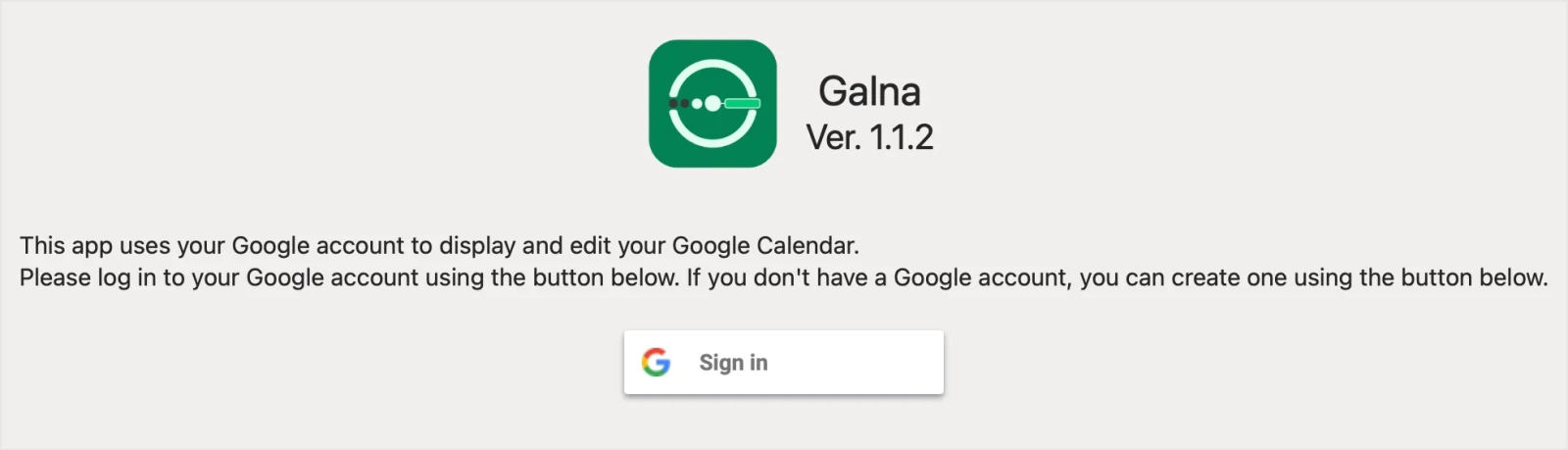
Galna shows only Google Calendar. It never reads the iCloud calendars in Calendar on your Mac. Keep personal events in Calendar on your Mac as before and work events in Galna, with each in its own app.
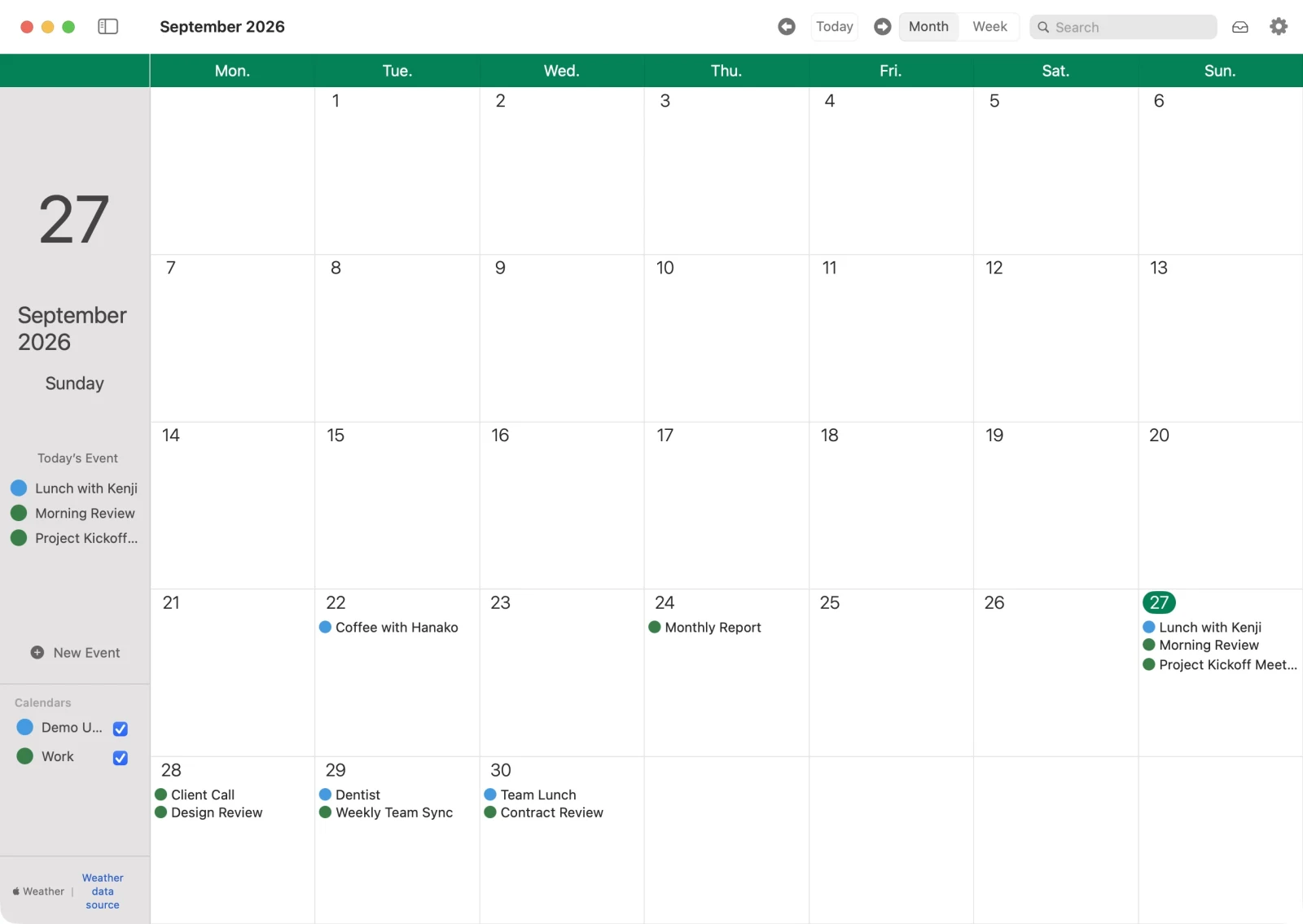
It has all the features you need to use Google Calendar for work.
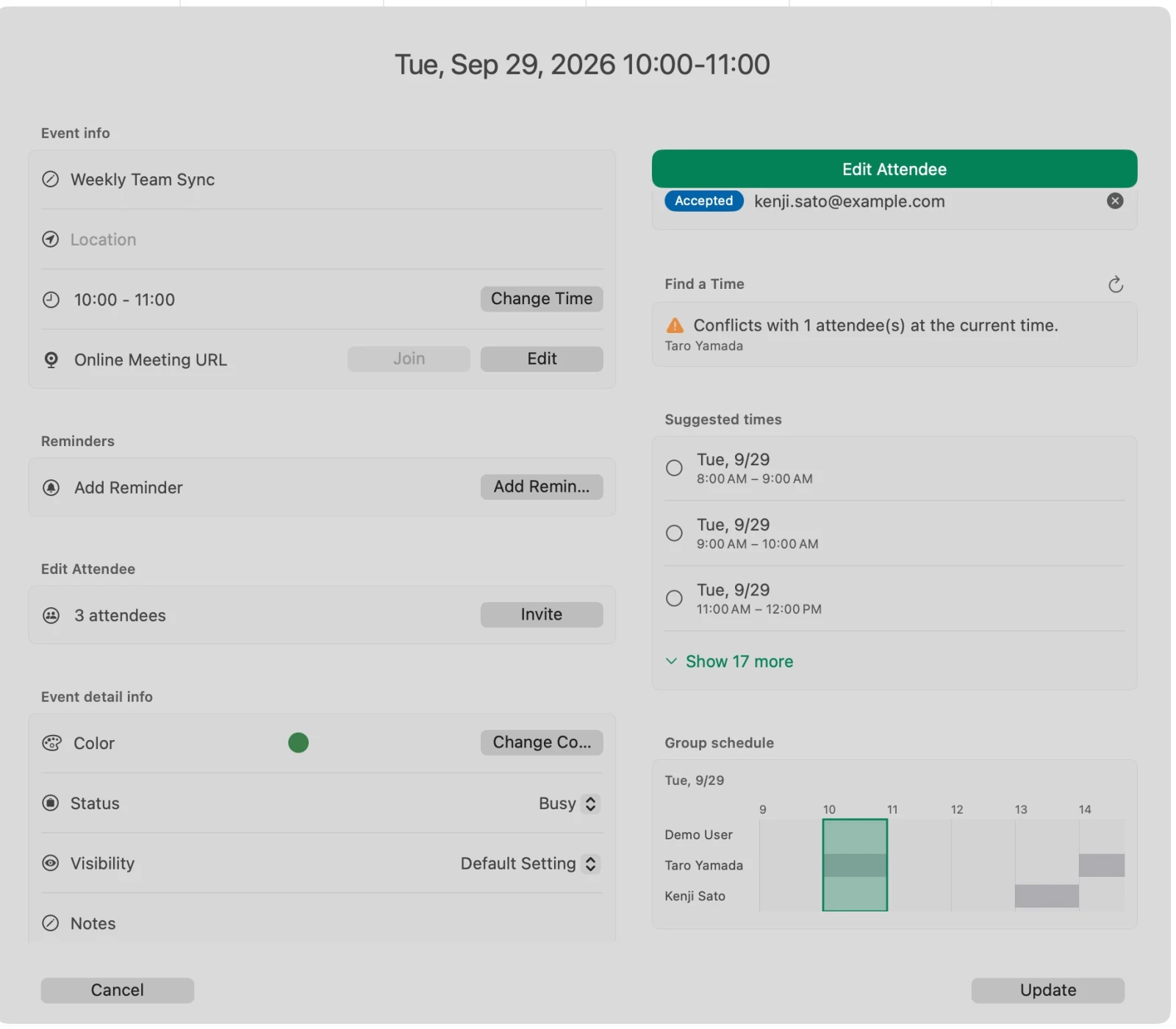
- Month and week views: drag and drop to move events, and in week view, drag the edge of an event to change its time
- Create a Google Meet link in one click: paste a Zoom or Teams URL into an event, and you can join from there in one click too
- Check attendees’ availability at once: add attendees, and Galna checks everyone’s availability and offers “Suggested times”
- Reply to invitations: respond to invitations with Accept, Maybe or Decline right in the app
- See today’s events from the menu bar: check today’s events from the menu bar without opening a Galna window
- Japanese public holidays and Rokuyo (Taian, Butsumetsu and so on) can be shown on your calendar
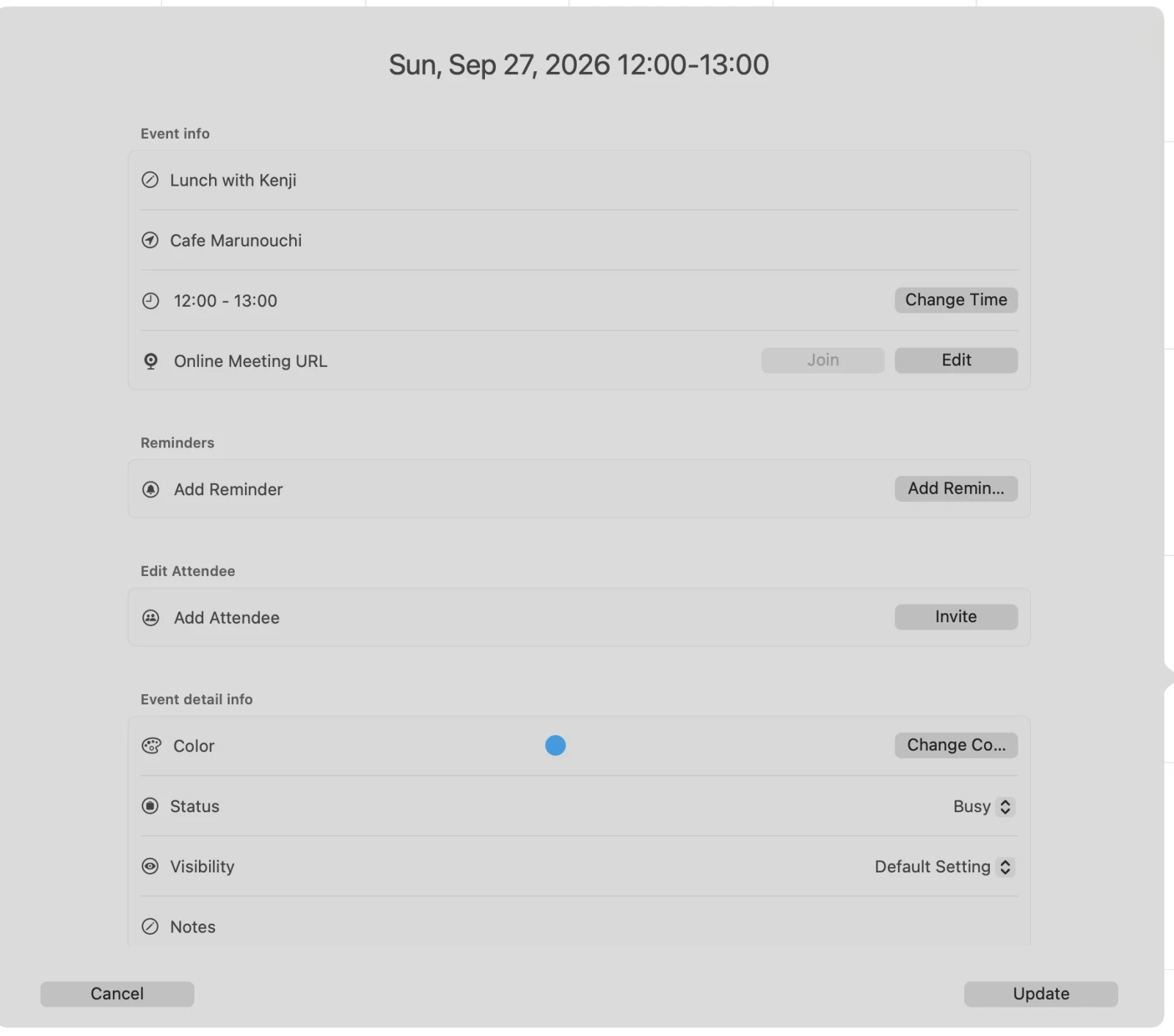
Your calendar data is processed on your Mac and is never sent to our servers. Galna communicates directly with Google’s services.
You can try every feature free for 7 days from the first launch. After that, choose either a one-time purchase or a monthly subscription. Requires macOS 15 or later.
Use multiple Google accounts side by side, one window each
When you work freelance, one Google account is often not enough. Besides the account for your own business, there may be one issued through a client’s Google Workspace, another for a side project, and so on.
Galna lets you use multiple Google accounts side by side, each in its own window.
- In the menu bar, choose File > New Window (⌘N)
- A sign-in screen appears in the new window. Sign in with a different Google account
Each account now has its own window.
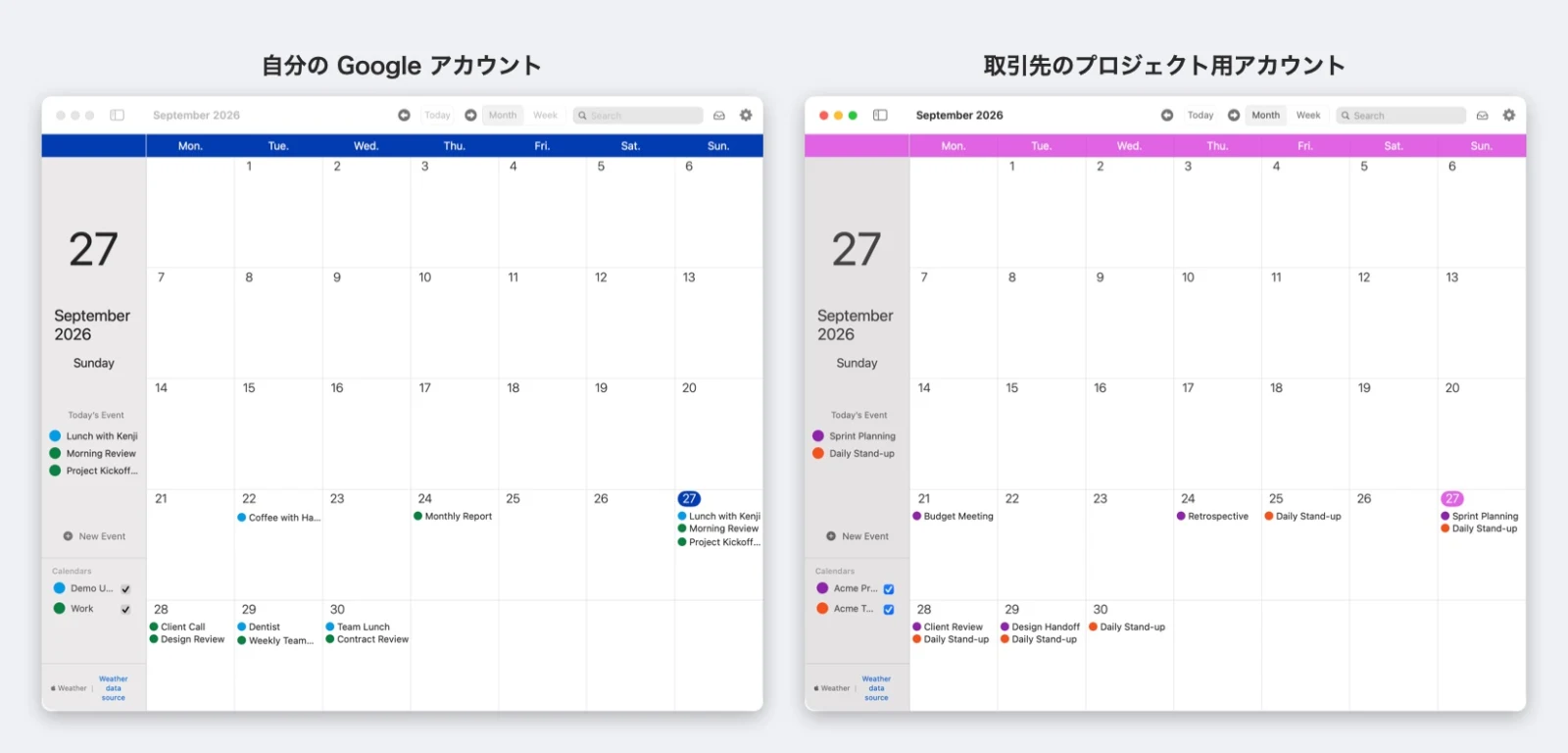
- No more mixing up accounts: new events are created in the account of the window you’re working in, so you’re less likely to put a personal errand on a client’s calendar
- Give each account its own window color: you can set the Theme Color (Green, Blue, Red, Pink) and First Day of Week for each account. Make your own account blue and the client’s account pink, and you can tell them apart at a glance
- When a project ends, sign out of just that account: in Settings, go to Account and click Sign Out, and only that account’s window returns to the sign-in screen. No need to touch System Settings
Personal events in Calendar on your Mac, work events in Galna. And when you take on more work accounts, Galna just needs one more window.
Galna is not an official app provided by Google LLC. Google Calendar, Google Meet and Google Workspace are trademarks of Google LLC.