To turn an answer from an AI such as ChatGPT or Claude into a Word document, ask the AI to “write it in Markdown” and paste its answer into Markdocx, then export it to “Word (.docx)”. Headings become Word heading styles, tables become Word tables and bulleted lists become Word lists. Mermaid diagrams go in as images, and the whole conversion happens on your computer.
You have AI draft a report, meeting minutes or a comparison table, and you want to hand it in as is, in your company’s Word formatting. This article explains how to do that, how each part comes out in Word and what to watch out for. Markdocx is a Mac and Windows app from MW Products.
Why don’t AI answers paste neatly into Word?
Many AI answers are put together in a format called Markdown. Markdown is text in which headings are written with symbols like “#”, bold with “**” and tables with “|”. If you paste it into Word with the symbols as they are, “#” and “|” show up as characters, and you don’t get headings or tables.
In October 2026, Microsoft announced that formatting would be kept when you copy and paste between Word and Markdown (for details, see “How do you open a .md file in Word?”). Even so, when you want to tidy up the content before pasting, include Mermaid diagrams too, or convert confidential documents without putting them into an outside service, going through Markdocx is the reliable way.
How to turn an AI answer into a Word document
- Ask the AI to “write it in Markdown”. If you need tables or diagrams, add something like “use a table for the comparison” or “show the flow as a Mermaid diagram”
- Copy the Markdown in the answer
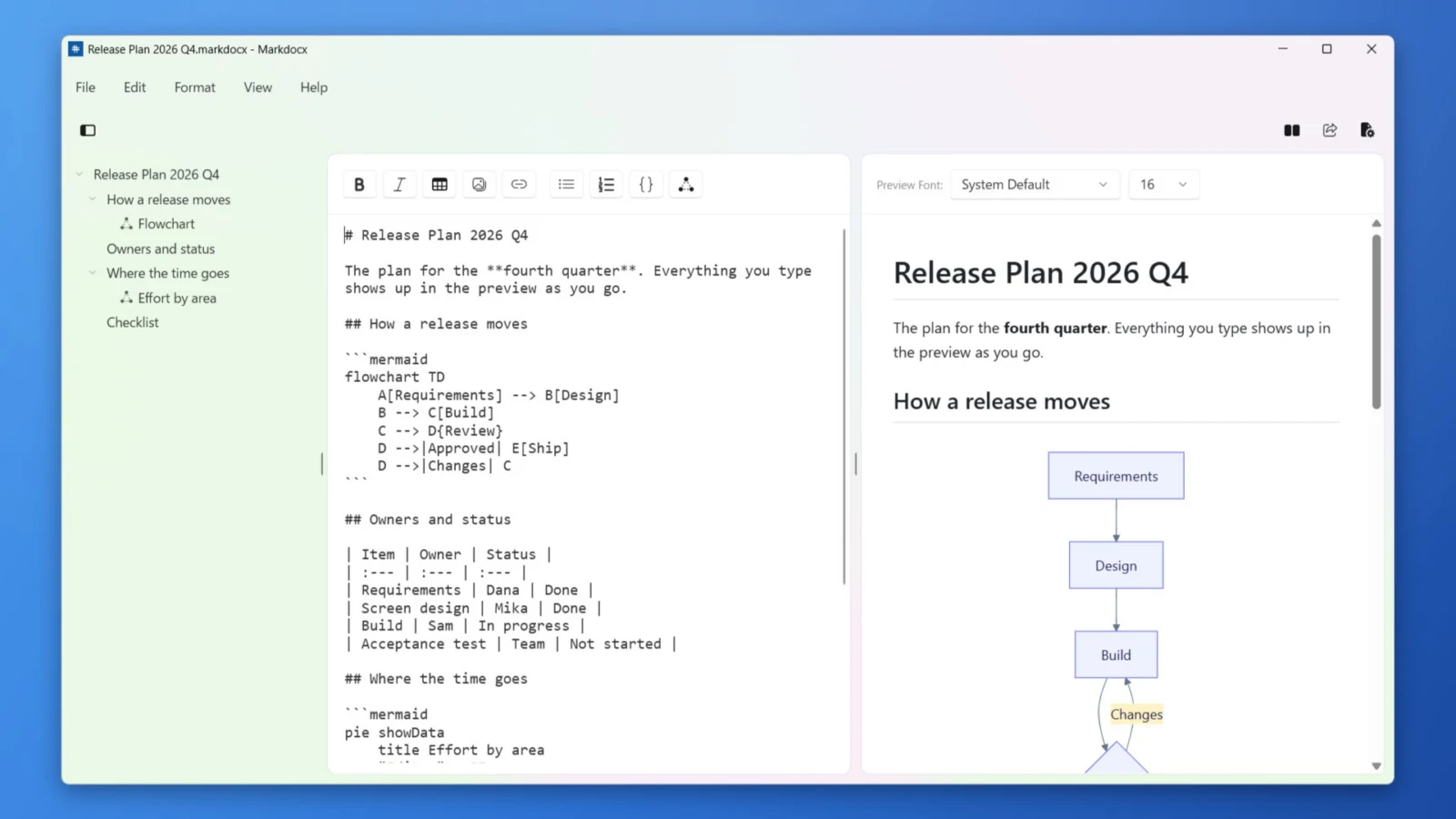
- Create a new document in Markdocx (Command + N on a Mac, Ctrl + N on Windows) and paste it into the editor on the left
- In the preview on the right, check how the headings, tables and diagrams look. You can fix wording and numbers right in the editor on the left
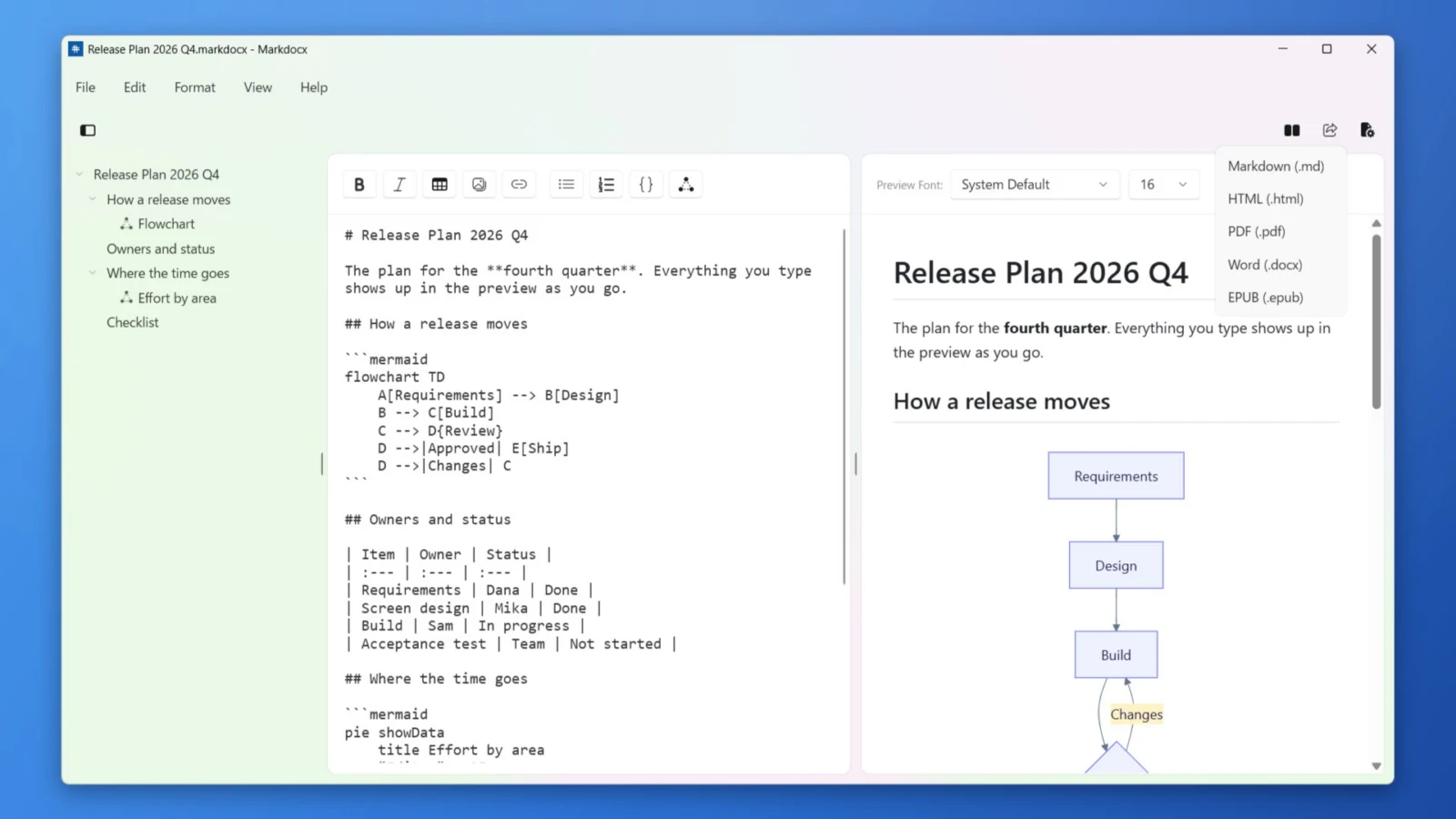
- Choose Word with the export button (“Export as Word” on a Mac, “Word (.docx)” on Windows), then choose where to save it
What does each part become in the Word document?
| AI answer (Markdown) | Exported Word document |
|---|---|
| Headings (#, ## …) | Word heading styles (Heading 1 to Heading 6). You can also use them for a table of contents in Word |
| Bulleted and numbered lists | Word lists |
| Tables (separated with |) | Word tables. When a table runs across pages, its header row appears on the next page too |
| Checklists (- [ ]) | Lists with ☐ and ☑ symbols |
| Code blocks | Paragraphs in a monospaced font |
| Mermaid diagrams | Images |
| Equations (LaTeX written with $…$) | They don’t become Word equations and go in as text, exactly as written |
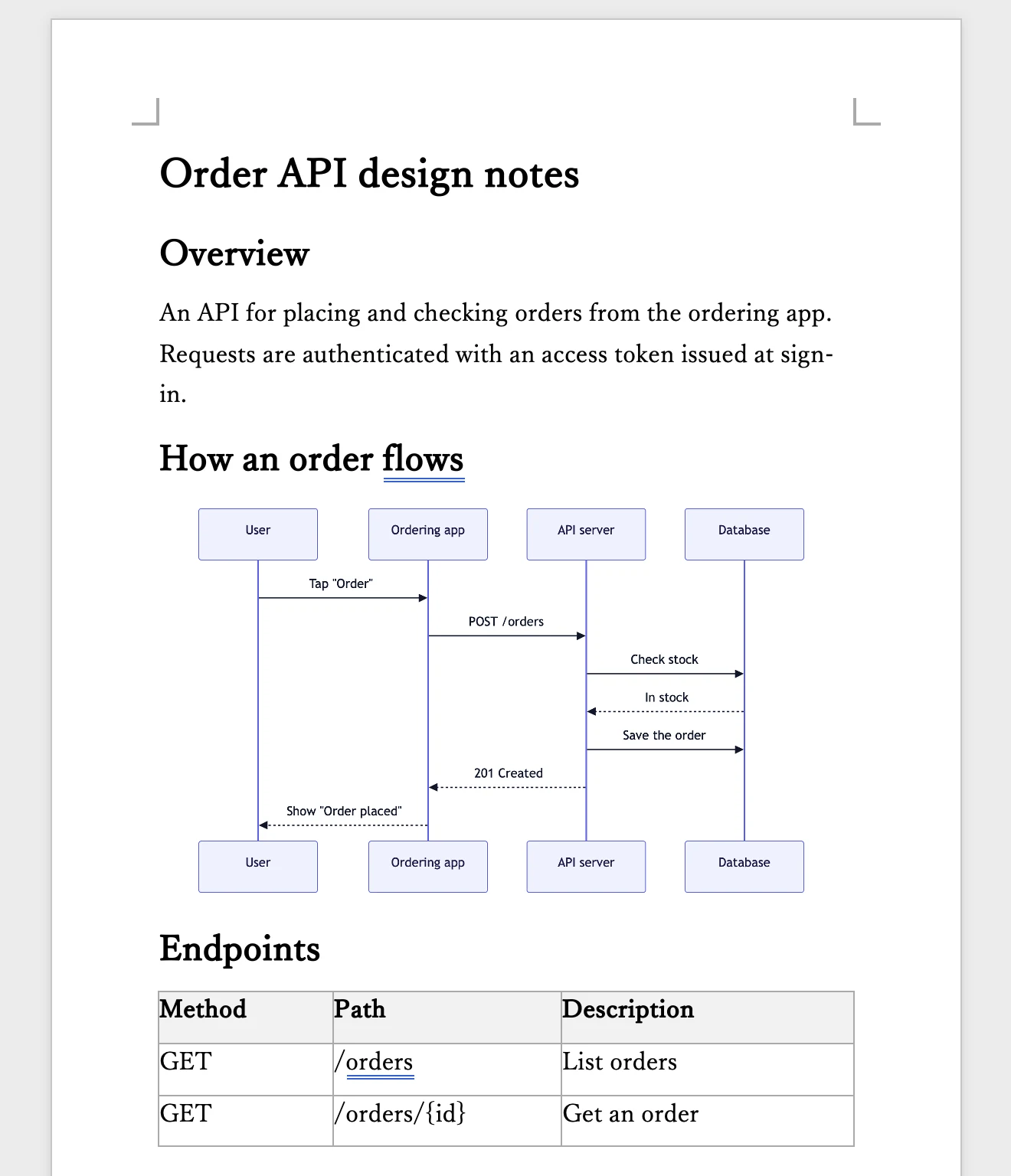
The body text is exported in the same font and size as the Markdocx preview. To match your company’s formatting, change the heading styles in Word, and the headings throughout the document change all at once.
Can you convert confidential content without it leaving your computer?
Yes. Markdocx creates both the Word document and the Mermaid diagrams on your computer. It doesn’t send your document to outside services or servers to convert it. For what information you may put into AI, follow your company’s rules. The conversion in Markdocx itself never leaves your computer.
If it doesn’t come out right
- No headings or tables: The answer may not be written in Markdown. Ask the AI again to “put it in a Markdown code block”
- Equations come in as symbols: They aren’t converted to Word equations. For documents with many equations, re-enter them with Word’s equation editor
- A diagram is missing: Check in the preview that the diagram part is written in Mermaid syntax. How to write Mermaid diagrams is covered in “Draw diagrams with Mermaid and export straight to Word with Markdocx”
Markdocx pricing and requirements
All features, including exporting to Word, are free for the first 14 days. After that, writing, reading, previewing and Mermaid diagrams stay free, and exporting to Word and other formats and importing Word files are unlocked with a one-time purchase. It isn’t a subscription. The Mac version (macOS 26 or later) is available from the Mac App Store, and the Windows version (for x64 and Arm64 PCs running Windows 11 or Windows 10 version 1809 or later) from the Microsoft Store. The Mac and Windows versions are purchased separately. The steps on a Mac are also covered in “3 ways to convert Markdown to Word (.docx) on Mac”.
Frequently asked questions
How do I paste a ChatGPT answer into Word cleanly?
You can ask ChatGPT to “write it in Markdown” and paste its answer into Markdocx, then export it to “Word (.docx)”. Headings become Word heading styles, and tables become Word tables.
Does this work with answers from Claude, Copilot or Gemini?
Yes. As long as the answer is written in Markdown, you can turn any AI’s answer into a Word document with the same steps. If it isn’t written in Markdown, ask the AI to “write it in Markdown”.
Do tables in AI answers become Word tables?
Yes. Markdown tables (tables separated with |) are exported as Word tables. When a table runs across pages, its header row appears on the next page too.
Do equations in AI answers become Word equations?
No. Equations written in LaTeX with $…$ and the like go in as text, exactly as written. Re-enter them with Word’s equation editor.
Is my document sent anywhere during the conversion?
No. Markdocx creates both the Word document and the Mermaid diagrams on your computer, and it doesn’t send your document to outside services to convert it.
Is exporting to Word with Markdocx free?
It’s free for the first 14 days. After that, exporting to Word and other formats requires a one-time purchase. Writing, reading and previewing stay free with no time limit.
Summary
- Many AI answers are written in Markdown, so if you paste them into Word with the symbols as they are, you don’t get headings or tables
- Ask the AI to “write it in Markdown”, paste the answer into Markdocx and export it to “Word (.docx)”, and you get a document in Word formatting
- Headings become heading styles, tables become Word tables and Mermaid diagrams go in as images. Equations don’t become Word equations
- The conversion happens on your computer, and your document isn’t sent to outside services
- Free for 14 days. After that, exporting is a one-time purchase (no subscription)