To make videos from AI video generators 4K and 60 fps, use an app that enlarges them with AI and fills in extra frames. ReMaster, an AI video upscaler app for iPhone, iPad, Mac and Windows, enlarges generated videos up to 4K entirely on your device, and turns 24 fps videos into 48 fps or 60 fps. There’s no need to upload your videos or buy credits.
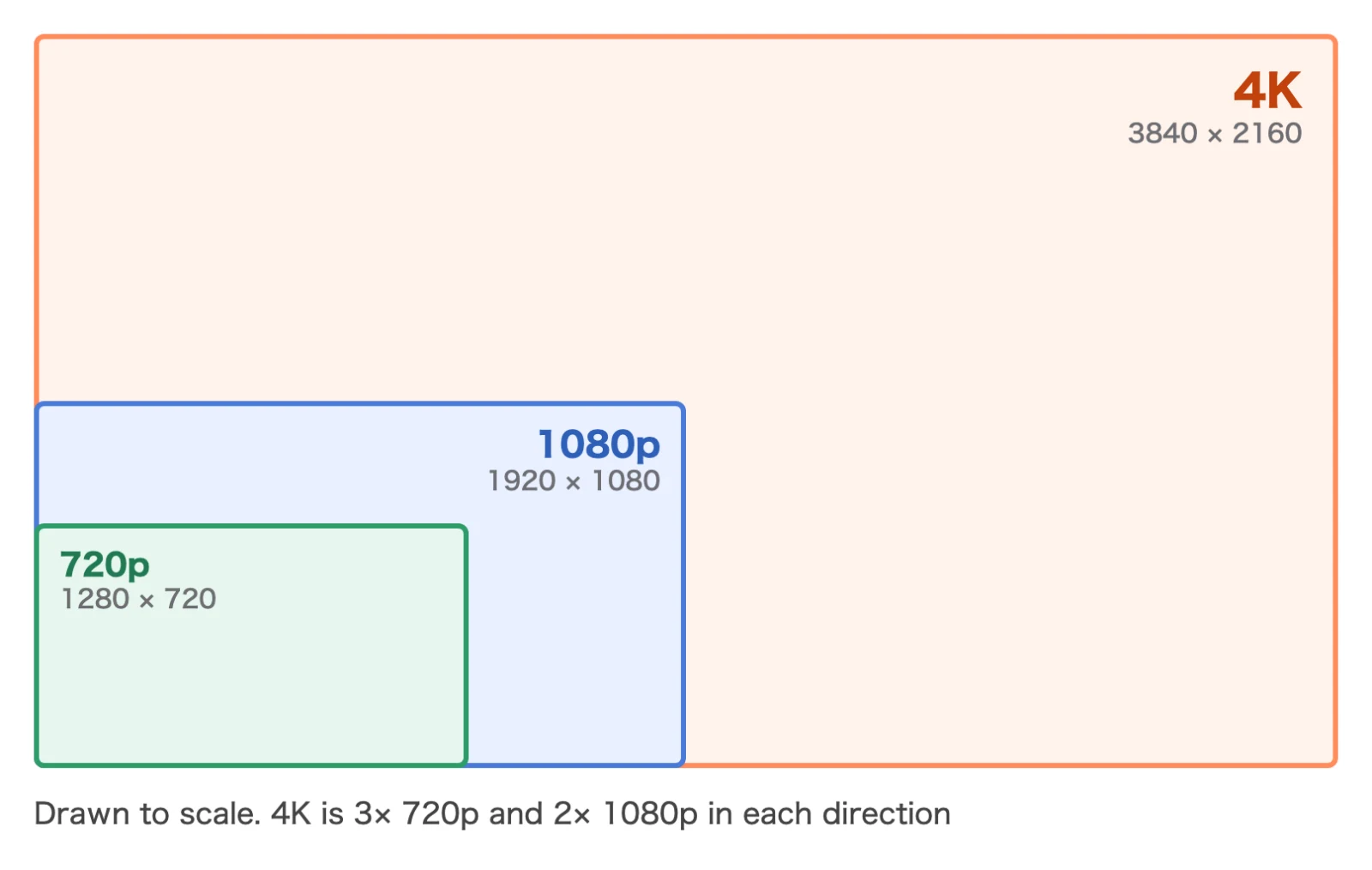
AI video generators often output 720p to 1080p at 24 fps, and on a 4K TV or a large monitor, fine detail can look lacking. This article covers examples of what generators output, how ReMaster differs from the tools’ own 4K upscaling, and the steps and things to watch for in ReMaster.
| Item | Details |
|---|---|
| Output of AI video generators (as of November 2026) | Often 720p to 1080p at 24 fps (varies by tool and plan) |
| What ReMaster does | Enlarges up to 4K (long side 3840). Turns 24 fps videos into 48 fps (×2) or 60 fps |
| Where it’s processed | On your device (no uploads, no credits) |
| Generator watermarks | Stay as they are. ReMaster doesn’t remove watermarks |
| Provenance data (C2PA) | May not be kept in the re-exported video |
| ReMaster price (as of November 2026) | Free (a watermark in the center of exported videos). ReMaster Premium, with no watermark, is a one-time purchase |
What resolution and frame rate do AI video generators output?
Here’s what the main AI video generators output, and how they handle 4K within the tool (as of November 2026, based on each company’s official information). This varies by plan and feature, so check each company’s page for the latest information.
| Tool | Output resolution | Frame rate | 4K within the tool |
|---|---|---|---|
| Google Veo 3.1 (Vertex AI) | 720p, 1080p, 4K | 24 fps | Can generate in 4K (some models) |
| Google Flow | 720p and others | — | 4K upscaling uses credits on the Ultra plan |
| Runway (Gen-4.5) | 720p | 24 fps | 4K upscaling on the Standard plan and above |
| Luma (Ray) | Up to 1080p | — | 4K uses credits |
| MiniMax Hailuo (H3) | 1440p (2K) | 24 fps | — |
OpenAI’s Sora has been discontinued (OpenAI). Any Sora videos you still have can be enhanced with ReMaster, just like any other video.
How is ReMaster different from a generator’s own 4K upscaling?
4K upscaling inside a generator is convenient because it happens on the same screen where you generate. But it may require a higher-tier plan, or use credits for each video.
- Processed on your device: ReMaster doesn’t send your videos anywhere. You can process unreleased work as it is
- As many times as you like, in batches: export again and again with different settings, without worrying about credits. Choose a folder to process many videos at once
- 60 fps, too: AI frame interpolation (RIFE) turns 24 fps videos into 48 fps or 60 fps
- Videos from other tools, too: whichever generator you made a video with, if it’s MP4 or MOV, you can process it with the same steps
How do you make a video 4K and 60 fps with ReMaster?
- Download the video from the generator at the highest quality available
- Choose the video in ReMaster. On iPhone and iPad, pick it from Photos or Files; on Mac and Windows, drop it onto the window
- Set the upscaling method to “AI Super Resolution” and the resolution to “4K (long side 3840)”
- For the frame rate, choose “×2 (Smoother)” or “Convert to 60 fps”. To keep it at 24 fps, choose “Unchanged”
- Press “Export”. The original video stays as it is, and a new video is exported
For details on the settings screen, see how to upscale videos on iPhone. To process many videos at once, see our article on Memory Remaster.
Should you keep 24 fps or go to 60 fps?
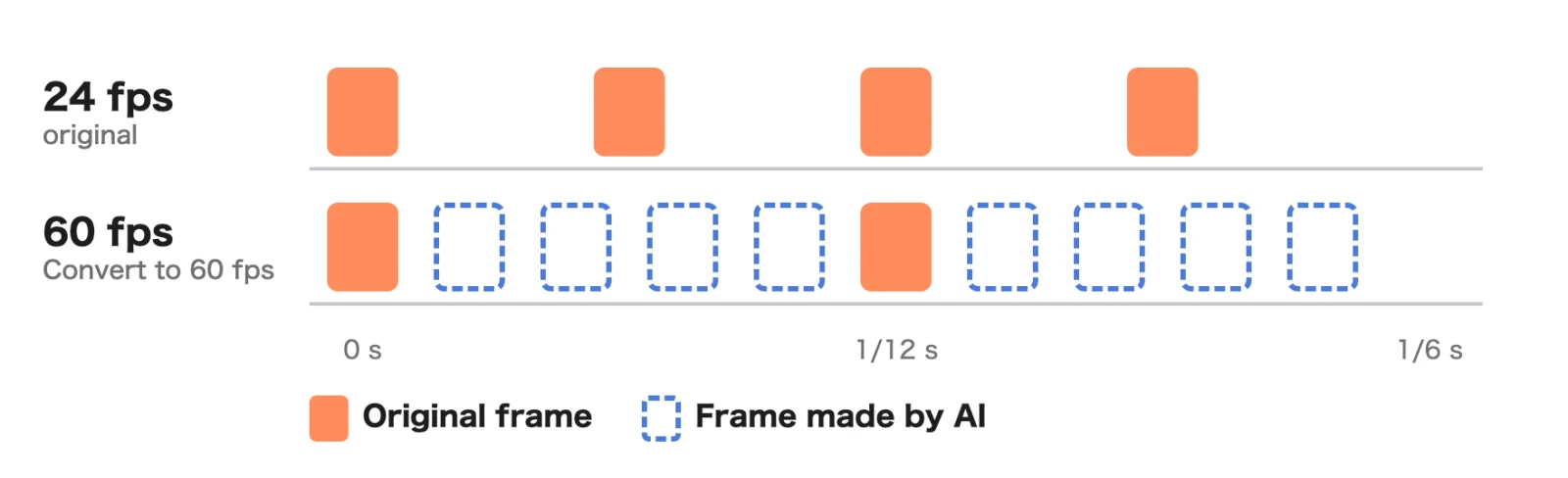
The 24 fps of AI video generators is the same frame rate as film. At 60 fps, motion gets smoother, but the cinematic look fades. Which is better depends on the work.
- To keep the cinematic look: choose “Unchanged” (24 fps) and take only the resolution up to 4K
- For a little more smoothness: choose “×2 (Smoother)” for 48 fps. All the original frames are kept, and one frame is added between each pair
- For smooth playback on TVs and smartphones: choose “Convert to 60 fps”
In fast-moving scenes, or scenes where objects suddenly appear or disappear, the frames AI creates can be distorted. After exporting, watch the whole video to check.
What should you watch out for when enhancing generated videos?
- Generator watermarks remain: ReMaster doesn’t remove watermarks. Some tools prohibit removing watermarks or labels in their terms of use. If you need a video without a watermark, follow the conditions of the tool’s plan
- Provenance data (C2PA) may not be kept: some generators attach provenance data (Content Credentials) to the file to show it was made with AI. This data may not be kept in the re-exported video. If you need to show that a video was made with AI, use the AI label on the platform where you post it, or a similar method
- Terms of use depend on the tool: whether you can use generated videos commercially varies by tool and plan
- Details are AI estimates: when enlarging, AI estimates further detail and draws it in. Check text and faces after exporting
- Watermark in ReMaster’s free version: videos exported with the free version get a ReMaster icon watermark in the center. To use them as finished work, buy ReMaster Premium, a one-time purchase, and the watermark is no longer added
How much does ReMaster cost, and what does it run on?
ReMaster is free to use. Videos exported with the free version get a ReMaster icon watermark in the center. Buy ReMaster Premium, a one-time purchase, and the watermark is no longer added. There’s no subscription. It runs on iPhone and iPad with iOS / iPadOS 26 or later, on Mac with macOS 26 or later, and on Windows 11 (22H2 or later). In the Windows version, AI Super Resolution and frame interpolation require a GPU that supports DirectX 12. Premium for Windows is purchased separately from the iPhone, iPad and Mac versions. For more on AI remastering itself, see our article on what “AI remastered” means.
Frequently asked questions
Can I make AI-generated videos 4K?
Yes. With ReMaster’s AI Super Resolution, you can enlarge generated videos at 720p or 1080p to 4K (long side 3840). Processing happens on your device, and there’s no need to upload your videos.
Can I turn a 24 fps generated video into 60 fps?
Yes. With ReMaster’s frame interpolation (RIFE), you can turn 24 fps videos into 60 fps, or into 48 fps with ×2. AI creates the frames in between from the frames before and after.
How is it different from a generator’s 4K upscaling?
A generator’s upscaling may require a higher-tier plan or credits. ReMaster processes the videos you already have on your device, so you can export as many times as you like, in batches, without using credits. It can also interpolate frames to 60 fps.
Does it remove a generator’s watermark?
No. ReMaster doesn’t remove watermarks. If you need a video without a watermark, follow the conditions of the generator’s plan.
Is ReMaster free to use?
Yes. ReMaster is free to use. Videos exported with the free version get a watermark in the center; with ReMaster Premium, a one-time purchase, the watermark is no longer added. There’s no subscription.
Summary
- AI video generators often output 720p to 1080p at 24 fps
- With ReMaster, you can enlarge generated videos up to 4K entirely on your device, and make them 48 fps or 60 fps
- Keep 24 fps for a cinematic look; choose 60 fps for smooth motion
- Generator watermarks aren’t removed, and provenance data (C2PA) may not be kept. Follow each tool’s terms of use