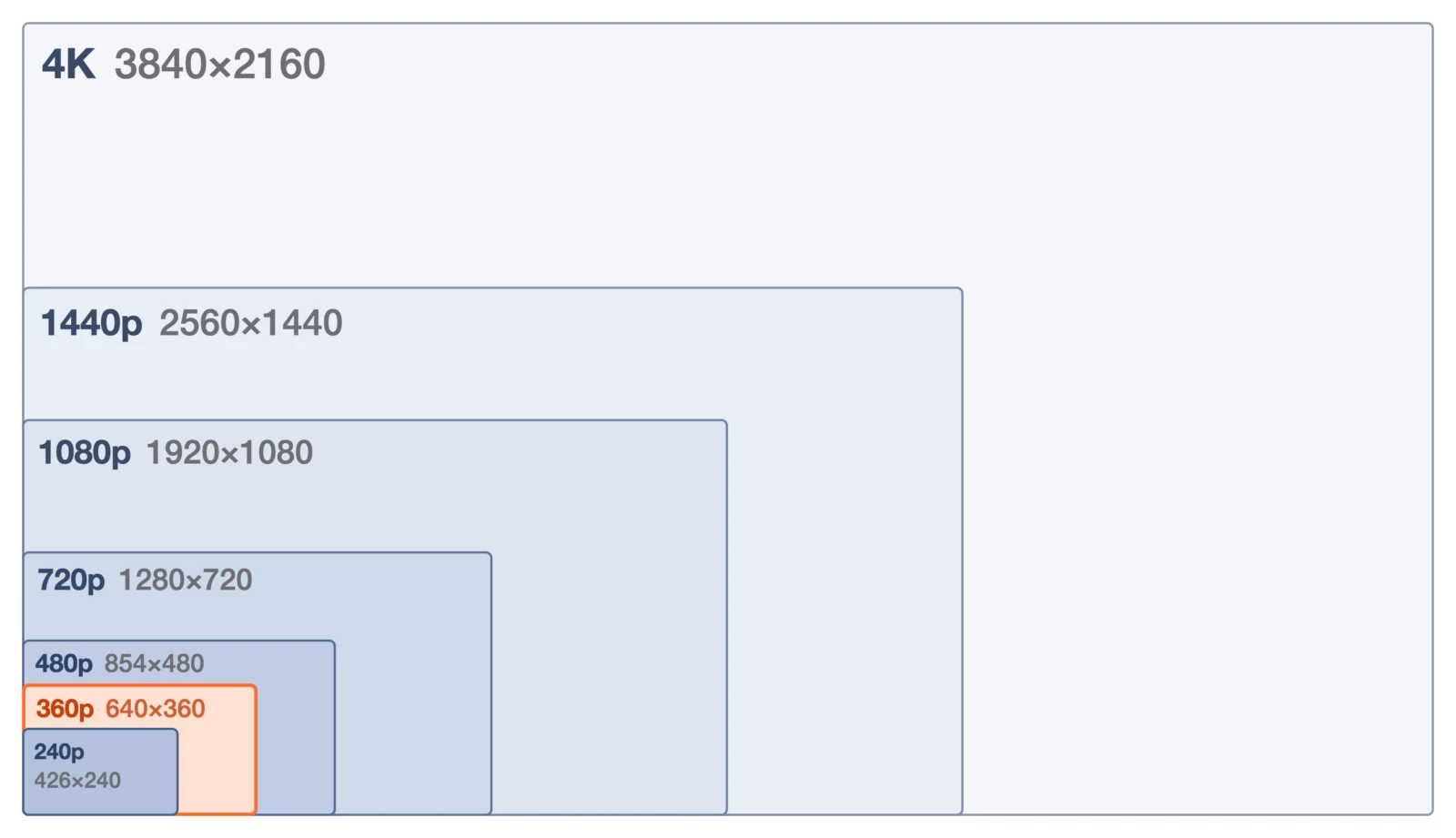
640×360 is a video resolution of 640 pixels across and 360 pixels down. Its aspect ratio is 16:9, and it’s usually called “360p”. It has 230,400 pixels: one ninth of Full HD (1920×1080) and one thirty-sixth of 4K (3840×2160). That’s why it looks rough and blurry when you play it full screen on a large display.
This article puts video resolutions from 240p to 8K into one chart, explains why low-resolution videos look rough when shown large, and walks through taking them to 4K with ReMaster, an AI video upscaling app for iPhone, iPad, Mac and Windows. It also covers what AI upscaling can’t do.
| Item | Details |
|---|---|
| What 640×360 is | A 16:9 resolution, 640 pixels wide and 360 pixels tall. Called 360p |
| Pixel count | 230,400 (a quarter of 720p, a ninth of 1080p, a thirty-sixth of 4K) |
| How it differs from 480p | 480p is 480 pixels tall: 854×480 at 16:9, 640×480 at 4:3 |
| Why it looks rough | Full screen on a 4K display, it’s stretched 6 times in each direction |
| How to make it sharper | Enlarge it with AI super resolution. ReMaster takes 640×360 up to 4K (3840×2160) and 60fps |
| What AI can’t do | Bring back detail that was never recorded. AI estimates the detail and draws it in |
What is 640×360? A 16:9 resolution called 360p
A video’s resolution tells you how many pixels (dots) each frame has across and down. A 640×360 video has 640 pixels across and 360 down, 230,400 in total. 640:360 simplifies to 16:9, the same wide shape as today’s TVs and computer screens.
In “360p”, the number is the height in pixels, and the “p” stands for progressive (each frame is recorded in one pass). In the same way, 1280×720 is called 720p and 1920×1080 is called 1080p. You may also see it written as “640×360” or “640*360”: it’s the same size.
What video resolutions are there? (A chart from 240p to 8K)
Here are common video resolutions, from smallest to largest. “Compared with 360p” shows how many times as many pixels each one has as 640×360.
| Name | Width × height (pixels) | Aspect ratio | Pixels | Compared with 360p |
|---|---|---|---|---|
| 240p (QVGA) | 320×240 | 4:3 | 76,800 | ≈0.33× |
| 240p | 426×240 | 16:9 | 102,240 | ≈0.44× |
| 360p | 640×360 | 16:9 | 230,400 | 1× |
| 480p (VGA) | 640×480 | 4:3 | 307,200 | ≈1.3× |
| 480p | 854×480 | 16:9 | 409,920 | ≈1.8× |
| DVD | 720×480 | 4:3, 16:9 (*) | 345,600 | 1.5× |
| 720p (HD) | 1280×720 | 16:9 | 921,600 | 4× |
| 1080p (Full HD) | 1920×1080 | 16:9 | 2,073,600 | 9× |
| 1440p (WQHD) | 2560×1440 | 16:9 | 3,686,400 | 16× |
| 4K (UHD) | 3840×2160 | 16:9 | 8,294,400 | 36× |
| 8K | 7680×4320 | 16:9 | 33,177,600 | 144× |
* 720×480 is the DVD size in the NTSC system, used in North America and Japan. In the PAL system, used in Europe and elsewhere, it’s 720×576. Both use pixels that aren’t square to show the picture at 4:3 or 16:9. Also, 4K on TVs and monitors is 3840×2160, while the cinema standard (DCI 4K) is 4096×2160.
Is 480p 640×480 or 854×480?
480p is the name for resolutions 480 pixels tall, and the width depends on the aspect ratio. At 4:3, the shape of older TVs, it’s 640×480 (also called VGA); at 16:9 it’s 854×480. 854 is an even number close to 480 × 16 ÷ 9 = 853.3…. 640×480 videos from digital cameras and similar devices are 4:3, so on a 16:9 screen there’s empty space on the left and right.
Where do you come across low-resolution videos?
Low-resolution videos are often ones shot with older devices, or ones made smaller when they were sent or saved. Here are some common examples.
| Resolution | Where you often see it |
|---|---|
| Around 240p (such as 320×240) | Videos from old feature phones and early digital cameras |
| 360p (640×360) | Videos on video sites with the quality turned down, videos exported at a small size to save space, and videos made smaller when sent through messaging apps and the like (depending on the app and settings) |
| 480p (640×480, 854×480) | Movie modes of digital cameras from the 2000s, videos from early smartphones |
| 720×480 | DVDs, DV (MiniDV) camcorders |
| 720p (1280×720) | Early HD videos (digital cameras, smartphones), output from some AI video generators (our article on AI-generated videos) |
| 1080p and above | Today’s smartphones and cameras, Blu-ray, Full HD and 4K TVs |
To check the resolution of a video you have, open it in ReMaster: the resolution, such as “640 × 360”, appears under the file name. You can also check it in the Details tab of the file’s Properties on Windows, or with Get Info in the Finder on Mac. If a video on a video site looks rough, first check the player’s quality setting. The quality can drop automatically depending on your connection.
Why do low-resolution videos look rough on a big screen?
Whether on a phone or a TV, we usually watch videos filling the screen. Full screen on a Full HD (1920×1080) display, a 640×360 video is stretched 3 times in each direction; on a 4K (3840×2160) display, it’s stretched 6 times, so one original pixel covers the space of 36.
When stretching, the player or the screen fills in the missing pixels by calculating colors from the surrounding pixels. No new detail is created, so edges blur and the whole picture looks soft. Blocky compression artifacts get enlarged along with it (why convert a 640×360 video to 4K).
What’s the difference between simply enlarging and upscaling with AI?
There are two ways to make a video larger: ordinary enlargement, and enlargement with AI (super resolution).
| Ordinary enlargement | AI upscaling (super resolution) | |
|---|---|---|
| How it works | Fills the gaps between pixels by calculating colors from the surrounding pixels (bilinear, Lanczos, etc.) | An AI trained on many images estimates edges and textures and draws them in |
| Result | The picture gets bigger, but detail doesn’t increase. The more you enlarge, the blurrier it gets | Edges get crisper, and blur and compression artifacts become less noticeable |
| Time | Finishes right away | Takes time, since the AI processes one frame at a time |
| Caveat | — | The detail it draws in is an estimate, so it may not match the original scene |
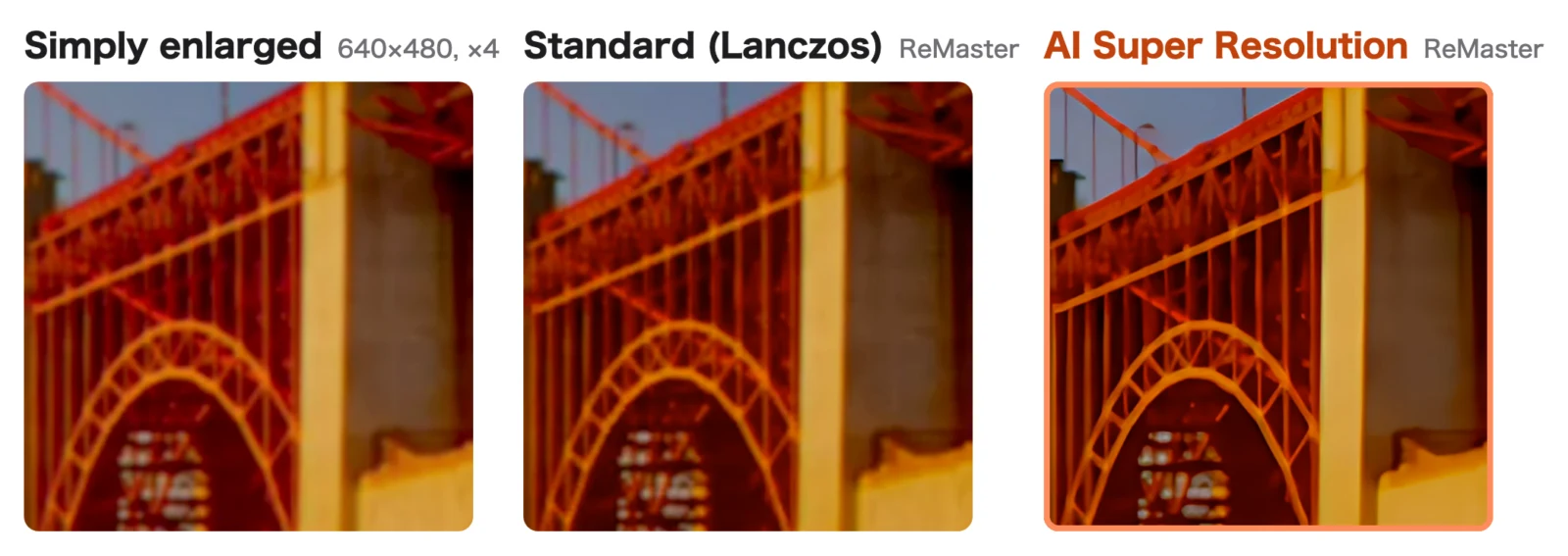
ReMaster’s AI Super Resolution uses an AI model called Real-ESRGAN to enlarge each frame 4 times in each direction, then fits it to the size you chose. Anything beyond 4 times (the remaining 1.5 times when taking 640×360 to 4K) is made up with ordinary enlargement (Lanczos). How AI upscaling works, and how it differs from traditional remastering, is covered in What is an “AI remastered” version?.
How do you upscale a 640×360 video to 4K with ReMaster?
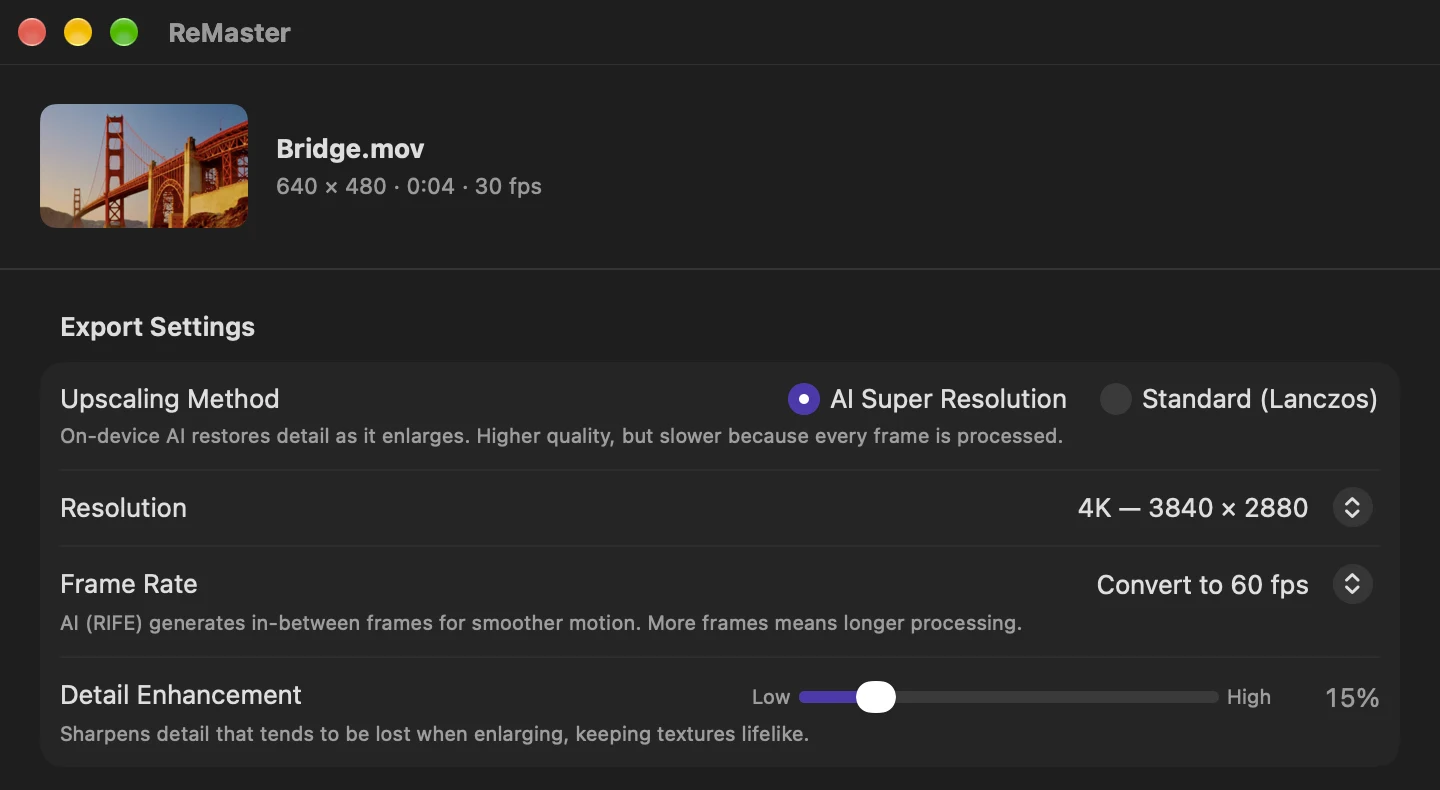
- Choose a video. On iPhone and iPad, pick it from the Photos app or Files; on Mac and Windows, drop it onto the window
- Choose “AI Super Resolution” as the upscaling method
- Choose “4K — 3840 × 2160” as the resolution (the other options are in the table below)
- For smoother motion, choose “Convert to 60 fps” under Frame Rate
- Press “Export”: a new video is exported, and the original video stays as it is
| Resolution option | Size | Times the original (each direction) |
|---|---|---|
| Original size (quality only) | 640×360 | 1× |
| HD | 1280×720 | 2× |
| Full HD | 1920×1080 | 3× |
| WQHD | 2560×1440 | 4× (exactly the AI’s enlargement) |
| 4K | 3840×2160 | 6× |
All processing happens on your device, and your videos are never sent to a server. For the steps on iPhone and how it works, see How to enhance old videos on iPhone. For videos sorted into folders by year, see Memory Remaster, and for WMV and MPG videos from old camcorders, see How to enhance camcorder videos.
Which size should you choose?
- Start with a short video: AI Super Resolution processes one frame at a time, so upscaling to 4K takes the longest. Start with a short video to get a feel for the results and the time it takes
- Match the screen you’ll watch on: if you’ll watch on a Full HD TV or computer, Full HD (1920×1080) is enough. For a 4K TV, choose 4K
- Don’t overdo it with very small videos: when you take a 320×240 video to 4K (3840×2880), the AI enlarges it 4 times, and ordinary enlargement makes up the remaining 3 times. Even Full HD or so can make a striking difference
What can and can’t ReMaster do?
What it can do
- Enlarge low-resolution videos such as 640×360 up to 4K (long side 3840) with AI Super Resolution
- Turn 30fps videos into 60fps (AI frame interpolation)
- Make photos (JPEG, PNG) sharper with the same AI
- Process all the videos and photos in a folder at once by choosing the whole folder (Memory Remaster)
- Open MOV, MP4 and M4V files. WMV too on Mac and Windows, and MPG and MPEG on Windows
What it can’t do
- It can’t fully bring back lost detail: AI estimates detail and draws it in, so the detail may differ from the original scene. Check small faces and fine text with particular care
- It doesn’t fix out-of-focus or shaky footage: footage that was blurry to begin with changes only modestly, and shaky footage gets bigger but stays shaky
- It doesn’t change the aspect ratio: 4:3 videos stay 4:3 as they get bigger (for 640×480, 4K is 3840×2880)
- It doesn’t correct faded colors or colorize black-and-white footage: what it does is enlarge, sharpen and interpolate frames
- Some formats can’t be opened: convert AVI, MTS, VOB, 3GP and others to MP4 or a similar format before importing
Also, making a video sharper doesn’t make the rights in the original footage go away. Use ReMaster on videos you’re allowed to use, such as ones you shot yourself. To edit and publish footage that someone else holds the rights to, you need the rights holder’s permission.
How much does ReMaster cost, and what does it run on?
ReMaster is free to use. Videos exported with the free version get a ReMaster icon watermark in the center. Photos don’t. Buy ReMaster Premium, a one-time purchase, and videos no longer get the watermark either. There’s no subscription. It runs on iPhone and iPad with iOS / iPadOS 26 or later, on Mac with macOS 26 or later, and on Windows 11 (22H2 or later). In the Windows version, AI Super Resolution and frame interpolation need DirectX 12 graphics. Premium for Windows is purchased separately from the iPhone, iPad and Mac version (our article on the Windows version).
Frequently asked questions
Is 640×360 the same as 360p?
Yes. 640×360 is a 16:9 resolution, 640 pixels wide and 360 pixels tall, and it’s called 360p. It has 230,400 pixels: a quarter of 720p (1280×720), a ninth of 1080p (1920×1080) and a thirty-sixth of 4K (3840×2160).
Is 480p 640×480 or 854×480?
Both are 480p. At a 4:3 aspect ratio it’s 640×480, and at 16:9 it’s 854×480. DVDs in the NTSC system (North America, Japan) are 720×480 and are shown at 4:3 or 16:9.
How big is the difference between 720p and 1080p?
1080p (1920×1080) is 1.5 times 720p (1280×720) in each direction, with 2.25 times as many pixels. 4K (3840×2160) is twice 1080p in each direction, with 4 times as many pixels.
Can you convert a 640×360 video to 4K?
Yes. In ReMaster, choose “AI Super Resolution” as the upscaling method and “4K — 3840 × 2160” as the resolution, then export. The AI enlarges the video 4 times in each direction, and ordinary enlargement makes up the rest. It can also turn 30fps videos into 60fps. Processing happens on your device.
Does AI upscaling restore the original quality?
No. Detail that was never recorded can’t be brought back as it was. AI estimates detail and draws it in, so even when the result looks crisp, the detail may differ from the original scene.
Where can I check a video’s resolution?
Open the video in ReMaster and the resolution appears under the file name. You can also check it in the Details tab of the file’s Properties on Windows, or with Get Info in the Finder on Mac.
Is ReMaster free to use?
Yes. ReMaster is free to use. Videos exported with the free version get a watermark in the center; ReMaster Premium, a one-time purchase, removes it. There’s no subscription.
Summary
- 640×360 is 16:9 360p, with 230,400 pixels: a thirty-sixth of 4K
- 480p is 640×480 at 4:3 and 854×480 at 16:9. DVDs are 720×480
- Played full screen on a 4K display, a low-resolution video is stretched 6 times in each direction, so it looks rough
- ReMaster’s AI Super Resolution takes 640×360 videos up to 4K and 60fps, but lost detail is drawn in by estimation