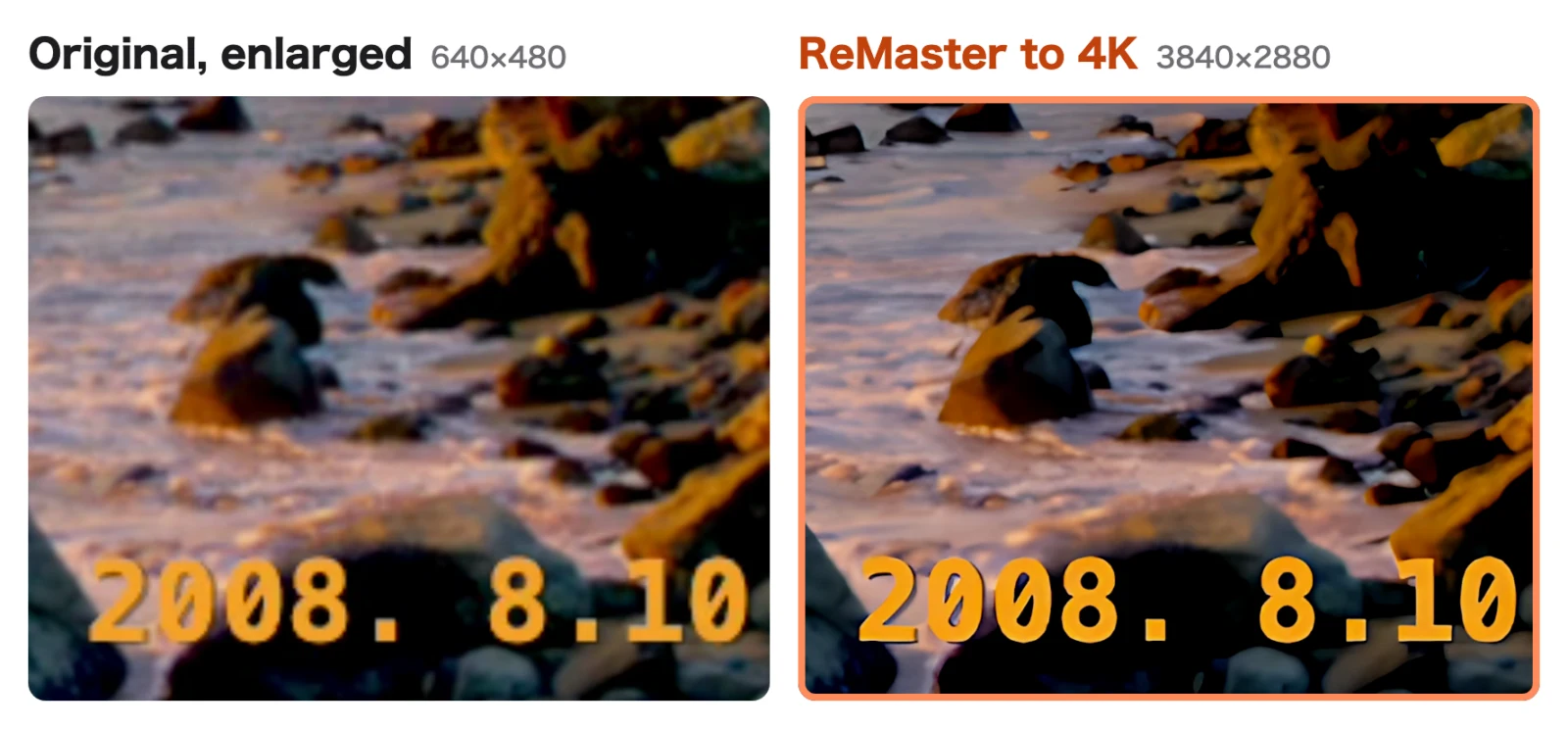
To upscale videos from old camcorders and digital cameras, use an app that enlarges them with AI. ReMaster is an AI video upscaling app for iPhone, iPad, Mac and Windows. It enlarges 640×480 and 720×480 videos up to 4K, and turns 30fps videos into 60fps. The Windows version opens WMV and MPG/MPEG files directly, and with interlaced camcorder footage, it automatically removes the stripes before enlarging. All processing happens on your device, and your videos are never sent anywhere.
If your videos are sorted into folders by year or by event, just choose the whole folder to make them all sharper at once, with the folder structure kept as it is. This article covers the formats and problems common to old videos, and the steps in ReMaster.
| Item | Details |
|---|---|
| For | Low-resolution videos shot or exported with old camcorders, digital cameras and computers |
| Videos it opens (as of November 2026) | MOV, MP4, M4V (all devices), WMV (Mac, Windows), MPG, MPEG (Windows) |
| Videos it can’t open | AVI, MTS (AVCHD), VOB, 3GP and others. Convert them to MP4 or a similar format before importing |
| Interlacing | The Windows version deinterlaces automatically before enlarging. The Mac, iPhone and iPad versions don’t deinterlace |
| Output | Up to 4K (long side 3840), 60fps |
| Batch processing | Memory Remaster (processes every video and photo inside, keeping the folder structure) |
| Price (as of November 2026) | Free. ReMaster Premium, which removes the watermark from exported videos, is a one-time purchase (no subscription) |
Why do old videos look rough on today’s TVs?
Videos from old camcorders are often 720×480, and videos from digital cameras are often 640×480 or 320×240. Shown full screen on a 4K TV (3840×2160), they are stretched more than 4.5 times vertically, so edges look blurry (why convert a 640×360 video to 4K).
On top of that, camcorder footage is often recorded with a method called interlacing, and in scenes with motion, jagged edges appear as horizontal stripes. If you don’t remove these stripes before enlarging, the stripes get enlarged too.
Common formats of old videos, and whether ReMaster opens them
| Format | Commonly used for | iPhone, iPad | Mac | Windows |
|---|---|---|---|---|
| MOV, MP4, M4V | Digital cameras, smartphones, exports from editing software | ○ | ○ | ○ |
| WMV | Exports from Windows software such as Windows Movie Maker | × | ○ | ○ |
| MPG, MPEG | Camcorder import software, exports from PC software | × | × | ○ |
| AVI, MTS, VOB, 3GP | DV capture, AVCHD camcorders, DVDs, mobile phones | × | × | × |
The Mac version first converts WMV inside the app, then processes it. For videos in formats it can’t open, convert them to MP4 with a converter such as HandBrake, then import them.
Can you remove the horizontal stripes from interlaced footage?
Interlacing records each picture in two passes: the odd lines and the even lines. If the subject or the camera moves between the two passes, pictures that are slightly offset line by line overlap, and horizontal stripes appear along edges.
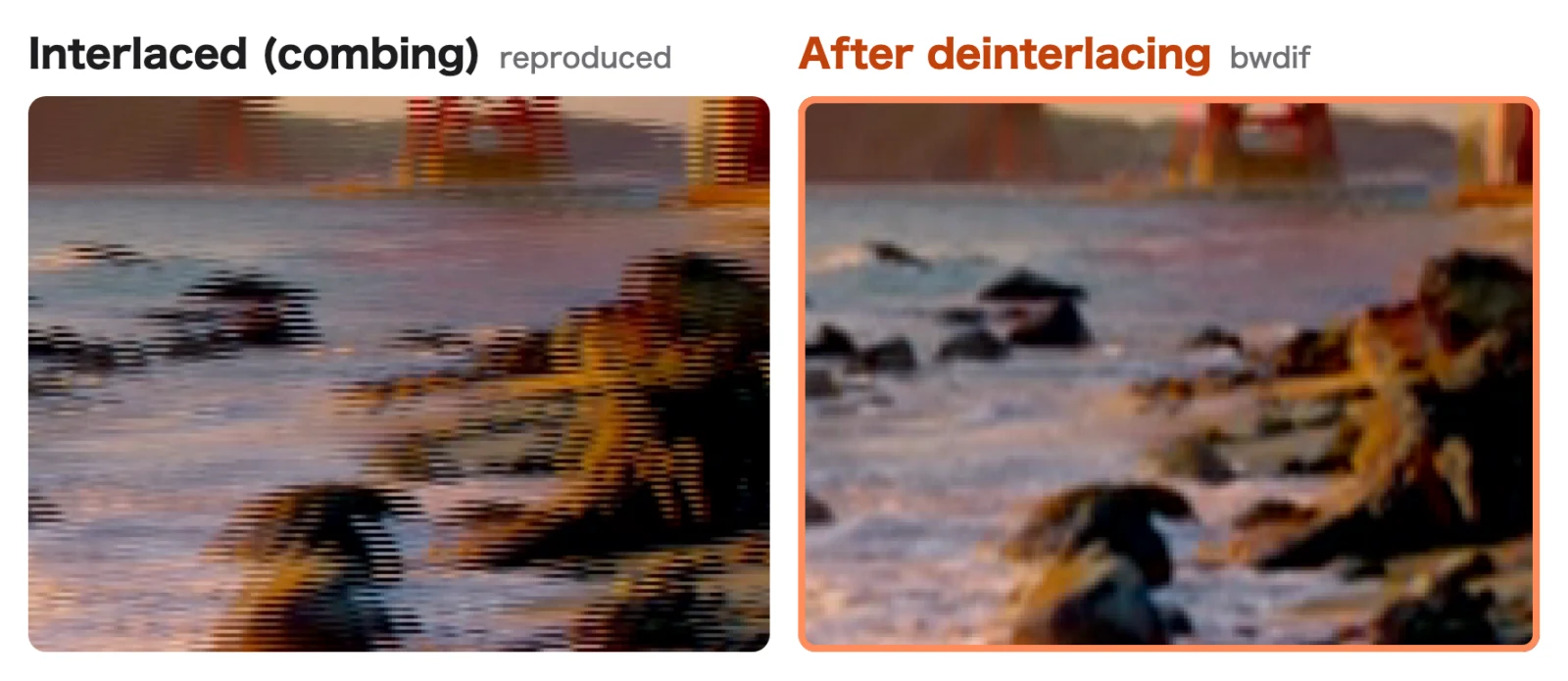
The Windows version of ReMaster removes the stripes with a method called bwdif before enlarging, but only when the frames it reads are interlaced. Footage that isn’t interlaced is left untouched. After deinterlacing, the video has the same number of frames as the original (30 frames per second, for example). Choose “Convert to 60 fps” and AI creates in-between frames, so motion gets smoother too.
The Mac, iPhone and iPad versions don’t deinterlace, so we recommend processing interlaced camcorder footage with the Windows version.
How do you upscale old videos to 4K with ReMaster?
One video at a time
- Choose a video. On iPhone and iPad, pick it from the Photos app or Files; on Mac and Windows, drop it onto the window
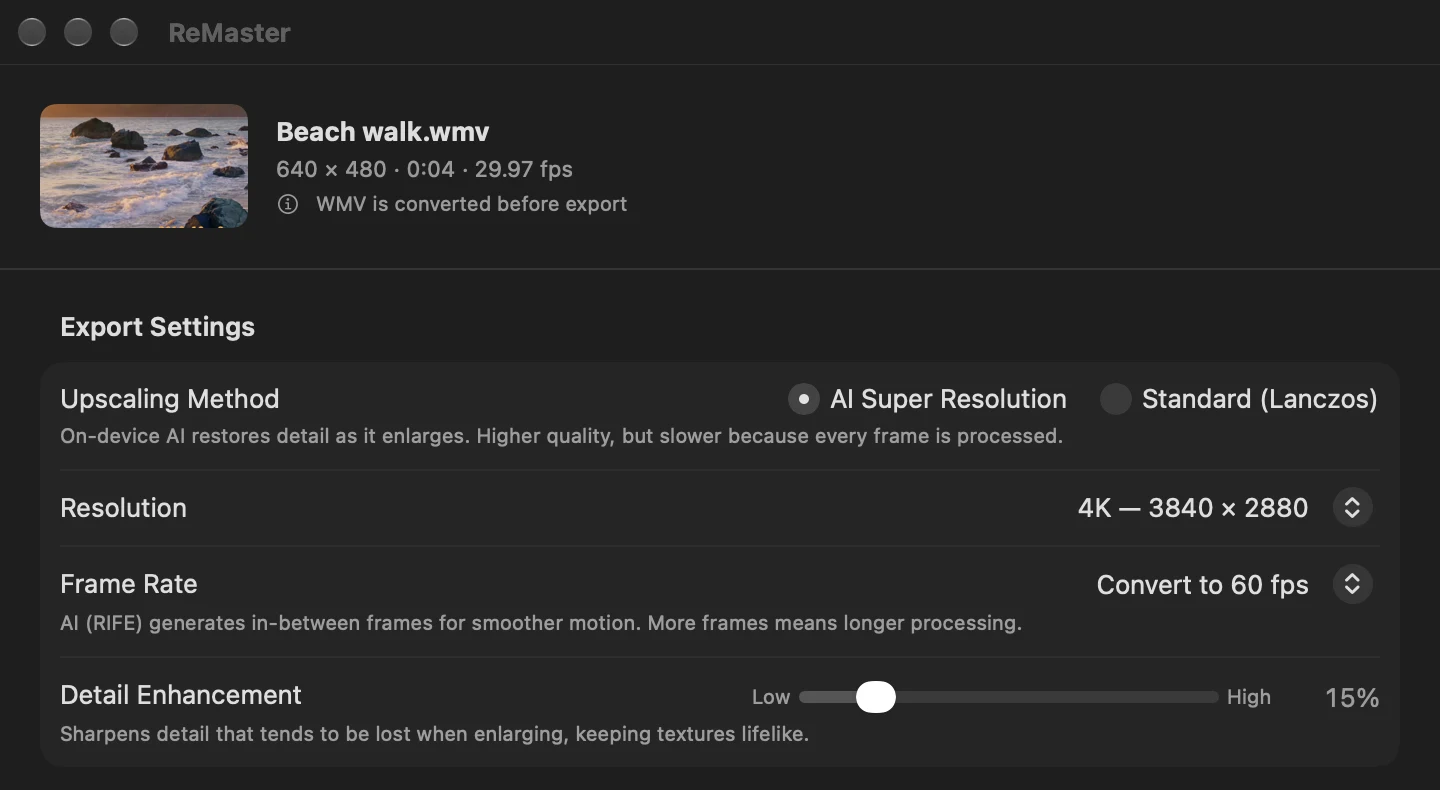
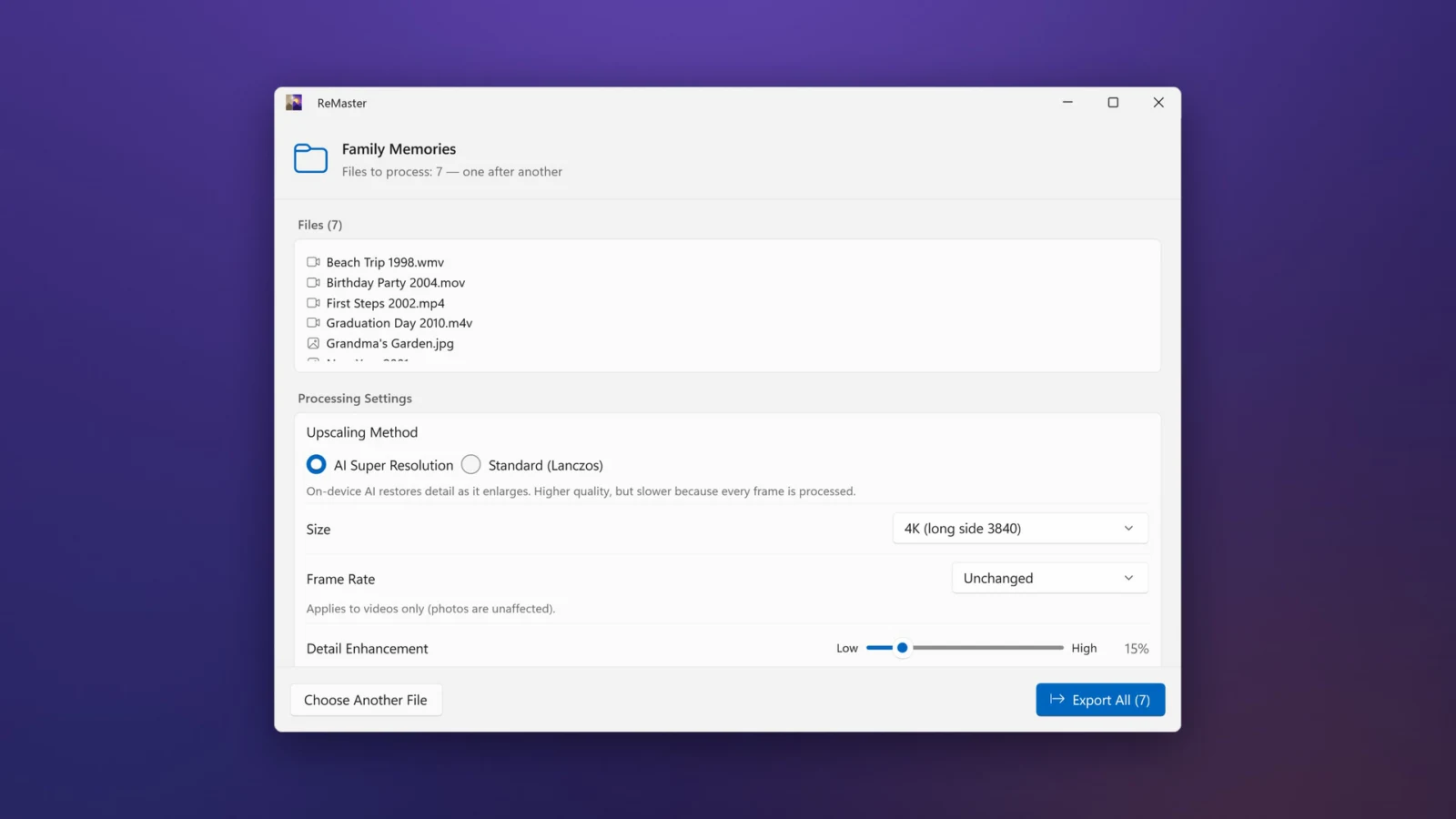
- Choose “AI Super Resolution” as the upscaling method and “4K (long side 3840)” as the resolution
- For smoother motion, choose “Convert to 60 fps” under Frame Rate
- Press “Export”: a new video is exported, and the original video stays as it is
A whole folder at once
For videos sorted into folders by year or by event, Memory Remaster lets you choose the whole folder. It goes through every folder inside, processes all the videos and photos, and saves them in the folder to save to with the same folder structure and the same file names. The original folder is left untouched (our article on Memory Remaster).
Tips for upscaling old videos
- Start with a short test: AI Super Resolution processes one frame at a time, so long videos and upscaling to 4K take a while. Start with a short video to get a feel for the results and the time it takes
- Don’t enlarge too much: small videos such as 320×240 can look transformed even at “×2” or “Full HD (long side 1920)”
- Keep the original videos: ReMaster doesn’t overwrite the original video, but keep the original files too, separately from the exported videos
- Photos, too: the same AI makes photos sharper too. Exported photos never get a watermark, even in the free version
How much does ReMaster cost, and what does it run on?
ReMaster is free to use. Videos exported with the free version get a ReMaster icon watermark in the center. Buy ReMaster Premium, a one-time purchase, and the watermark is no longer added. There’s no subscription. It runs on iPhone and iPad with iOS / iPadOS 26 or later, on Mac with macOS 26 or later, and on Windows 11 (22H2 or later). In the Windows version, AI Super Resolution and frame interpolation need DirectX 12 graphics. Premium for Windows is purchased separately from the iPhone, iPad and Mac version (our article on the Windows version).
Frequently asked questions
Can ReMaster improve the quality of old camcorder videos?
Yes. ReMaster can upscale low-resolution videos such as 720×480 and 640×480 up to 4K with AI Super Resolution. It can also turn 30fps videos into 60fps. Processing happens on your device.
Can ReMaster open WMV and MPG videos?
WMV opens in the Mac and Windows versions. MPG and MPEG open in the Windows version. The iPhone and iPad version supports MOV, MP4 and M4V videos.
Can you remove the horizontal stripes from interlaced footage?
The Windows version of ReMaster automatically detects interlaced frames and removes the stripes before enlarging. The Mac, iPhone and iPad versions don’t deinterlace, so we recommend processing interlaced footage with the Windows version.
What should I do with AVI or MTS videos?
ReMaster can’t open AVI, MTS, VOB or 3GP. Convert them to MP4 with a converter such as HandBrake, then open them in ReMaster.
Does processing with ReMaster overwrite the original video?
No. ReMaster exports a new file, so the original video doesn’t change.
Is ReMaster free to use?
Yes. ReMaster is free to use. Videos exported with the free version get a watermark in the center; ReMaster Premium, a one-time purchase, removes it. There’s no subscription.
Summary
- ReMaster’s AI Super Resolution takes old camcorder and digital camera videos up to 4K and 60fps
- WMV opens directly in the Mac and Windows versions, and MPG and MPEG in the Windows version
- The Windows version automatically removes horizontal interlace stripes before enlarging
- Batch processing of whole folders (Memory Remaster) improves quality while keeping the folder structure